








Your WebsiteGuide 11 of 11
Website Visitors
How many people visit your website, where they come from, what they look at, and what they search for on Google.
What This Is For
The Analytics page answers the questions most breeders have about their website. Is anyone coming? Where do they come from? Which puppies and pages do they look at? What did they type into Google? And what did they do next: apply, pay a deposit, or tap your phone number.
It is written in plain words. There is nothing to learn first.
Where to Find It
Choose Analytics in the dashboard sidebar. On a phone, open More and choose Analytics. You can also search for “analytics” or “visitors”.
There Is Nothing to Set Up
Whelpify counts visits to your website itself. Counting is on for every live website, and there is no code to paste and no account to make. Until your first visitor arrives, the page says Counting is on and suggests a few ways to bring people in.
A new visit shows up within about a minute.
A Tour of the Page
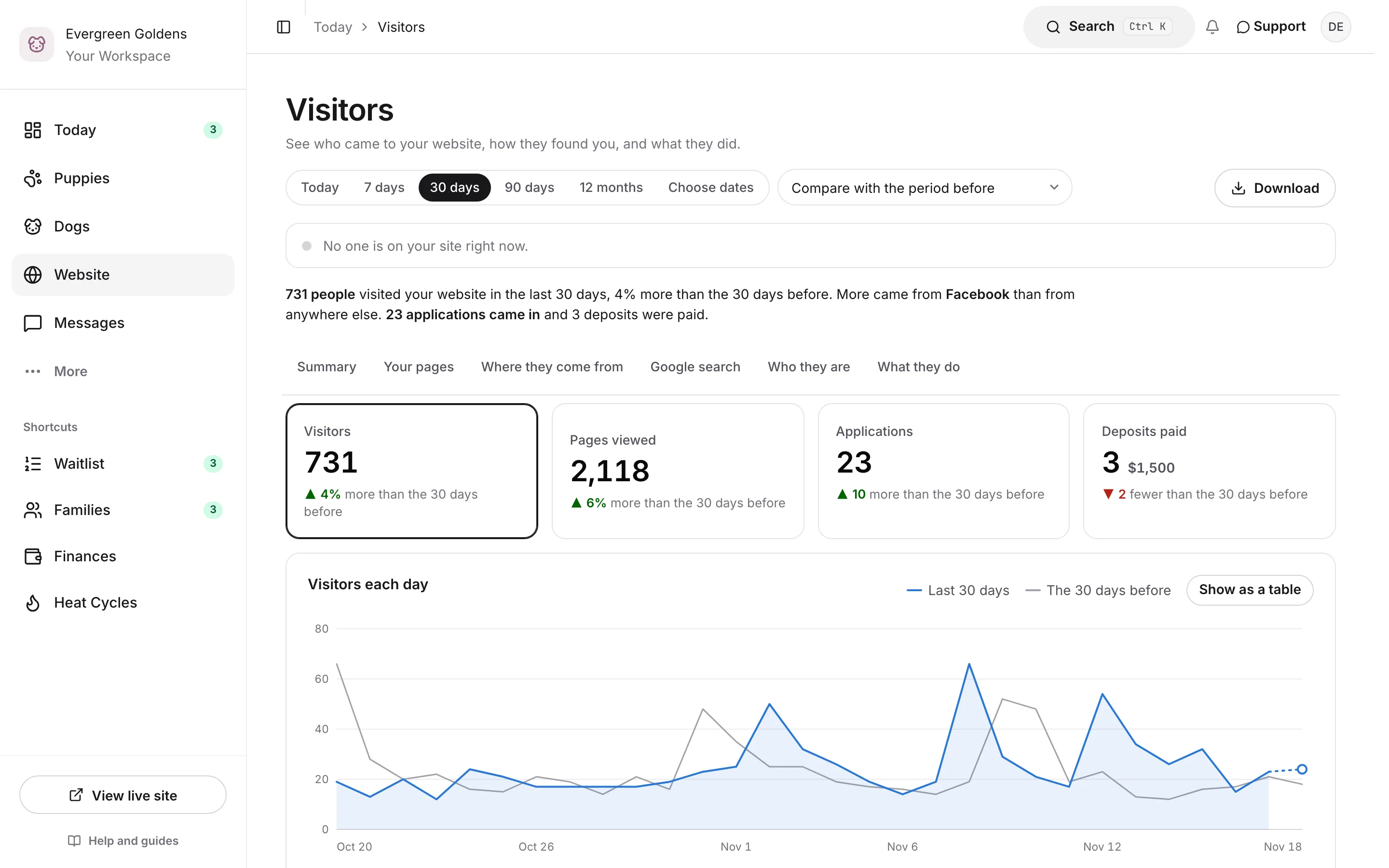
The period. Choose Today, 7 days, 30 days, 90 days, 12 months, or Choose dates. Everything on the page changes to match. The box beside it compares your numbers with the period before, or with the same dates last year. Download saves the period as a spreadsheet file.
Right now. One line says how many people are on your site at this moment and which pages they are on. It checks again every 30 seconds while the page is open.
One sentence. Under that, a sentence sums up the period: how many people visited, how that compares, where more of them came from than anywhere else, and how many applications and deposits came in.
Four numbers. Visitors, Pages viewed, Applications, and Deposits paid, each compared with the earlier period. Press Visitors or Pages viewed to choose which one the chart shows. On the chart, a dot marked Something you did shows a day when you posted on Facebook or Instagram, added a litter, listed a puppy, published a blog post, or emailed your waitlist. Show as a table gives the same numbers as rows.
Worth a look. Up to three short notes about your own numbers, each with one button. For example, a page that is drawing more interest than the rest, or a puppy page with plenty of visitors and no questions yet. The notes say what happened. They do not guess why.
Your pages. Every page with its visitors and the time people spent on it. Filter by Puppies, Litters, Dogs, or Blog. At the end of the full list, Addresses that did not work shows addresses people tried that led to "page not found", which usually means an old link somewhere still points to them.
Where they come from. How people found you lists each source with its visitors and how many went on to apply. Beside it, Your tracked links shows the links you have made for flyers, posts, and QR codes.
Google search. What people typed into Google to find you, once you connect Google. See Connect Google below.
Who they are. Where they live by state, city, or country. What they use: phone, computer, or tablet. How much they look at: one page, a few, or many. First visit or back again. And When they visit, a grid of the week with your busiest time written above it.
What they do. From a visit to a deposit shows how many people reached each of five steps, from Visited your website to Paid a deposit. Taps and clicks counts taps on your phone number, your email address, your social links, and links to other websites.
See One Thing Up Close
Most rows on the page open a closer look, for the same period.
- A page. Choose any row under Your pages. You see how people got to that page, where they went next, and how far down they read.
- A source. Choose any row under How people found you. You see which pages those visitors landed on and what they did.
- Your application. Under From a visit to a deposit, choose See where people stop in the application. It shows how many people opened your application, started filling it in, and sent it, and the last thing they filled in before leaving.
- A litter. Open a litter in your dashboard and choose Website Visitors. The link appears once someone has looked at that litter on your website. It shows the litter's visitors, waitlist sign-ups, applications, and deposits since you added it, with the numbers for each puppy.
What Each Number Means
- Visitors are different people who saw at least one page. Someone who looks at ten pages is one visitor.
- Pages viewed counts every page shown, including moving from one page to another inside your site.
- A visit is one person's pages in a row with no gap longer than 30 minutes. If the same person comes back later, or arrives again from a different place, that is a new visit.
- Time on page is how long the page was actually on the person's screen. The page shows the middle value, not the average, so one tab left open all afternoon does not skew it.
- Applications, and Applied beside a source, count applications, waitlist sign-ups, questions about a particular puppy, and reservations made on your website.
- Deposits paid counts deposits, and puppies paid for in full in one payment.
How a Source Is Decided
Each visit gets one source, decided when the visit starts. The first of these that fits wins:
- One of your tracked links. It shows as A tracked link.
- A link Whelpify tagged for you. Links to your website in posts that Whelpify publishes to Facebook, and in emails it sends to your families, carry a tag. Email links show as Your emails.
- A click on a Google or Microsoft ad.
- The website or app the person came from. Well-known ones show by name, such as Facebook, Instagram, Google search, Good Dog, AKC Marketplace, or ChatGPT. Any other website shows by its address.
- If none of those is known, the visit is filed under Typed your address.
When a family applies, the credit goes to the way they first found your website, even if they came back another way on the day they applied.
Why "Typed Your Address" Is Bigger Than You Expect
Typed your address really means "arrived without saying where from". That includes people who typed your address or used a bookmark. It also includes links in text messages, and links opened from many apps, because those do not tell a website where the visitor came from. If you text your link to a lot of families, expect this number to be high.
To tell these apart, use a tracked link.
How Counting Works, and Who Is Left Out
A small script on your website tells Whelpify when a page is on someone's screen and when they leave it. It never records what someone types into a form unless they send the form.
These are left out of your numbers:
- You. When you look at your own website while signed in to Whelpify, the visit is not counted. That browser is then remembered, so your visits there stay out even after you sign out.
- Your other phones and computers. At the bottom of the page, press Exclude this browser. It opens your website and remembers that browser. Do it once on each one you use.
- Robots. Search engines, link previews, and other automatic programs are not people, so they are not counted.
- A website that is not live yet.
The Cookie
Most visitors get one small cookie from your own website. It holds a random value and nothing about the person. It lets your website tell that the same browser has come back, for up to 13 months, which is how Came back and "how this family found you" work.
Some visitors get no cookie at all:
- Visitors in the European Union, the United Kingdom, and Switzerland.
- Any browser that sends a Global Privacy Control or Do Not Track signal.
Those visitors are still counted, with a code that changes every day and is not kept in their browser. The same person on two different days counts as two visitors, and they are left out of First visit or back again.
A visitor's internet address is used to work out their city and state. The address itself is not stored.
Every Whelpify website has a Privacy and Cookies page at /privacy that explains this to your visitors.
Why the Numbers Will Not Match Facebook or Google
They never match exactly, on any website, and that is normal. Each tool counts a different thing.
- Facebook counts taps on your link. Some people tap and leave before your page appears. Whelpify counts pages that were actually shown.
- Google Search counts only the clicks that came from its own results, and its numbers arrive two to three days late.
- Whelpify leaves out your own visits and robots. Other tools draw that line in their own way.
- Days can start and end at different times. Whelpify uses your own time zone, which it takes from your browser the first time you open the page.
Use each tool for what it is good at, and compare a number with the same number last month, not with a different tool.
Tracked Links and QR Codes
A tracked link is a short address on your own website that you make for one place: a flyer at the vet, your Instagram bio, a listing. Anyone who uses it is counted under that name, so you can see what each one brings.
- On the Analytics page, find Your tracked links and press Make a Link.
- Under What is it for?, type a name such as "Flyer at the vet". Only you see this name. The address it will get appears under the box as you type.
- Under Where should it take people?, choose a page of your website.
- Press Make a Link.
- Press Copy Link to paste it somewhere, or Download QR Code to print it.
Every link you have made is listed under Your links with its visitors and how many applied in the last 90 days. QR Code shows its code again. Remove retires a link. People who still have it land on your home page, and its past visitors stay in your numbers.
Connect Google
Whelpify can count who arrives, but only Google knows what people typed into Google. Connecting your Google account brings those searches onto your Analytics page.
- On the Analytics page, go to Google search and press Connect Google.
- Press Continue with Google.
- On Google's own screen, choose your account and allow what it asks. Leave every box ticked.
- You come back to a page called Setting things up, where each step is ticked off as it finishes. You can leave the page. Whelpify finishes in the background.
You do not paste any code. Whelpify confirms with Google that the website is yours, adds your website to Google Search, sends Google your list of pages, and brings in your search numbers.
If you do not have a Google account, the page has a link to make one first. It is free. Your website has to be live before you can connect.
What You See Afterwards
- Times you showed up in Google: how often your website was in someone's search results.
- Clicks from Google: how often they chose your website.
- Your usual place in the results: where you sit across all searches. Google's first page is 1st to 10th.
- What people searched for: the searches themselves, with clicks, times shown, and your place for each.
What Whelpify Can and Cannot See
Google asks to let Whelpify see your search results and manage the websites you have in Google Search. Whelpify only ever touches this one website. It also sees the address of the Google account you chose, so the page can show you which account is connected.
It cannot read your email, your files, or anything else in your Google account.
Two Things to Know About Google's Numbers
- They run two to three days behind. Whelpify fetches them once a day. A website that is new to Google Search can take a few days to show its first searches.
- Google hides searches that only a few people made. So the list of searches can add up to fewer clicks than the total above it.
Reconnecting and Disconnecting
If Google stops sending numbers, the Google search section says so and shows Reconnect Google. Everything else on the page keeps counting. This happens when access is removed in your Google account, or when the sign-in goes unused for a long time.
To stop, open Google Settings or press Connected to Google in that section, then Disconnect Google. The search numbers already on your page stay, and your website stays in your own Google Search Console.
The Weekly Email
On Monday morning Whelpify emails you last week in short: how many people visited and how that compares with the week before, applications and deposits, your most visited page, where most visitors came from, your top Google search if Google is connected, and one idea to try.
It is called Weekly Visitor Summary. It starts once your website has a full week of numbers, and it is skipped when nobody has visited two weeks in a row.
To turn it off:
- In the left sidebar, open More. Under Account, choose Email History.
- Open the Account tab.
- Find Weekly Visitor Summary and switch it Off.
Alerts
Three alerts can appear under the bell at the top of your dashboard. None of them repeats itself through the day.
- A busy day on your website. Today has had at least 15 visitors, and at least three times what that weekday usually brings. You get it once that day.
- First visitor from a tracked link. A link you made has just brought its first person. You get it once for each link.
- Your website has gone quiet. No one has visited in 14 days. You get this at most once a month, and only after counting has been running for a month.
Your Numbers in Other Places
Once counting has started, a few numbers appear where you already work:
- Today shows Website visitors for the last 7 days under Your numbers.
- The Puppies and Litters lists show Visitors this week for each one, and how many people asked.
- The Pages list shows Visitors, 30 days for each published page.
- Social Posts shows how many visitors each published post brought.
- A family's page shows how that family found you: where they first came from and what they looked at before getting in touch. It appears only when your website recognised their visit.
Google Analytics and Meta Pixel
You do not need these. The Analytics page works without them. They are for breeders who already use Google Analytics, or who run Facebook and Instagram ads and want Meta to measure them.
At the bottom of the Analytics page, choose Manage tracking codes. On the Tracking codes page that opens, paste your Google Analytics ID (it starts with G-) or your Meta Pixel ID (a number, about 15 digits long) and press Save. Each box has Where do I find this? with three short steps. Only the ID is saved. To stop using one, clear its box and save.
These tools set cookies of their own, so your website treats them more carefully than its own counting:
- Visitors in Europe and the UK are asked first, and the tool loads only if they press Allow.
- A browser that sends a Global Privacy Control signal never gets them.
Your website's Privacy and Cookies page names these tools once you add them.
Pause Counting
At the bottom of the Analytics page, press Pause counting, then Pause Counting to confirm. It can take about five minutes to stop. Visits are not counted while it is paused, so those days stay empty. The numbers you already have are kept.
To turn it back on, press Start counting again in the same place.
Common Questions
Why Does the Page Say No One Has Visited?
Check three things. Your website has to be live. The period at the top may be too short, so try 30 days. And remember that your own visits are left out, so opening your website yourself will not add to the count.
Can I See Who a Visitor Is?
Not by name. Visitors are counted, not identified. The one exception is a family who sends you an application, joins your waitlist, or messages you. Their page in your dashboard then shows how they found your website and what they looked at beforehand.
Do I Need Google Analytics as Well?
No. Add it only if you already use it or someone you work with has asked for it.
Does Connecting Google Change Where My Website Shows Up in Search?
Connecting sends Google your list of pages and shows you your search numbers. Where a page appears in the results is decided by Google.
How Far Back Do the Numbers Go?
To the day counting started on your website. The period buttons cannot go earlier than that, and comparing with last year works once a year of numbers exists.
I Changed My Website's Address. Do I Have to Connect Google Again?
No. When your own domain goes live, Whelpify confirms the new address with Google and sends Google your list of pages again. If Google ever stops sending numbers, the Google search section says so and shows Reconnect Google.