- Docs
- Your website
- Pages and the page builder
Pages and the page builder
Edit directly on your website, select text and photos with a click, use Layers to find items, and preview page drafts before publishing.
Updated September 11, 2026
On this page
- What this is for
- Where to find it
- Edit a page
- Add, move, and remove sections
- Draft and published, explained
- Create a new page
- Page settings
- Common questions
- Can I change a page's web address later?
- Will my visitors see a half-finished page?
- Which sections update on their own?
- Where do the header and footer live?
What this is for
Every page on your public site is built from sections you stack in order: a top banner, a photo and some text, your available puppies, a contact form. The page builder shows a live preview beside the controls, so you can see each change before a visitor does.
Where to find it
While signed in as the website owner, visit your website and choose Edit this page in the toolbar at the top. The editor opens over your website, with controls beside the page. Dashboard takes you back to your account. Visitors and buyers do not see these owner tools.
You can also open Website and choose Pages in your dashboard. Choosing Edit goes directly to the page on your website with the editor open; it does not open a dashboard editor first. On a custom domain, use View website from your dashboard first so your owner session is connected to that domain.
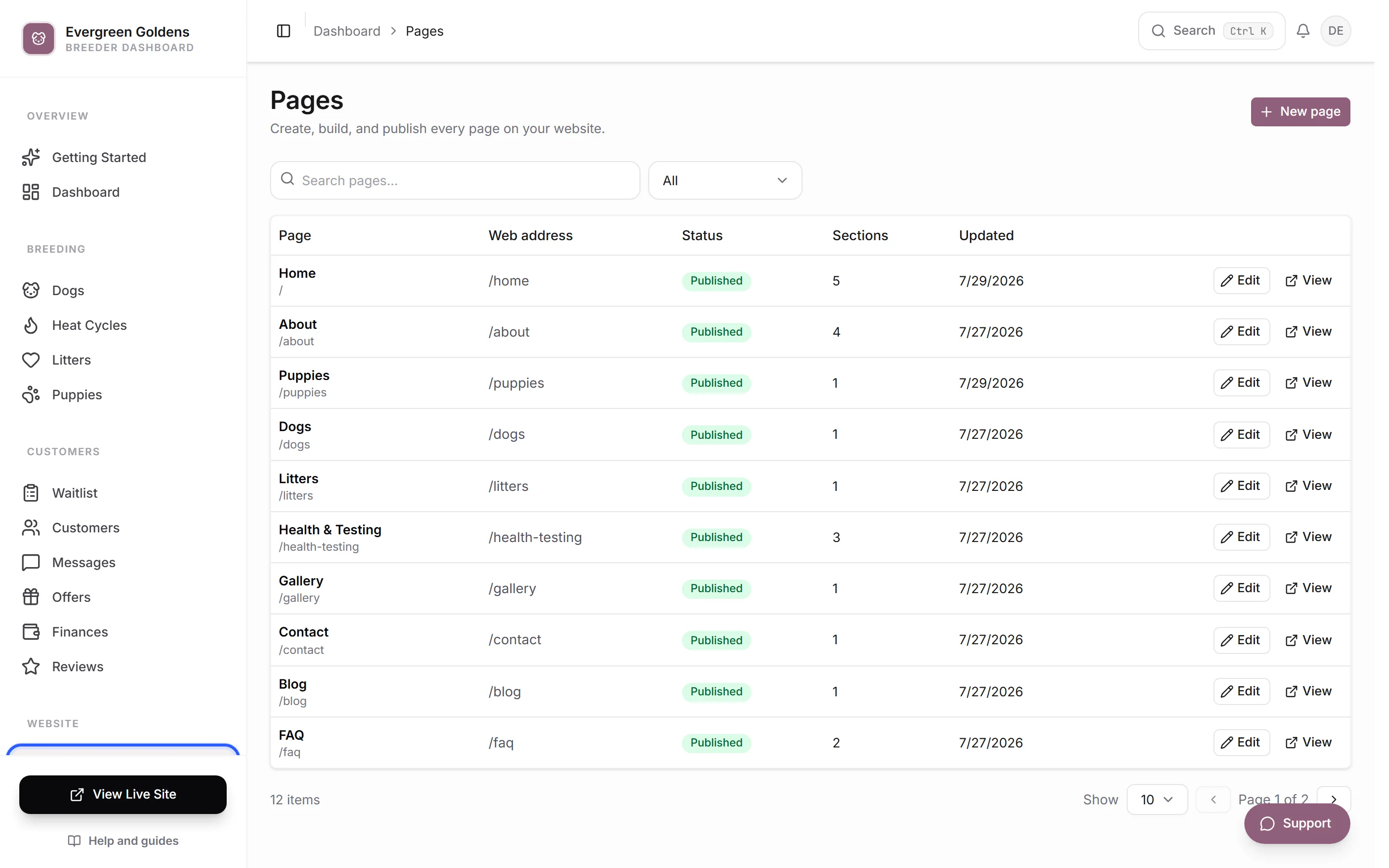
The list shows each page with its Web address, its Status (draft or published), how many Sections it has, and when it was last Updated. Use the search box to find a page by name, or the Status filter to see only drafts. Each row has an Edit button, and published pages also have a View button that opens the real page in a new tab.
Edit a page
- Click the page name, or click Edit.
- Click a heading, paragraph, button, or photo directly on the page. Its controls appear under Selected element. Button controls include the label and destination. Empty image placeholders open the photo controls too. Click a puppy card to open Card style, or click an item’s background to edit all fields for that item.
- Use Layers to choose a section, or Elements in this section to reach its individual fields, including content that is currently hidden. Section design & settings contains layouts, visibility, text sizes, and other section options.
- The canvas updates as you edit. Use Undo change and Redo change to step through your work during the current editing session.
- Click Save draft to keep page edits private, or Publish changes to make the page live.
The canvas uses your website’s section components. Published pages also show the real header and footer around the editable content. Clicks select content instead of following links or submitting forms. Expand an FAQ to reach its answer. If a detail comes from a puppy, dog, or review record, edit that record to change its data; the section controls change its presentation.
The chip beside the page name tells you where you stand: Live, Draft not published, or Unsaved changes. The three icons in the middle of the top bar switch the preview between Desktop view, Tablet view, and Phone view.
Add, move, and remove sections
- Click Add at the top of the Layers panel.
- In the Add a section dialog, search, or browse the categories: Banners, Story & Photos, Puppies & Dogs, Reviews & Trust, Process & Contact, and Layout.
- Click the section you want. It is added to the bottom of the page.
- Use the up and down arrows beside a section to move it, Duplicate section to make a copy, or the trash icon to remove it.
Sections marked Auto fill themselves in from your dashboard and stay current on their own. Puppy Showcase pulls from your puppies, Reviews shows your published reviews, and Full Listing shows the complete filterable list of your puppies, dogs, or litters.
Draft and published, explained
Saving a draft never changes your live site. Your visitors keep seeing the last version you published. When a page has saved draft edits, the builder also shows Discard draft, which throws the draft away and returns the editor to exactly what is live.
To hide a page without losing it, click Take offline. The page and its menu link disappear from your public site and your sitemap, and everything stays saved so you can publish it again later. The home page cannot be taken offline.
Create a new page
- On the Pages screen, click New page.
- Type a Page name. The URL slug fills in for you, and you can edit it.
- Turn on Add this page to your menu if you want a menu link, then choose the Menu placement location and position.
- Click Create draft.
- Add sections, or pick one of the starters: Simple information, Story page, or FAQ or policies.
- Click Publish when it is ready.
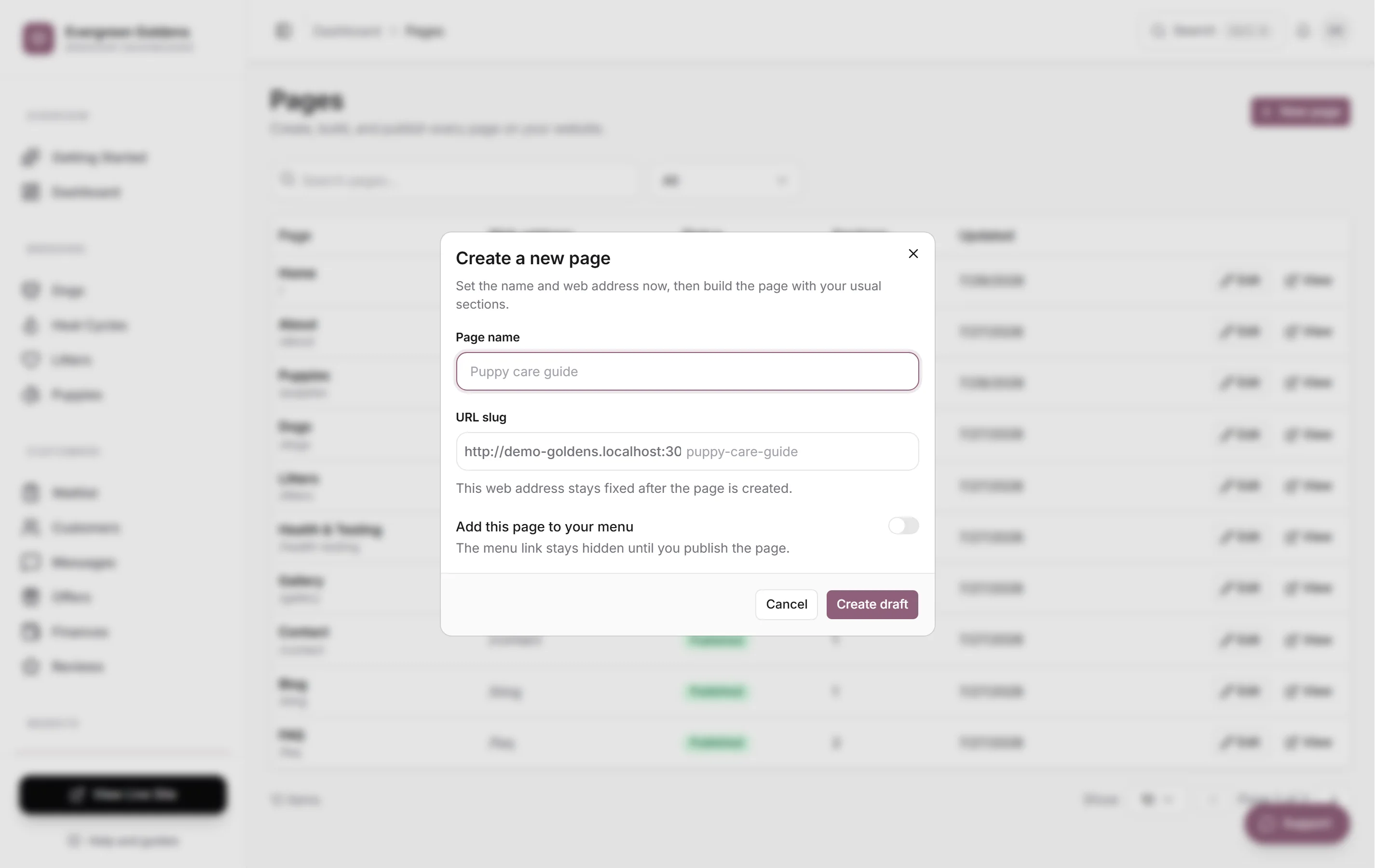
Pages you create yourself can be deleted from Page settings in the builder, or with the trash icon on the Pages list. Built-in pages cannot be deleted, only taken offline.
Page settings
Open Page settings at the bottom of the left panel to set the Page title, see the Web address, and control how the page looks in search results and when someone shares the link: Google title (optional), Google description (optional), and Preview image (for Google & social media). There is also a text size control for this page alone.
Common questions
Can I change a page's web address later?
No. The web address is set when the page is created and stays fixed after that, so links people have already saved keep working.
Will my visitors see a half-finished page?
Not unless you publish it. Save your work with Save draft as often as you like. Only Publish changes the live page.
Which sections update on their own?
The ones labeled Auto in the Add a section dialog: Puppy Showcase, Breeding Program Spotlight, Reviews, and Full Listing. Add them once and they follow your dashboard.
Where do the header and footer live?
Click the header or footer on the canvas, or choose Header, Menu, or Footer in the editor. These controls affect every page. Use Publish website changes to apply them site-wide, or Discard website changes to undo unpublished adjustments. Save draft only saves page content; it does not publish website changes. The same controls are available in menus and site structure. Colors and fonts live in design and branding.
Still stuck? Email info@whelpify.com and a real person will help.