- Docs
- Waitlist and customers
- Families and Customer Records
Families and Customer Records
See everyone with an account on your site, with their payments, offers, waitlist history, and forms on one page.
Updated September 15, 2026
On this page
- Find a Family
- Clear Review Reminders
- Add a Family
- How People Get an Account
- Invite a Customer Through the Account List
- Open One Customer
- Edit Their Details
- Remove Someone from Your Site
- Common Questions
- Can I Delete a Customer Completely?
- What Is the Difference Between a Customer and a Waitlist Entry?
- Someone Paid Me but Does Not Appear Here
- How Do I Message a Customer?
Find a Family
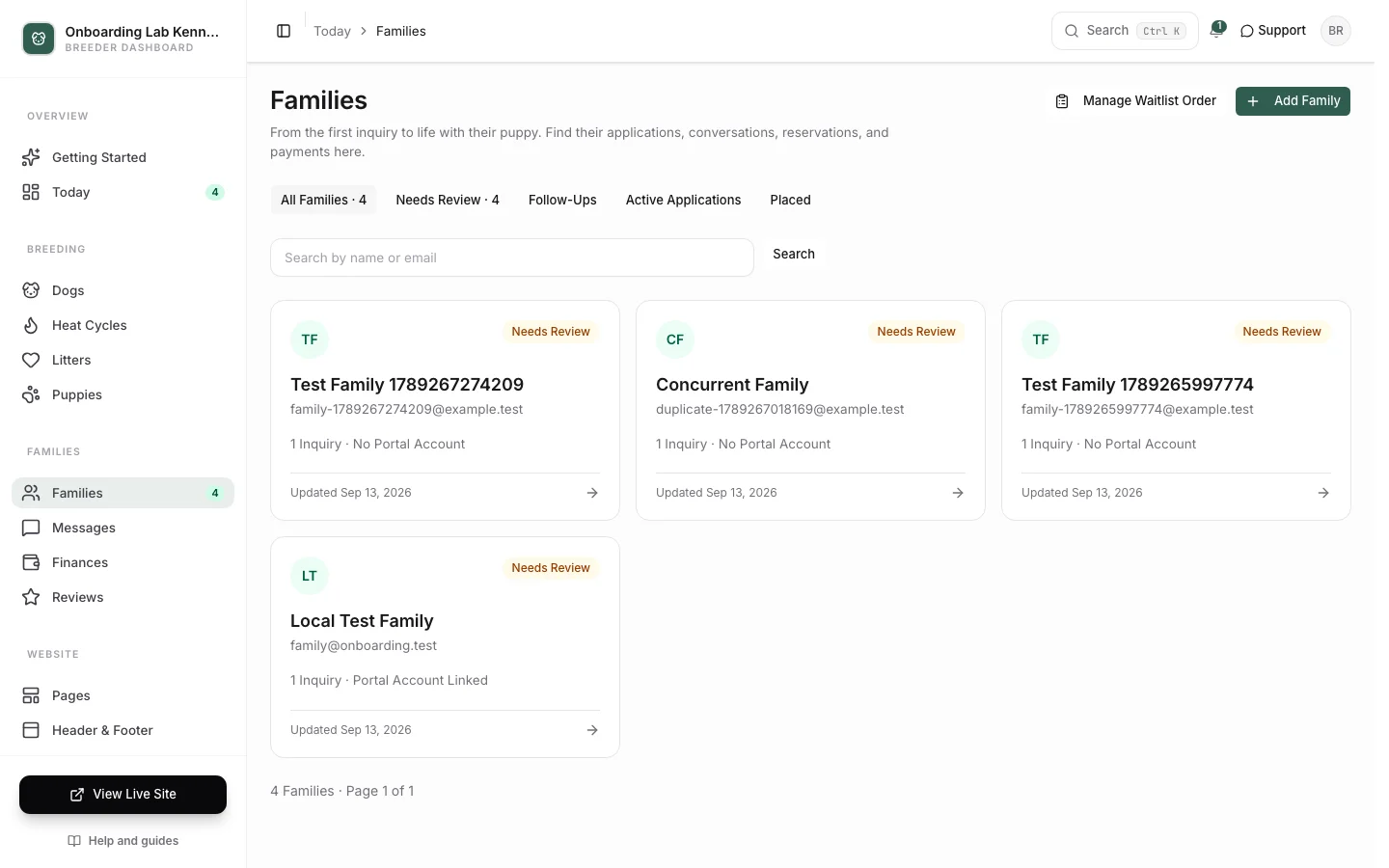
Open Families in the sidebar to see inquiry-only contacts alongside families with a buyer account. Search by name or email, filter by stage or litter, and open a family to continue their next step.
An account can have several inquiries. Whelpify groups requests through their linked account; matching names or email addresses alone do not merge people. A family without an account opens directly to their inquiry record.
Choose Manage Waitlist Order for queue ordering, advanced filters, and waitlist exports. The existing customer account list remains available for account administration and customer CSV exports.
Clear Review Reminders
To review highlights inquiries and applications that are waiting on you: new ones you have not opened, and ones that need a decision. Older imported inquiries can appear here too; this is not a count of new signups. The sidebar badge counts spots, so a family with several spots can contribute more than one.
After checking a family, choose Mark as Reviewed on their card or inquiry page. To clear a backlog, use Mark All as Reviewed above the list. It applies across all pages of your current filters. If the list contains both imported and website inquiries, Review Imported Only lets you clear the imported reminders separately.
The confirmation tells you exactly how many inquiries are included. Marking them reviewed clears their reminders from Families, the sidebar, and Today. It does not delete contacts, approve or decline applications, change waitlist positions, or send emails. Applications awaiting a decision remain Awaiting Decision.
New inquiries and new or updated application submissions appear for review again. Records changed after you loaded the page are skipped, so fresh activity is not accidentally cleared. Internal follow-up notes do not bring back a cleared reminder.
Add a Family
Click Add Family, enter a name and email, and optionally add a phone number and private note. Save Family creates an inquiry without sending an email or creating a login. If a general inquiry already exists for that email, use the link to open it.
Invite the family to create an account from their inquiry when you are ready. The guided entry option is available if you want to record preferences and application details at the same time.
How People Get an Account
- They sign up on your website when they apply, join your waitlist, or send a message.
- You invite them from their waitlist row: open the row actions menu (the three dots) and choose Invite to account.
- You add them yourself with Add Customer.
Source on the list tells you which of these it was: Public site, Dashboard, or Import.
Invite a Customer Through the Account List
- Open the customer account list and click Add Customer.
- Fill in Name, Email, and Phone (optional).
- Click Add Customer.
They get an email with a link to set their password, and any waitlist entries using that email link to the new account automatically.
Open One Customer
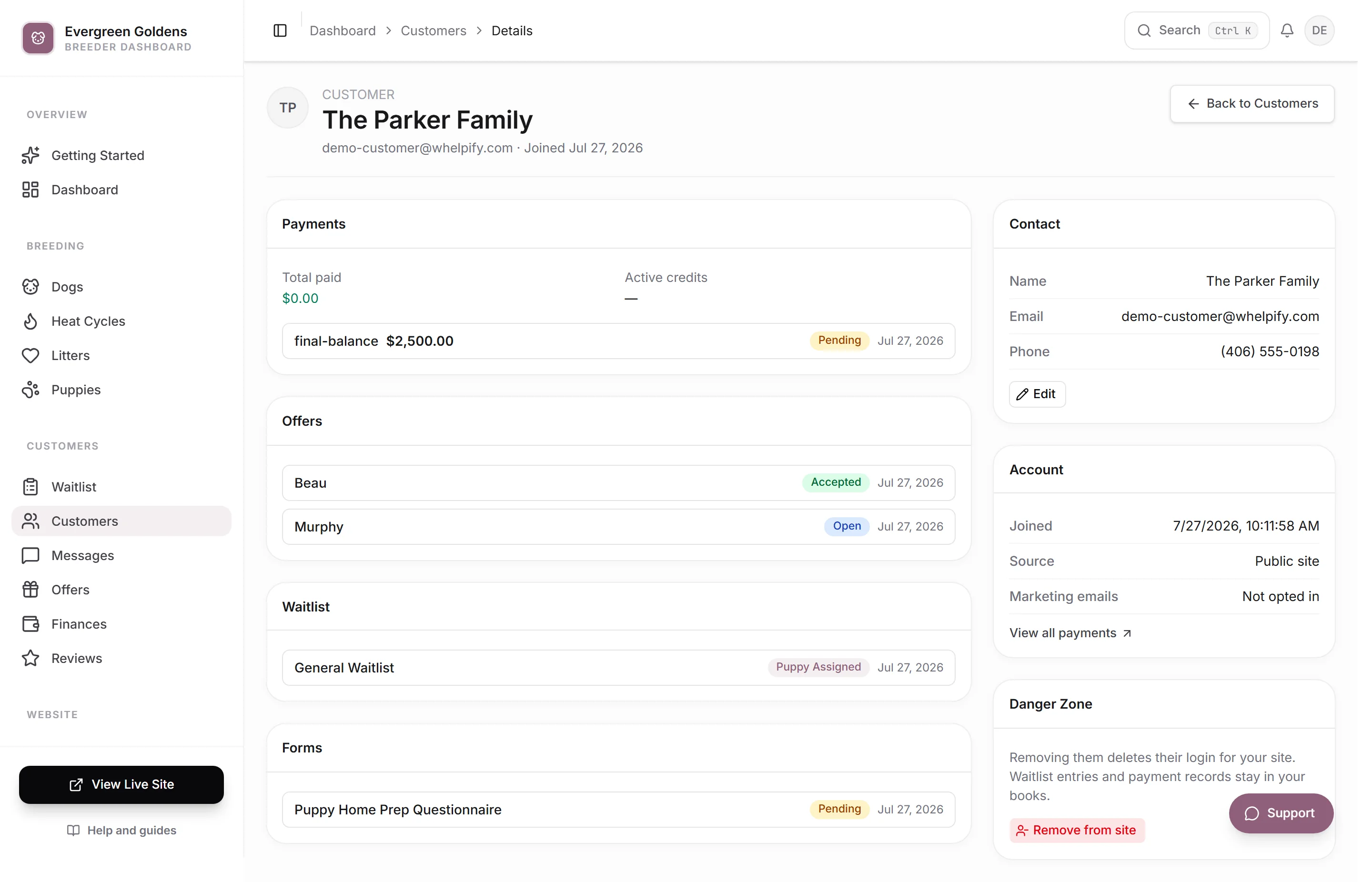
For a linked account, Applications & Next Steps connects you to each request and its relevant action. Assigned puppies link directly to their records, and you can open or start a conversation. The existing financial and application cards remain below:
- Payments shows Total paid and Active credits at the top, then every payment. Click one to open it in Finances.
- Offers lists every reservation offer you sent them and where it stands.
- Waitlist lists their waitlist entries. Click one to open it.
- Forms lists every form assigned to them and its status.
Down the right side, Contact holds their name, email, and phone, Account shows when they joined, where they came from, and whether they opted in to marketing emails, and Danger Zone holds the removal button.
Edit Their Details
Under Contact, click Edit, change Name, Email, or Phone, then click Save Changes. Changing the email changes what they sign in with, so tell them first.
Remove Someone from Your Site
- Scroll to Danger Zone.
- Click Remove from site.
- Read the confirmation, then click Remove Customer.
Removing takes away their login for your site. Their waitlist entries and payment history stay in your records, and any account they have with another breeder is untouched. If they sign up again with the same email, everything relinks automatically.
Common Questions
Can I Delete a Customer Completely?
No. Remove from site is as far as it goes, on purpose. Payment and waitlist records are part of your books, and one login can belong to more than one breeder, so nothing is erased outright.
What Is the Difference Between a Customer and a Waitlist Entry?
The waitlist entry is one request: this family, this litter or puppy, this stage. The customer record is the person behind it. One family can have several waitlist entries over the years and still have a single customer record. See the waitlist for the request side.
Someone Paid Me but Does Not Appear Here
Payments are linked to an account. If you took money from a family who never created a login, add them with Add Customer using the same email, then check their record again.
How Do I Message a Customer?
Use the message action in the family workspace, or open Messages. Inquiry-only families keep the contact actions on their inquiry until they have a buyer account.
Still stuck? Email info@whelpify.com and a real person will help.