- Docs
- Payments and finances
- Deposits, balances, and payment requests
Deposits, balances, and payment requests
Ask a buyer for a deposit, a remaining balance, or any other invoice, and log money you already received.
Updated September 2, 2026
On this page
- What this is for
- Where to find it
- Set your deposit defaults first
- Ask for a payment
- Collect from the offer itself
- Mark an offline payment as paid
- Log money you already received
- Standing deposits with no puppy yet
- Common questions
- Why is my offer missing from the list?
- Can I change my mind after sending a request?
- A card payment failed. What now?
- Where do I see one payment in full?
- Include Processing Costs in Puppy Prices
- Two Puppies for One Family
What this is for
This is how you ask a family for money and how you log money that already reached you. A request can be a deposit on a puppy, the balance owed at pickup, a full payment, or a one off invoice for something like shipping.
Where to find it
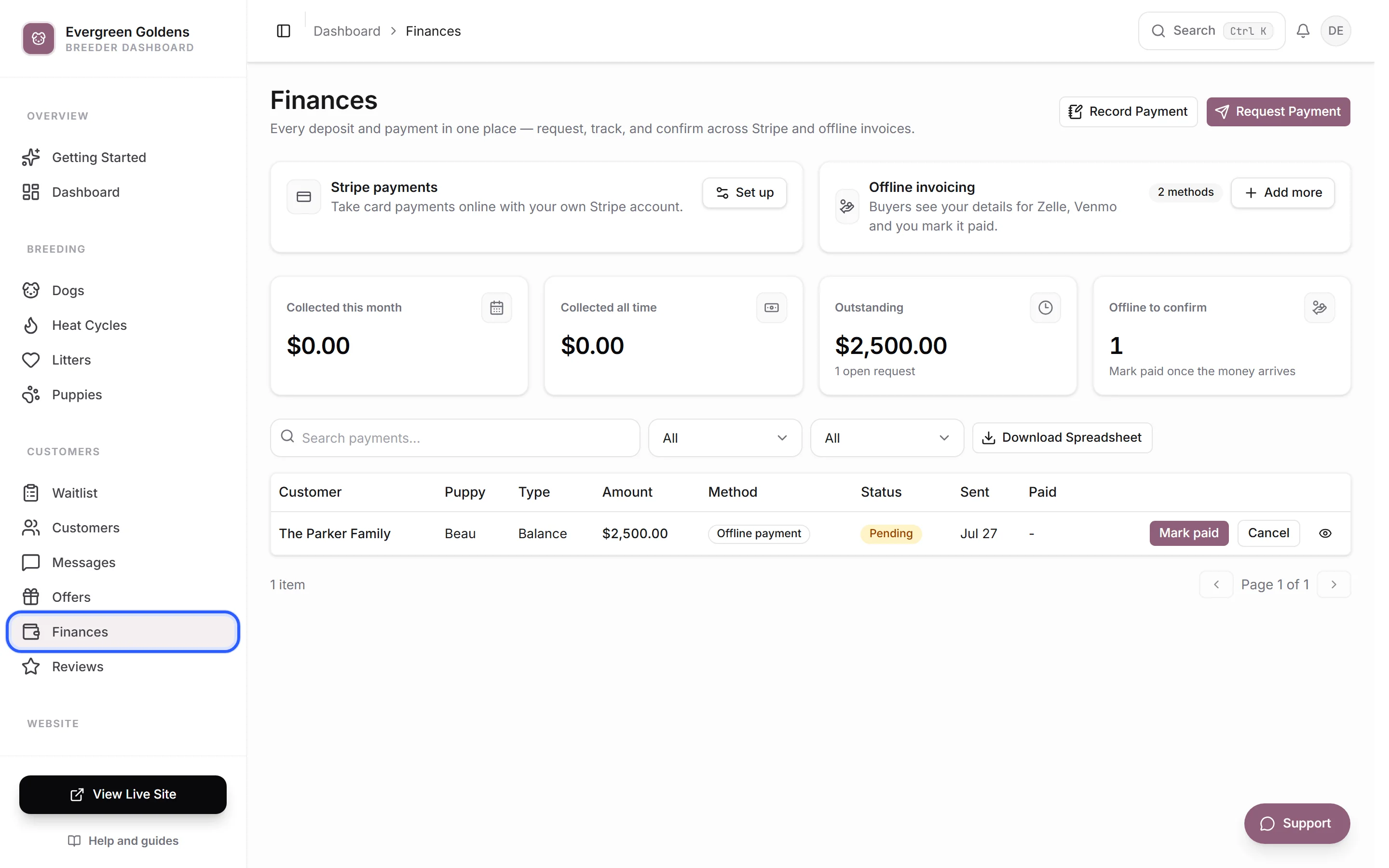
In the left sidebar, under Customers, open Finances. The two buttons at the top right are Record payment and Request payment.
Set your deposit defaults first
- Open Settings, then the Payments tab, then Deposit defaults.
- Choose a Payment mode. Deposit Only collects a deposit and nothing else. Deposit Then Balance collects a deposit now and the rest later. Full Payment collects the whole price up front. None collects nothing during the reservation flow.
- Choose a Deposit type. Fixed Amount is a set dollar figure. Percentage is a share of the puppy price.
- Enter the Deposit value. For a percentage, enter 10 for ten percent.
- Save.
These are defaults for new offers. You can still change the amount on an individual request.
Ask for a payment
- On Finances, click Request payment.
- Leave the tab on Puppy sale (offer) to bill against an accepted reservation offer, or switch to Other invoice to bill a customer for anything else.
- For a puppy sale, pick the Offer, then a Payment of Deposit, Remaining balance, or Full payment. Whelpify fills in a suggested Amount (USD) based on the puppy price and what has already been paid. A deposit uses your deposit settings, so there is no amount box for it.
- For an other invoice, pick the Customer, enter the Amount (USD), and say What's it for, such as a shipping fee.
- Under Collect via, choose Stripe checkout so they can pay by card, or Offline invoice so they see your payment details and pay you directly. If only one is set up, Whelpify uses it.
- Click Send Request.
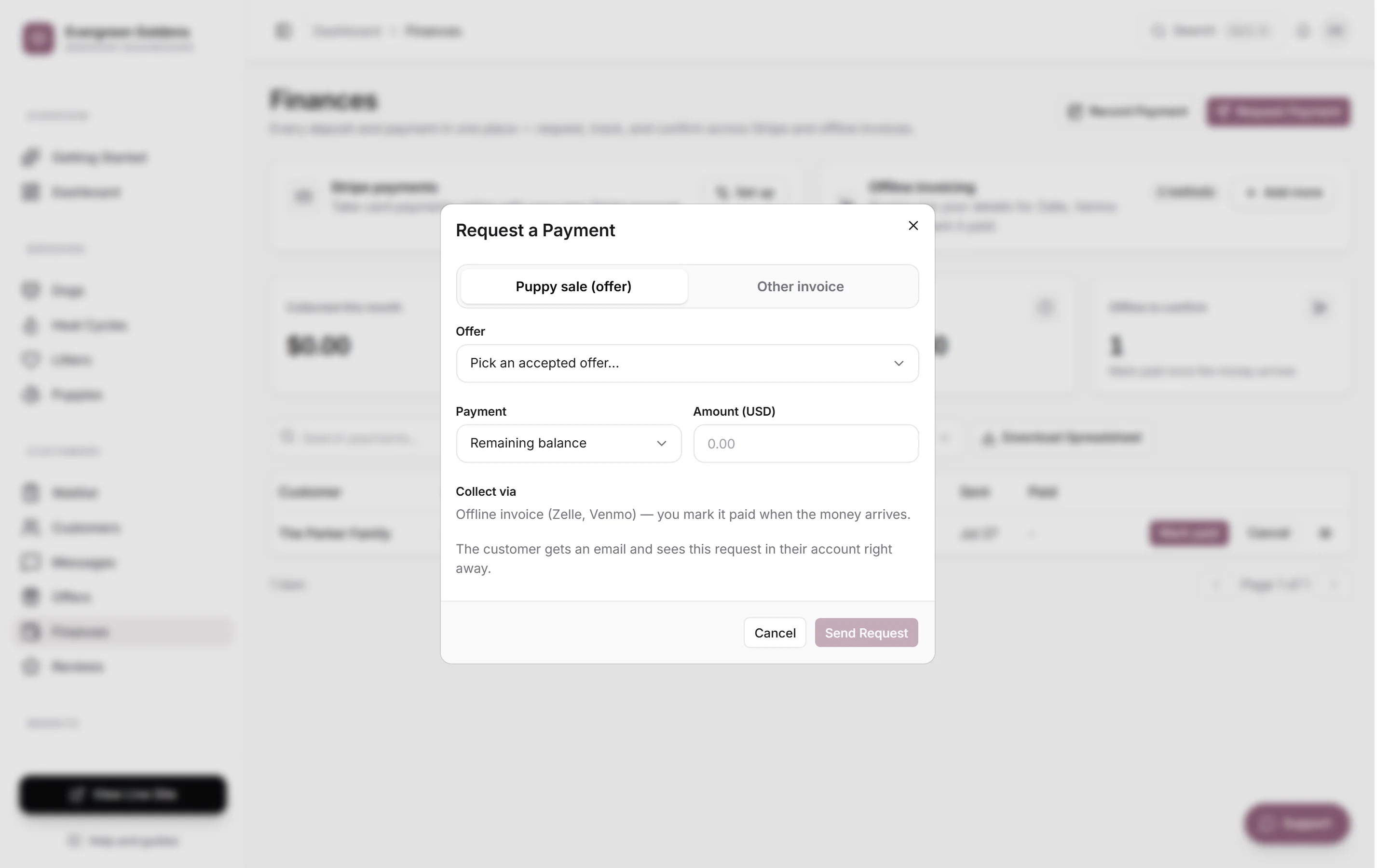
The customer gets an email and the request appears in their account on your site straight away.
Collect from the offer itself
Open Offers, then the offer, and use the payments panel. It shows the puppy price, what has been paid, what is left, and a progress bar. From there you can click Request deposit, Collect balance, or Collect full payment, and mark or cancel any request on that offer without leaving the page.
Mark an offline payment as paid
Offline requests sit at Pending until you confirm the money arrived.
- Open Finances.
- Find the row, or filter Method by Offline.
- Click Mark paid.
The status moves to Paid, the puppy moves to Deposit paid or Sold if it was a final payment, and the buyer gets a receipt email from your kennel. The Offline to confirm tile at the top of Finances counts how many are still waiting on you.
Log money you already received
Use Record payment when the money came in some other way, such as cash at pickup.
- Click Record payment.
- Enter the Amount (USD) and pick what it was Received via.
- Under From, pick the customer, or choose Someone not listed and type a Name.
- Optionally link a Puppy, set Received on, and add a Note.
- Click Record payment.
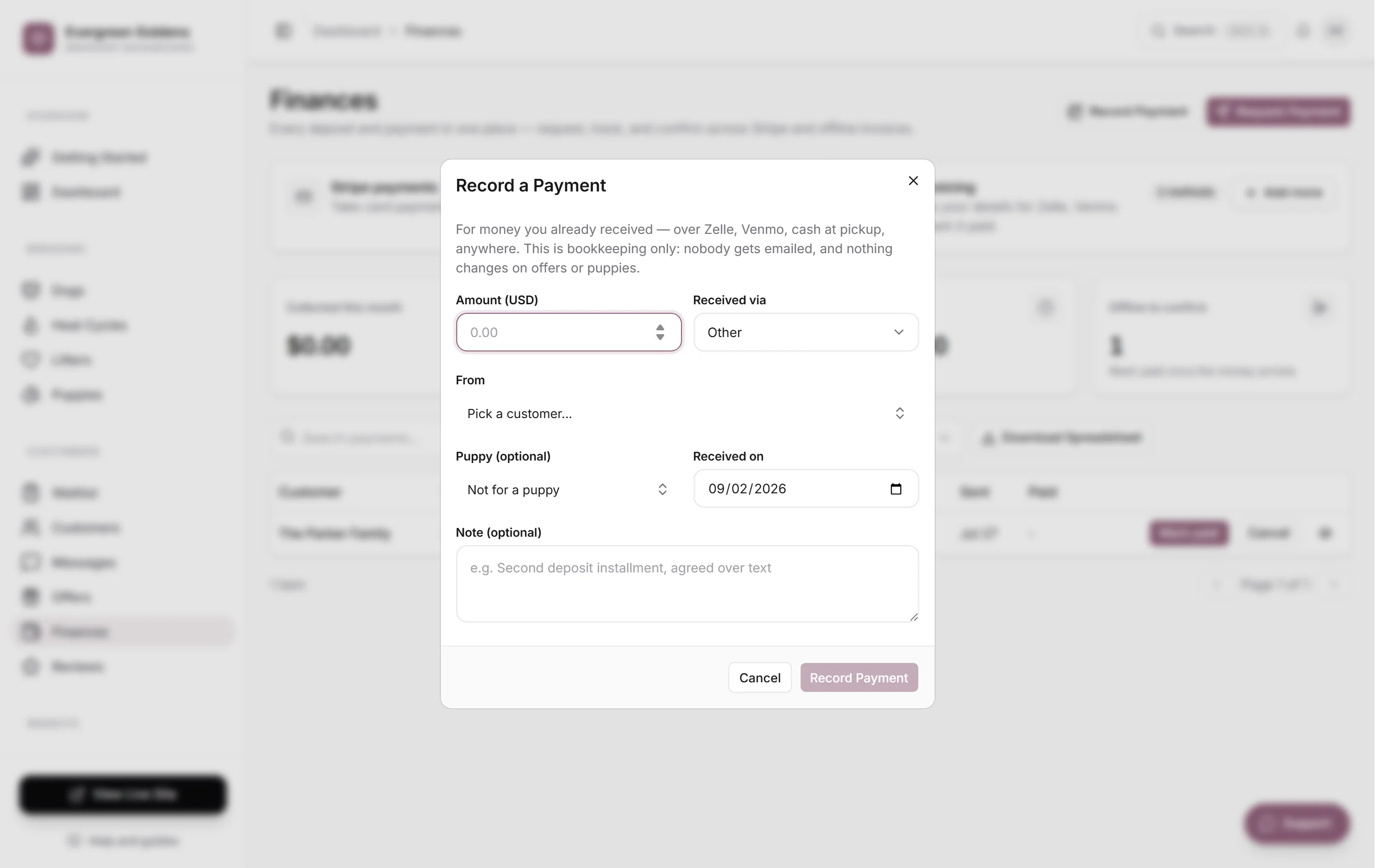
This is bookkeeping only. Nobody is emailed, and nothing changes on your offers or puppies.
Standing deposits with no puppy yet
If you take money from serious buyers before a puppy exists, open Settings, then Payments, then Open deposits. Turn it on, set the Deposit amount (USD), and write the Deposit policy buyers read before they pay. Signed in customers can then place a deposit from their account.
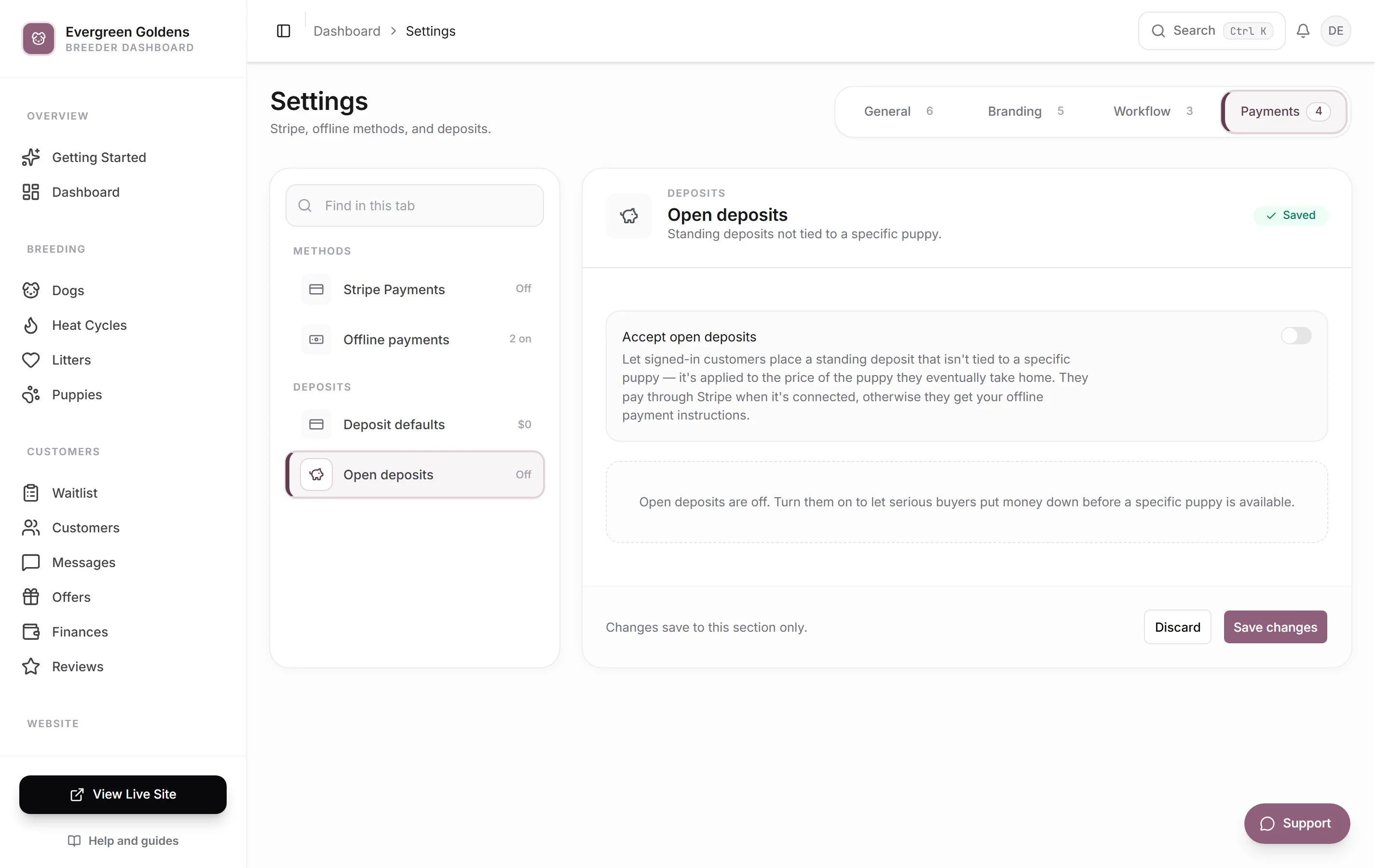
Those show up as Open Deposit on Finances. When that family takes a puppy, open the accepted offer and click Apply to this offer on the blue banner to put the money toward the price.
Common questions
Why is my offer missing from the list?
Only accepted offers with both a customer and a puppy can be billed. Accept the offer first.
Can I change my mind after sending a request?
Yes. While a request is Pending, click Cancel on the row. The buyer can no longer pay it, and you can send a new one.
A card payment failed. What now?
The row shows Failed with the reason on the payment record. The buyer can try again from their account, or you can cancel it and send a fresh request.
Where do I see one payment in full?
Click any row on Finances. See How payments work in Whelpify for what each part of that record means.
Include Processing Costs in Puppy Prices
Open Business Settings → Payments → Stripe Payments and turn on Include processing costs in puppy prices, then save. When you add or edit a puppy, enter the amount you want to receive. Customer price shows the advertised total before you save. That total is used on your website and for the reservation, regardless of payment method. Deposits count toward the total.
The default estimate uses 2.9% plus $0.30 per payment, with two payments for a deposit and balance. Expand the cost estimate to change the assumptions to match your Stripe account. Use one payment for payment in full. Actual processing costs can differ. Turning this on does not change existing puppy prices, offers, or payment requests. Change a puppy's price to apply your current setting.
Two Puppies for One Family
Open the family or a waitlist entry and choose Add Another Waitlist Spot. Each spot has its own offer, puppy, and deposit, while the family uses one account. Choose the spot number when sending an offer. A deposit paid for one spot does not pay for another. Open deposits can be applied to the accepted offer for the same spot.
Still stuck? Email info@whelpify.com and a real person will help.