- Docs
- Dogs, litters, and puppies
- Puppy Profiles, Status, and Pricing
Puppy Profiles, Status, and Pricing
Add each puppy, move them through the status flow, set a price, and control which puppies appear on your website.
Updated September 12, 2026
On this page
- Table and Grid Views
- What This Is for
- Where to Find It
- Coat and Personality
- Add a Puppy
- Recover Unsaved Changes
- The Status Flow
- Set Price, Status, and Visibility
- Record Weigh-ins
- Automatic Availability
- Common Questions
- How Do I Offer a Puppy to a Specific Family?
- Do Sold Puppies Stay on My Website?
- Can I Keep a Puppy Off the Site While I Write the Profile?
- Why Can I Not Set This Puppy Back to Available?
- Where Do I See Who Asked About a Puppy?
Table and Grid Views
Use Table or Grid at the top of the list. Grid displays photo cards; both views share the same search, status filter, pagination, and action menus. Switching views keeps your current search and page.
Whelpify remembers the selection separately for Dogs, Puppies, and Litters in this browser, for your signed-in account and kennel. Change it whenever you like. Clearing browser cookies resets the preference.
Cards use the first photo on the record. If there is no photo yet, the card shows a placeholder. Click a card to edit the record, or use its three-dot menu for actions.
What This Is for
Each puppy gets its own record: photos, coloring, weight history, a price, and a status that families and your dashboard both read. The status is the important part. It decides who hears the puppy is available, whether you can send an offer, and how the puppy is labeled on your site.
Where to Find It
Open Puppies from the main dashboard menu.
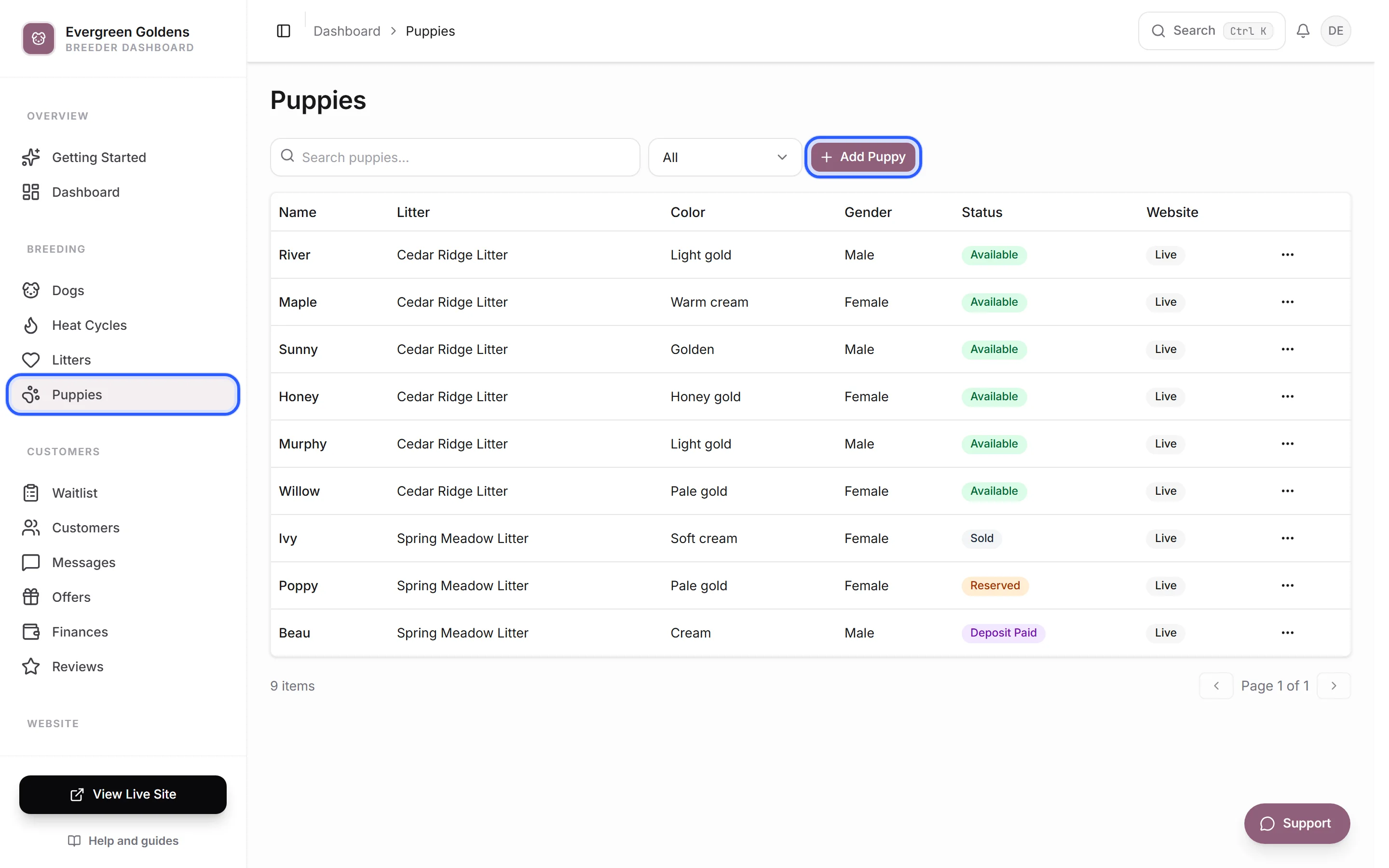
The list shows name, litter, color, gender, status, and whether the puppy is Live or Hidden on your website. There is a search box and a status filter above it.
Coat and Personality
Coat choices follow the breed selected on the puppy. Choose a variety when that breed has several, or leave the optional detail blank. For breeds without listed varieties, Whelpify shows a typical coat description and Add Detail if you want to say more. Mixed breeds and custom breeds accept your own description.
Personality and color choices stay visible after selection. A checkmark shows what you selected; click again to remove it. You can also add your own words.
Changing the default breed in Settings affects future records. It does not rewrite an existing puppy’s breed. If you change the breed on a puppy, an unrelated coat choice is cleared so you can choose an appropriate one.
When editing an existing puppy, use the section buttons to jump directly between photos, basics, coat and personality, weight, availability and price, and description. Save your changes when finished.
Add a Puppy
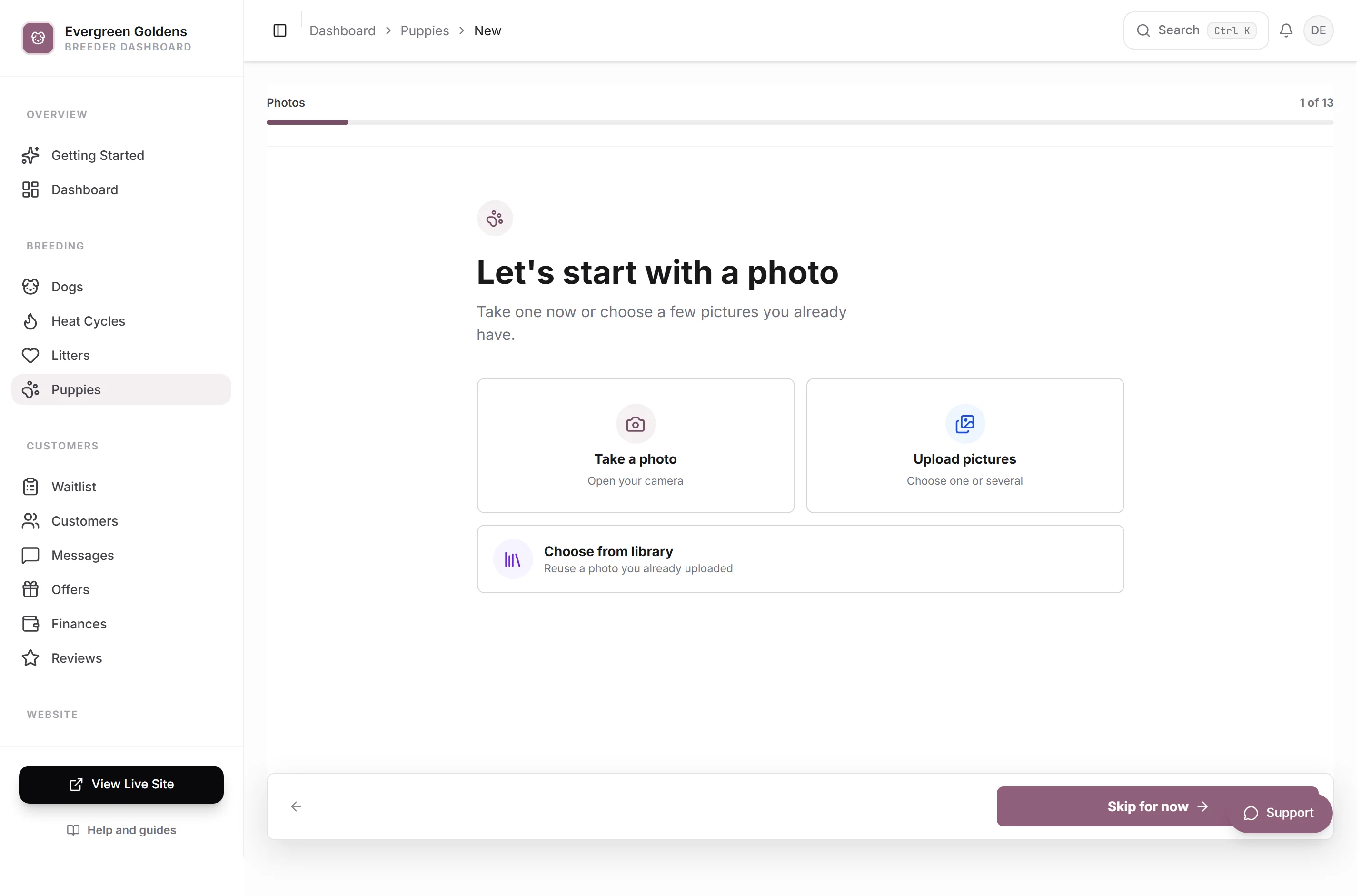
- Click Add Puppy and enter a name or collar label.
- Choose a litter. If it does not exist, use Create a Litter Here, enter its name and actual birth date if known, then Create & Select Litter.
- Add a breed, sex, and photo if ready.
- Leave website visibility off while preparing the profile, then click Save Puppy.
Quick creation starts puppies as Coming Soon and private. The confirmation explains visibility and links to the full editor. The guided option remains available for entering more details before saving.
For a whole litter, open its litter workspace and choose Add Puppies. Enter each name or collar label and optional sex, then create the private records together.
Recover Unsaved Changes
Dog, puppy, litter, and family forms keep a recovery copy in this browser for up to 24 hours, scoped to your account, kennel, and record. If one is found, choose Restore Changes or Discard Draft. A warning appears if the saved record changed elsewhere. Review the restored values before saving.
A recovery copy does not change your website. Successful saves clear it. Keep using the same browser to recover it; browser storage must be available. Ordinary links and page reloads warn about unsaved changes. If you return after browser Back or another navigation, the recovery prompt lets you pick up again.
The Status Flow
- Coming soon hides the puppy from reservation until the litter reaches the age you allow.
- Available means visible and ready for interest or a reservation.
- Offered means the puppy is currently offered to a family.
- Reserved means held for a family before the deposit is complete.
- Deposit paid means the reservation deposit has been paid.
- Sold means placed with a family.
Assigning a family in the Assigned family field moves the puppy to Reserved on its own, and Available and Coming soon become unselectable while that family is assigned. Clear the family first if you need to put the puppy back on the market.
Set Price, Status, and Visibility
Open a puppy and click the Listing section.
- Use the Website visibility switch to decide whether the puppy can appear on your public site. Turned off, the full profile stays in your dashboard and shows nowhere public.
- Choose the Puppy status.
- Enter a Price in whole dollars. It shows wherever the puppy can be reserved. Leave it blank if you are not ready to publish one.
- Set an Assigned family if a waitlist family already has this puppy.
- Click Save changes. Ctrl S works too.
Saving follows your existing notification and Social Posts rules. A saved profile does not mean a social post was published; open Social Posts to check drafts, queued posts, and results.
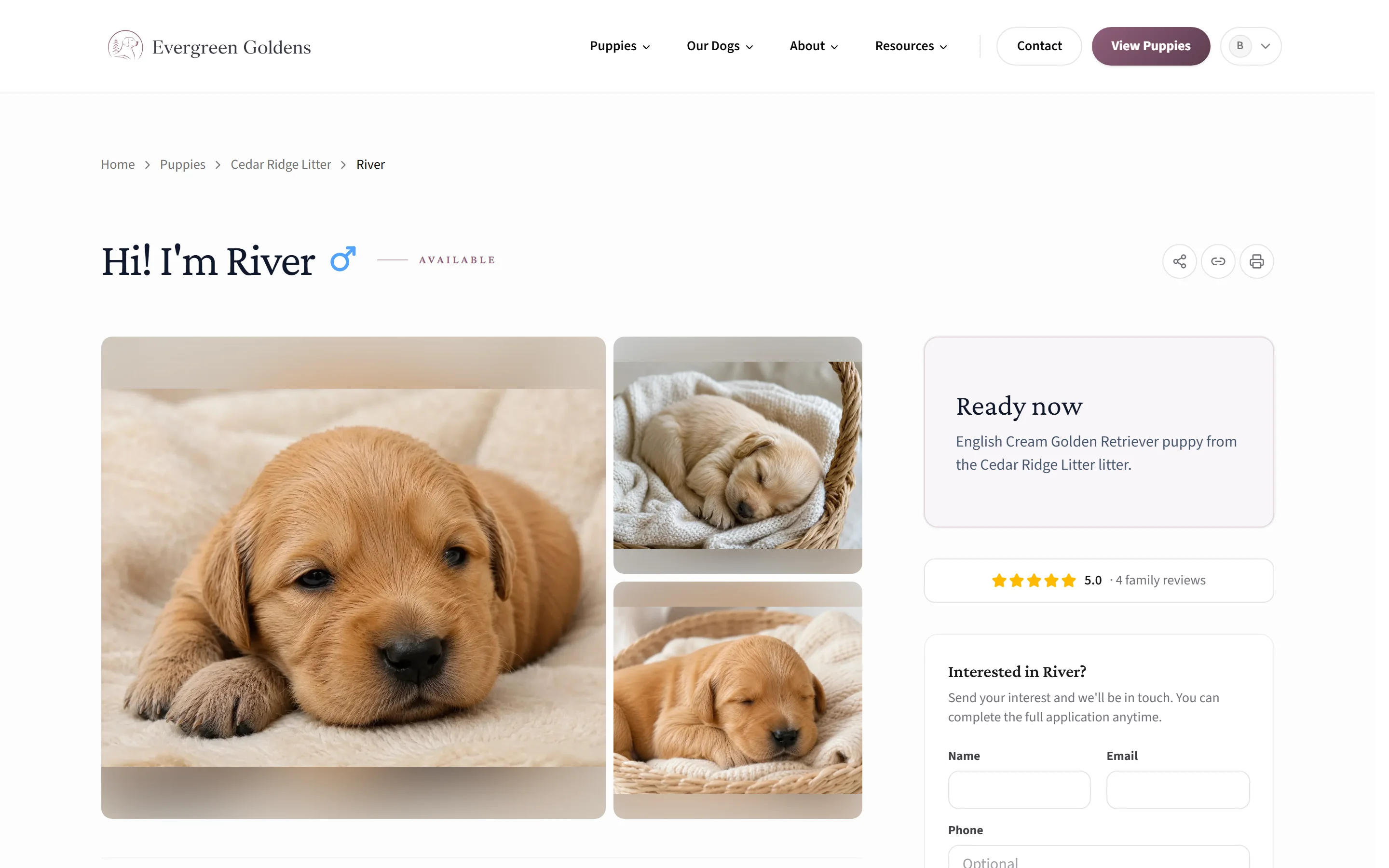
This is what those three fields produce on your website.
Record Weigh-ins
Open the Weigh-ins section to keep a weight history.
- Click Add weigh-in.
- Enter a date and a weight in pounds. The date is optional, but a dated entry is what plots on the public growth chart.
- Repeat for each weighing. The most recent valid row becomes the puppy's current weight.
For several puppies, use Record Weights in the litter workspace. Choose a date and grams, ounces, or pounds, then enter only the puppies weighed that day. Existing entries for that date are protected from accidental replacement.
Automatic Availability
When automatic availability is enabled, puppies still marked Coming soon become Available based on the actual birth date of a Born or Available litter. An expected due date does not start that clock. Open Settings, choose the General tab, and look under Availability for Age puppies are available, which starts at 8 weeks, and the Automatically mark ready puppies available switch.
Puppies that are offered, reserved, deposit paid, or sold are never changed by this. See site settings for the rest of that tab.
Common Questions
How Do I Offer a Puppy to a Specific Family?
On the Puppies list, open the menu at the end of the row and choose Offer This Puppy. The option only appears for puppies marked Available. See reservation offers for what the family receives.
Do Sold Puppies Stay on My Website?
Yes, unless you turn off Website visibility for them. Many breeders leave past puppies up as proof of what they produce. Your puppies page can also be set to open on a chosen set of statuses, so sold puppies sit behind a filter rather than at the top of the page.
Can I Keep a Puppy Off the Site While I Write the Profile?
Yes. Turn Website visibility off, finish the photos and description whenever you have time, then turn it back on. Nothing is published in the meantime.
Why Can I Not Set This Puppy Back to Available?
A family is assigned to it. Open the Listing section, set Assigned family back to No family assigned, and the status choices unlock.
Where Do I See Who Asked About a Puppy?
Open the puppy and click Waitlist interest next to its name. That panel lists who received an availability alert and who raised their hand. Interest does not reserve the puppy.
Still stuck? Email info@whelpify.com and a real person will help.