- Docs
- What your buyers see
- How a buyer applies or joins the waitlist
How a buyer applies or joins the waitlist
Walk through the application and waitlist forms exactly as a buyer fills them in, and what happens the moment they submit.
Updated September 3, 2026
On this page
What this is for
This is the single most important page on your site, and the one buyers ask about most. Here is the form exactly as they fill it in, so you can answer questions like "did it go through?" and "can I change my answer?" without guessing.
Where to find it
Your site has one intake page, and which one depends on the setting you chose:
- Apply at /apply, when you collect full applications.
- Join the waitlist at /waitlist, when you collect a short signup instead.
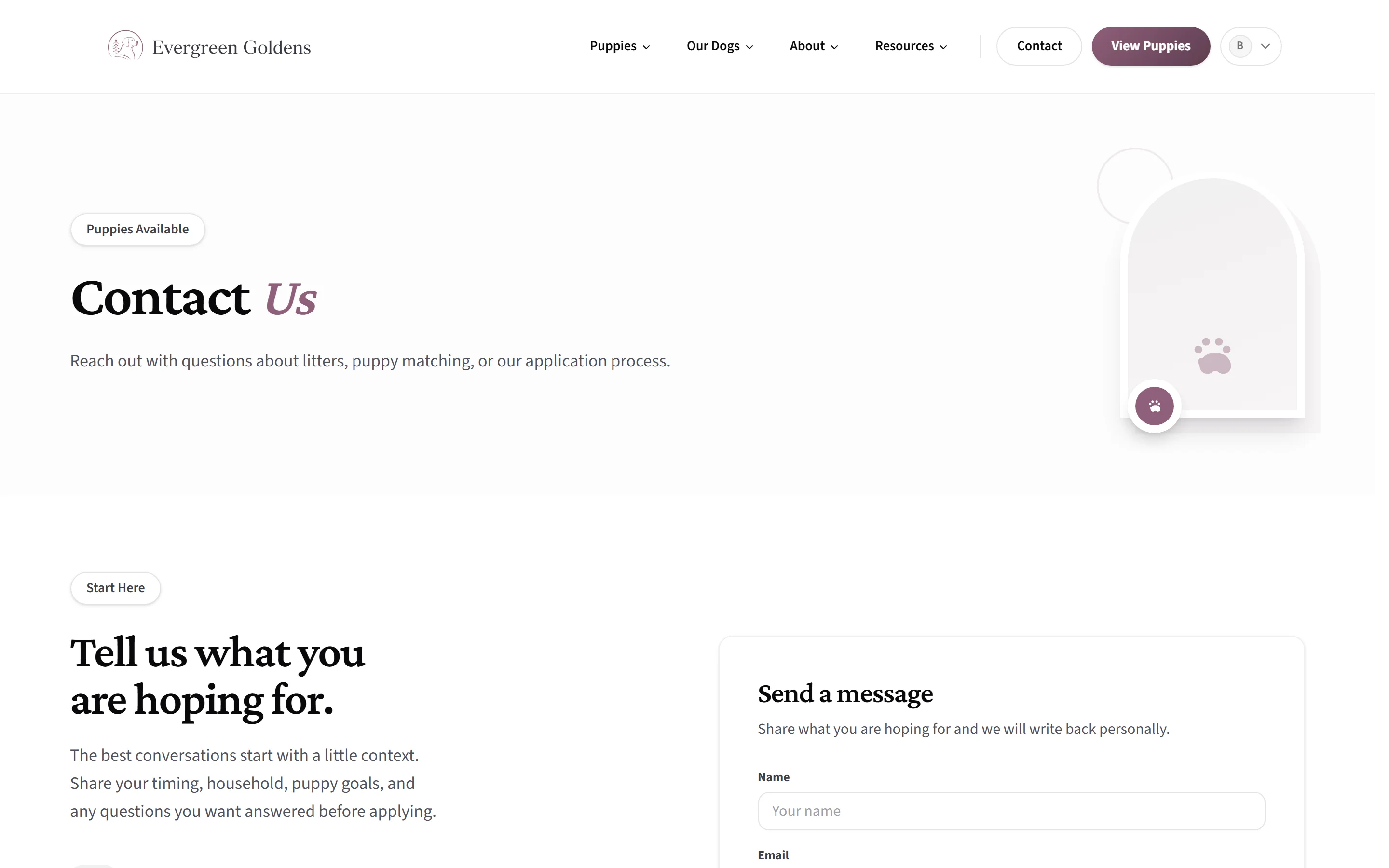
- Contact at /contact, when you only want people to message you first.
Buttons across your site point at whichever one is live, so a buyer never lands on the wrong page.
When your intake is set to contact first, the same buttons point at your contact page instead.
The short waitlist signup
One page, no steps. The buyer fills in Name, Email, and Phone, picks a Preferred Gender and Preferred Colors, and can write a Message to the breeder. The button reads Join the waitlist. The color choices are whatever you set under Colors buyers can choose in site settings, which starts as the standard colors for your primary breed.
The four-step application
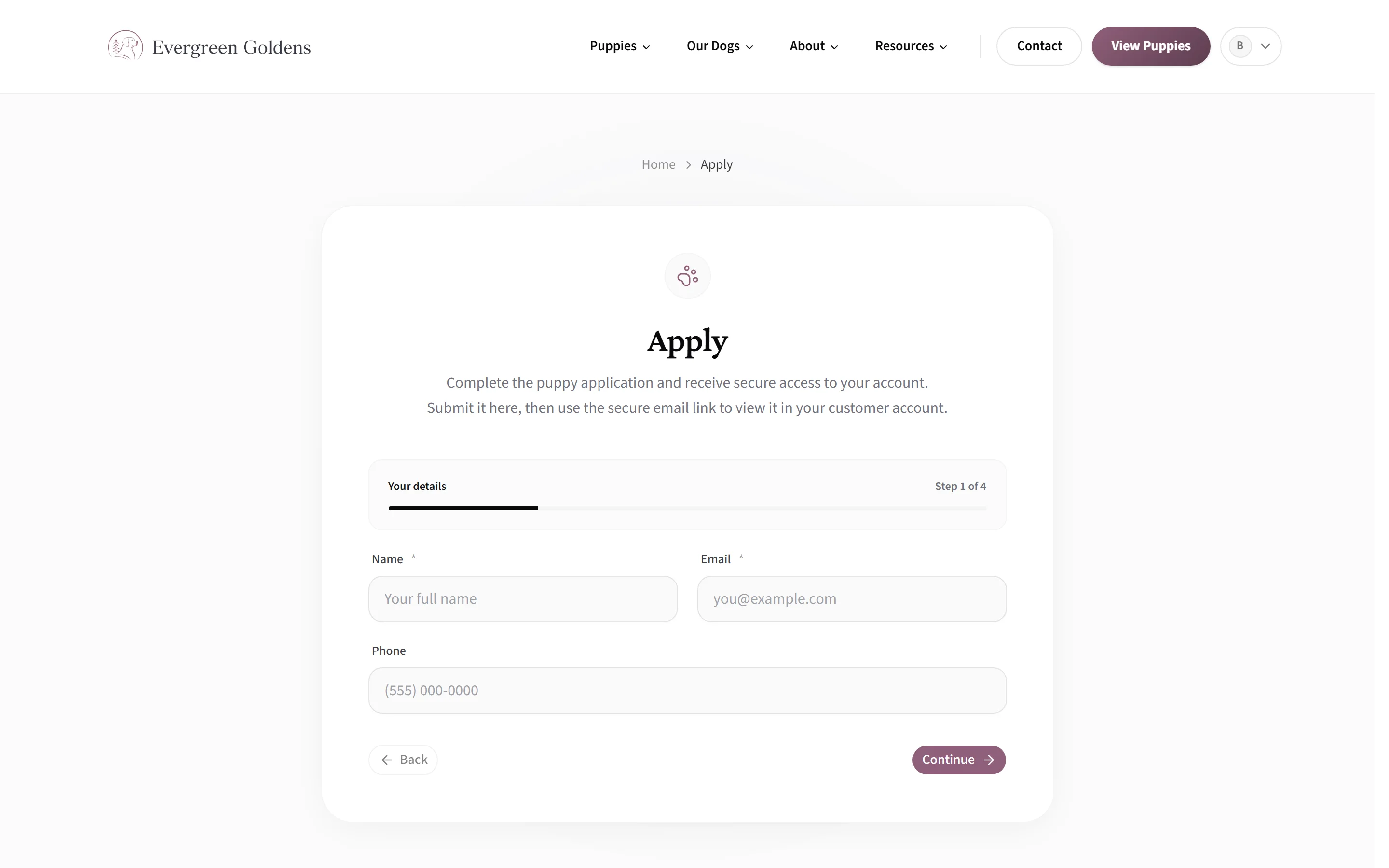
When applications are turned on, the same page becomes a guided form with a progress bar reading Step 1 of 4.
- Your details. Name, email, and phone. If the buyer is already signed in, their name and email are taken from their account and shown as a small card instead.
- Preferences. Preferred Gender, Preferred Colors, and a Message to the breeder box. The colors offered are the ones under Colors buyers can choose in your site settings.
- Application. Your published default application form, with its own name at the top and the line "These answers help us review fit and timing." Whatever questions you built are what shows here. See forms and applications to change them.
- Review. A panel reading Ready to submit? that reminds them nothing is sent until they click. The button is Submit application.
Back and Continue move between steps, and each step is checked before the buyer can move on.
What happens the moment they submit
- The buyer sees a confirmation reading Application submitted. or, for a signup, You're on the list.
- A customer account is created for them automatically if they did not have one, and they are emailed a secure link into it. They never have to invent a password first.
- That email arrives under your kennel name, not Whelpify's, and replies go to the contact email in your site settings. You can reword it in the customer emails control center.
- The entry lands in your waitlist for review. See the waitlist and applications.
- Anything typed into Message to the breeder shows up in your Messages inbox as a real message, not buried in a field.
If a buyer who already has an active signup opens the page again, they do not get a second form. They see "You already have an active signup." with two buttons, Manage Signup and View My Account.
Common questions
Can a buyer change their answers after submitting?
Yes. From the Overview tab of their account they click Manage on their application, edit their preferences and answers, and click Save Application. If you assigned the application as a form, they get an Edit application button on it once it has been submitted or reviewed, and submitting again saves a new revision without erasing the first.
What stops spam applications?
A quiet security check runs on the final step before the form will send. Most buyers never notice it. Repeated submissions from the same person in a short window are also slowed down automatically.
Can two people in the same family both apply?
They can, but each email address is its own account. Only one active general signup is kept per account, so a second attempt from the same email points back to the existing one.
Do buyers have to sign in before applying?
No. Signing in is optional, and applying is what creates the account. Once they have one, the form pre-fills their details. More on that in the customer portal.
Still stuck? Email info@whelpify.com and a real person will help.