- Docs
- Waitlist and customers
- Reservation offers
Reservation offers
Offer a puppy to one family at a time, give them a deadline to answer, and move on cleanly if they pass.
Updated September 2, 2026
On this page
- What this is for
- Where to find it
- Send an offer
- Follow one offer
- Accept, decline, or cancel
- Collect the deposit
- Deadlines and reminders
- Common questions
- Can two families be offered the same puppy?
- The family accepted in their account. Do I need to do anything?
- Can I change the deadline after sending?
- How do I keep a record of my offers?
What this is for
An offer holds one puppy for one family for a set number of hours. They get an email and a message with a deadline. If they accept, the puppy is theirs and you collect the deposit. If they pass or run out of time, the puppy frees up and you move to the next family. No group emails, no first-come scramble.
Where to find it
In the left sidebar, open Customers, then Offers.
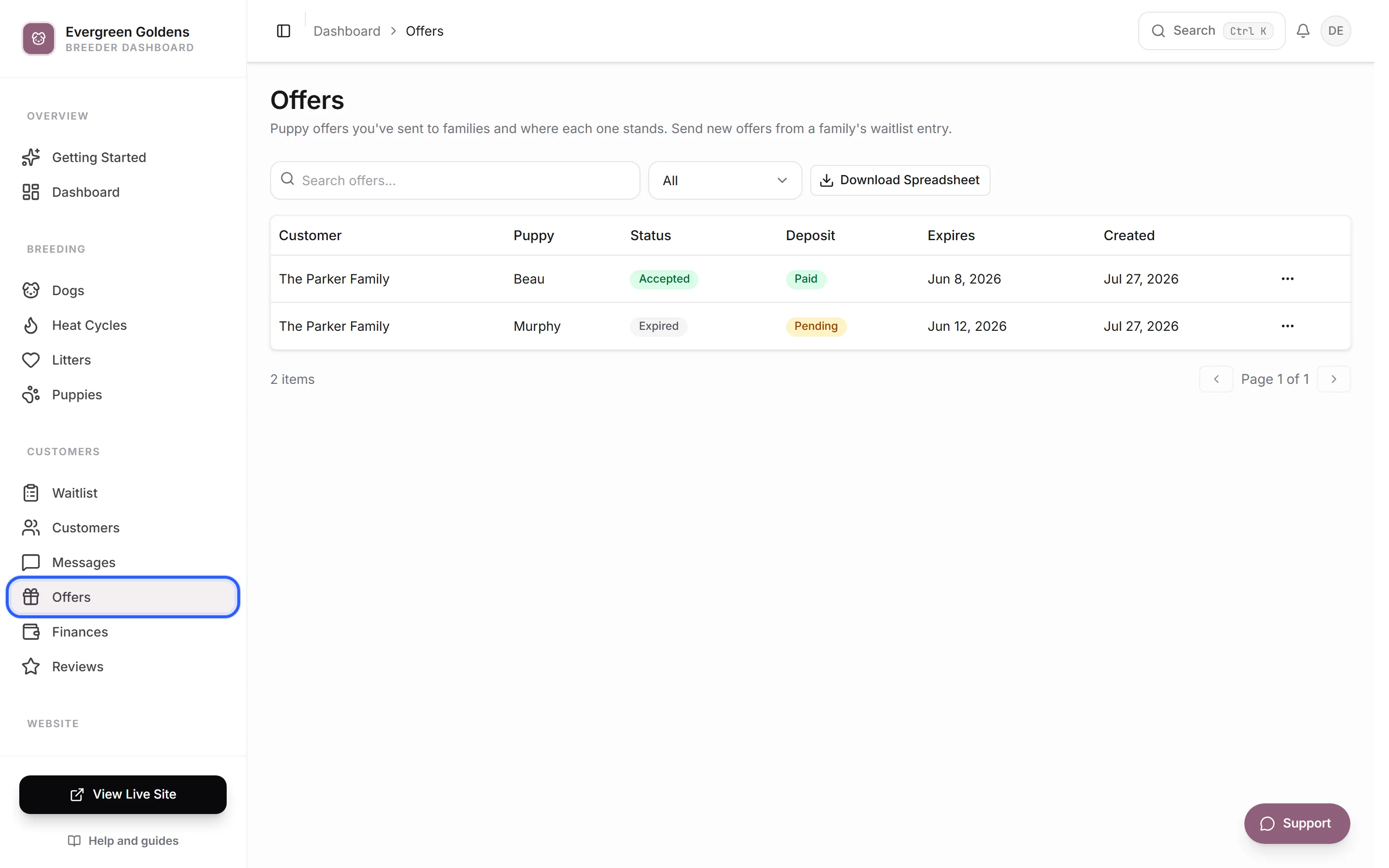
Offers only appear when your reservation workflow is set to something other than inquiry only. Change it in Settings, under How buyers reserve.
Send an offer
You send offers from a family's waitlist row, not from the Offers page.
- Open Customers, then Waitlist.
- Find the family and open their row actions menu (the three dots).
- Click Send Offer.
- Check the puppy under Puppy, or pick one from the list of available puppies.
- Set Response window (hours). This starts at the default from your settings.
- Add anything you want to remember in Notes (optional).
- Click Send Offer.
The puppy's status changes to Offered, so it stops being offered to anyone else. The family gets an email with a link into their account, and a note appears in their message thread with the deadline.
Follow one offer
Click any row to open it.
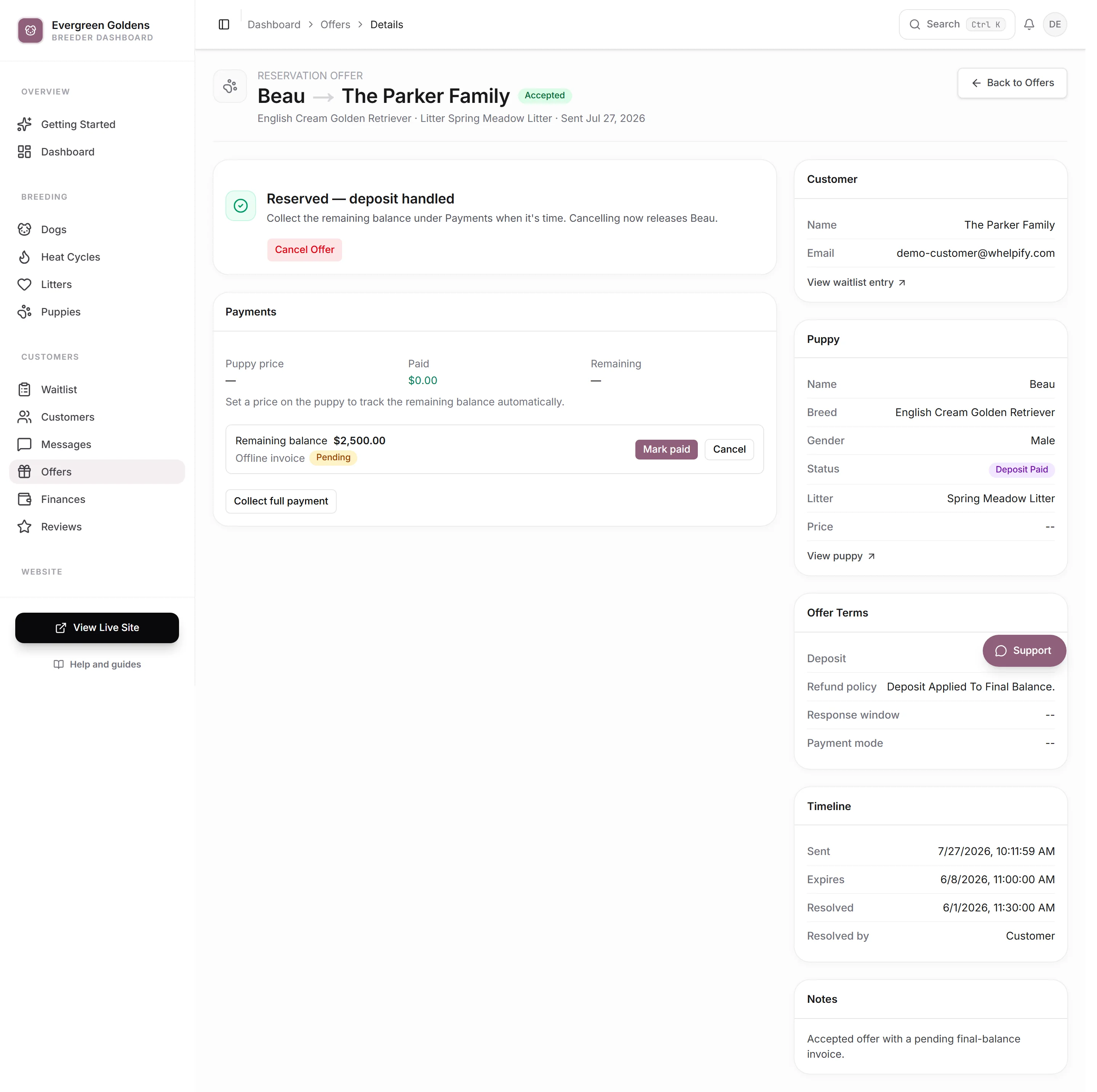
The card at the top tells you what to do next in plain words, and while an offer is open the header shows how much time is left. Down the right side you get Customer, Puppy, Offer Terms (the deposit, refund policy, response window, and payment mode frozen when you sent it), Timeline, and any Notes.
Accept, decline, or cancel
While the offer is Open, the buttons under the top card are:
- Mark Accepted for a family who said yes by phone or in person.
- Mark Declined for a family who passed.
- Cancel Offer to pull it back yourself.
Tick Mark deposit as paid when accepting before Mark Accepted if they already handed you the money.
Accepting sets the puppy to Reserved, or to Deposit paid when the deposit is settled, links it to that family, and moves their waitlist entry to Puppy assigned. Declining or cancelling puts the puppy back to Available.
Collect the deposit
Once an offer is accepted, use the Payments card on the same page. Whelpify creates the deposit request for you where payments are set up. Where the money came in some other way, use Mark Deposit as Paid. Full detail is in deposits, balances, and payment requests.
To cancel an accepted offer where a deposit has been paid, use Cancel & Handle Deposit. It walks you through refunding, issuing a credit, or keeping a non-refundable deposit.
Deadlines and reminders
When the response window runs out with no answer, the offer becomes Expired, the puppy goes back to Available, and you are notified. Before that happens, the family gets one reminder that their offer is closing. For a short window the reminder is moved earlier so it does not land right after the offer.
Common questions
Can two families be offered the same puppy?
No. A puppy can only have one active offer. Cancel or wait out the first one before sending another.
The family accepted in their account. Do I need to do anything?
No. The status changes on its own, the puppy is reserved for them, and you get a notification. You just collect the deposit.
Can I change the deadline after sending?
Not on an existing offer. Cancel it and send a new one with a different Response window (hours). Changing the default for future offers is done in Settings, under Offer timing.
How do I keep a record of my offers?
Click Export on the Offers page for a CSV of every offer, or open a family's customer record to see their offers alongside everything else.
Still stuck? Email info@whelpify.com and a real person will help.