- Docs
- Your website
- Design, colors, fonts, and your logo
Design, colors, fonts, and your logo
Set your kennel logo, brand colors, fonts, text size, and button shape so every page of your site matches.
Updated September 2, 2026
On this page
- What this is for
- Where to find it
- Upload your logo
- Choose your colors
- Pick your fonts and text size
- Set your button shape
- Common questions
- Where do I change the header and footer layout?
- Can one page use different colors?
- What is the little icon on my browser tab?
- My logo looks too big or too small in the header.
What this is for
Your logo, colors, fonts, and button shape are set once and used everywhere: every page, every public form, and the emails Whelpify sends for you. Change them here and the whole site follows.
Where to find it
In the left sidebar, open Account, then Settings, and choose the Branding tab.
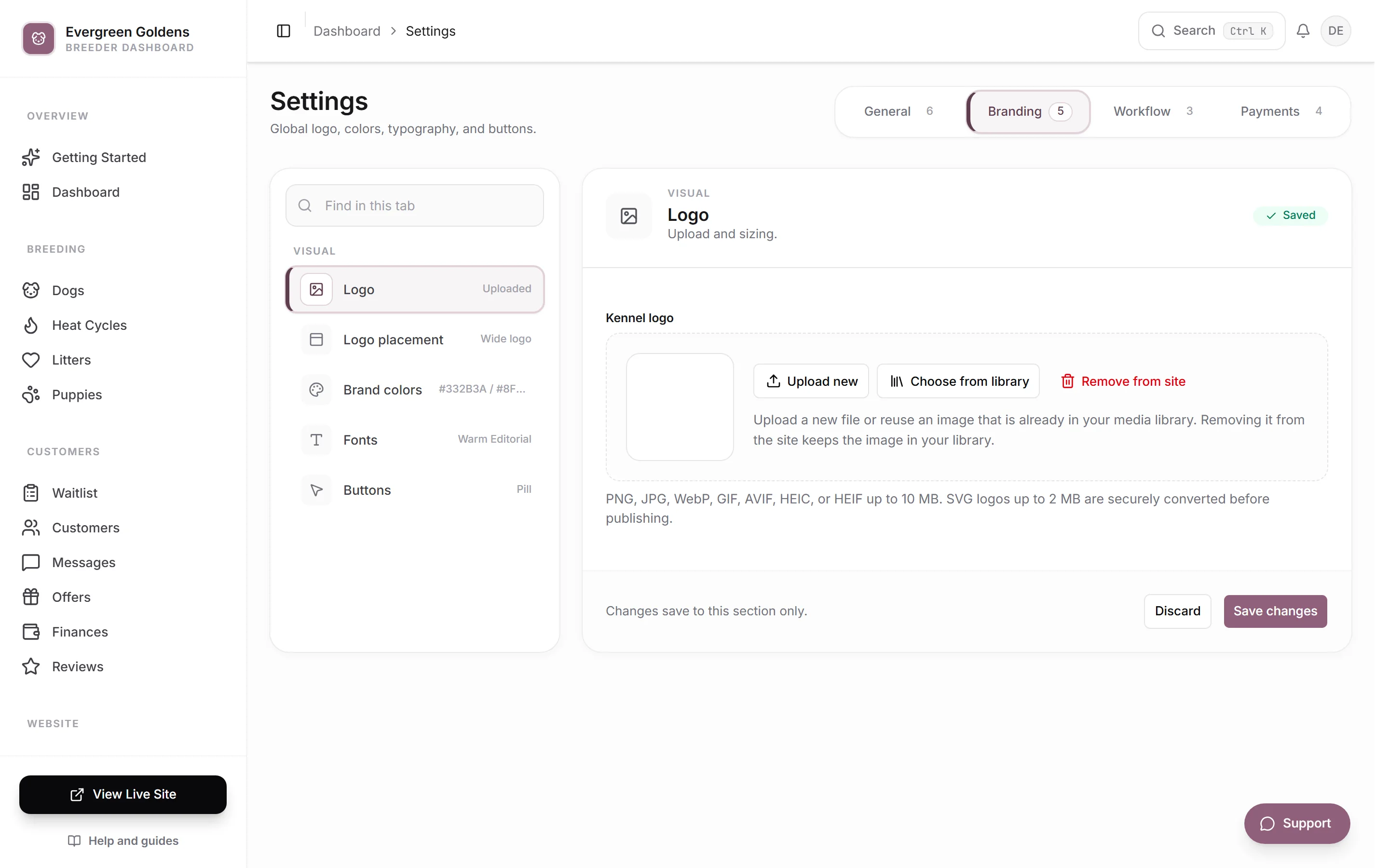
The Branding tab has five sections in the list on the left: Logo, Logo placement, Brand colors, Fonts, and Buttons. Move between them freely, then click Save changes at the bottom of the panel to save your branding edits together. Discard puts back what you had.
Upload your logo
- Open the Logo section.
- Click Upload logo, or use the library button beside it to reuse an image you already uploaded.
- Wait for the preview to appear. The logo applies to your site as soon as the upload finishes, without a separate save.
You can upload PNG, JPG, WebP, GIF, AVIF, HEIC, or HEIF files up to 10 MB, and SVG files up to 2 MB. Once a logo is set, the button reads Upload new. Remove from site takes the logo off your website but keeps the file in your media library.
Under Logo placement, choose a Logo arrangement. Pick Wide logo when your logo already contains your kennel name, or Logo mark + name when it is a square or tall mark that should sit beside your site name. The slider below sets how large the logo appears in your header, and the box underneath previews it.
Choose your colors
Open Brand colors. You set three:
- Site ink is usually black or charcoal. It handles strong text, navigation, and dark sections.
- Main accent is your expressive brand color, used for buttons, links, and highlighted words.
- Detail accent is a quiet supporting color for stars and small decorative marks, not backgrounds.
Click a color swatch to pick visually, or type a hex code in the box. Quick presets gives you five ready-made three-color palettes: Forest, Sage, Copper, Gold, and Heritage Rose. Picking one fills all three colors, and you can still fine-tune each one afterward. The Palette preview row shows the softer shades Whelpify builds from your three colors.
Pick your fonts and text size
Open Fonts. The fastest route is Curated font pairings: click a pair and both fonts are set at once. For full control, use the Heading font and Body font dropdowns. Headings are used for page titles, section headings, and your site name. The body font handles paragraphs and descriptions.
Overall text size sets the default size across your public website, from Extra small through Standard to Extra large. The preview at the bottom of the section shows a sample headline and paragraph in your chosen fonts, colors, and size.
Set your button shape
Open Buttons and choose Pill, Rounded, or Square. This applies to the main buttons on your site, buttons in your customers' account area, and the submit buttons on your public forms. The preview strip underneath shows a primary, accent, and outline button in your colors.
Common questions
Where do I change the header and footer layout?
Not here. Header layout, the sticky header, footer style, and the buttons in your header and footer live under Website, then Structure. See menus and site structure.
Can one page use different colors?
No. Colors and fonts are site-wide on purpose, so your site reads as one brand. What you can change per page is text size, in Page settings inside the page builder.
What is the little icon on my browser tab?
Whelpify generates it for you: a paw on your Main accent color. Change that color and the tab icon follows.
My logo looks too big or too small in the header.
Use the size slider in Logo placement, and check that your Logo arrangement matches the shape of your file. Wide logos with your name built in should use Wide logo.
Still stuck? Email info@whelpify.com and a real person will help.