- Docs
- Account and settings
- The customer emails control center
The customer emails control center
See every email Whelpify can send for you, turn each one on or off, rewrite the wording, and check what actually went out.
Updated September 2, 2026
On this page
- What this is for
- Where to find it
- Turn an email on or off
- Automatic emails start off
- Rewrite an email
- Preview before you commit
- How the send gate works
- Check what was sent
- Common questions
- A customer says they never got an email. What now?
- Do my emails look like they came from Whelpify?
- Can I write a one-time message instead?
- Why can I not turn off password resets?
What this is for
Whelpify sends email on your behalf: confirmations, offers, payment requests, receipts, and alerts to you. The Emails page lists every one of them in a single place so you can decide what sends, change the wording, preview the result, and see what already went out.
Where to find it
In the left sidebar, open Account, then Emails.
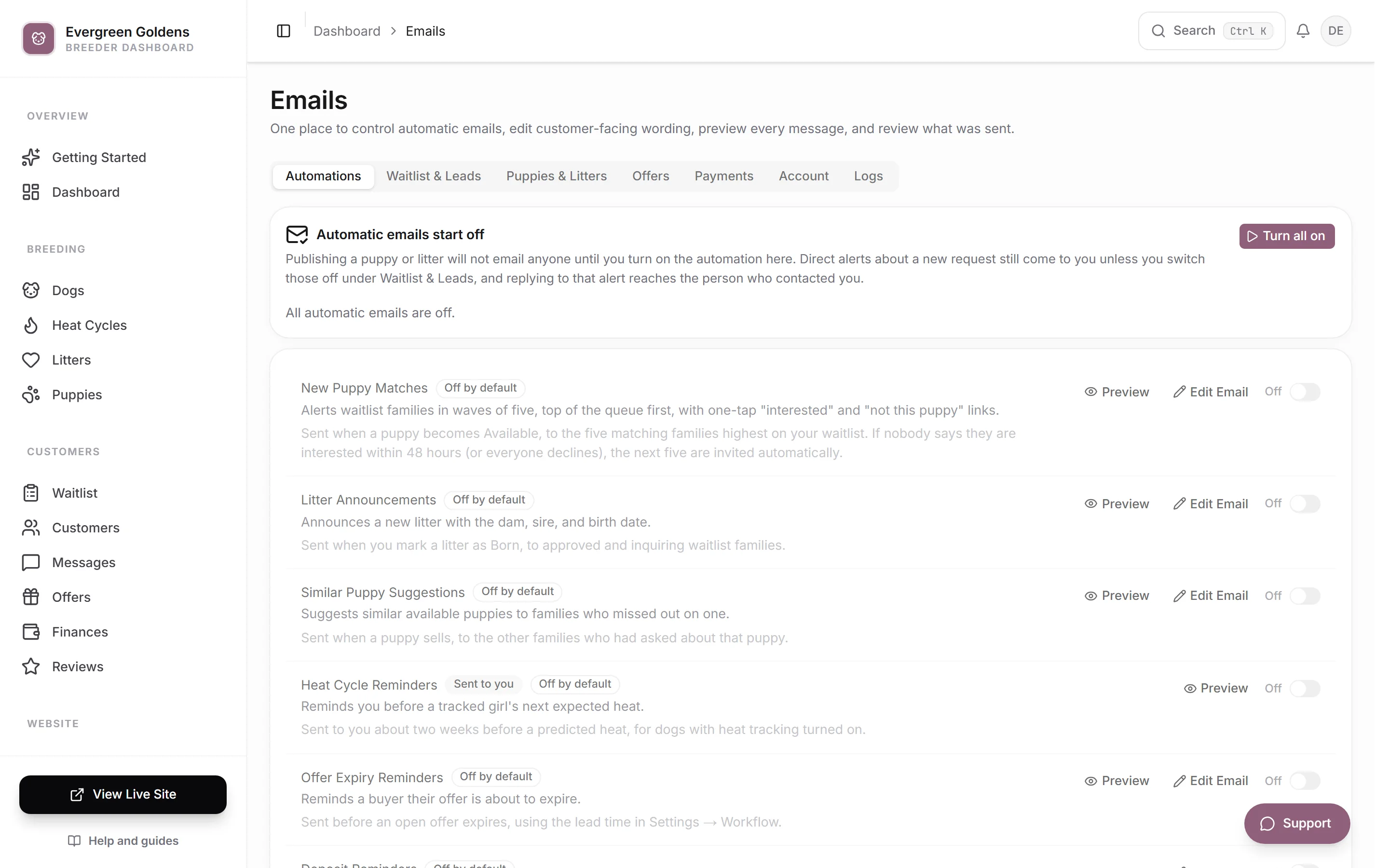
The tabs are Automations, Waitlist & Families, Puppies & Litters, Offers, Payments, Account, and Logs. Every row shows the email name, one line on what it says, and one line on exactly when it fires.
Turn an email on or off
- Open the tab that holds the email.
- Read the line under the name so you know when it sends.
- Use the switch on the right. It reads On or Off, and it saves the moment you change it.
Some rows carry a badge instead of a switch. Always on means the email is essential and cannot be turned off, such as secure sign-in links, password resets, and notices about your own subscription. Sent to you means it lands in your inbox rather than a customer's. Off by default means Whelpify never sends it until you turn it on yourself.
Automatic emails start off
The Automations tab holds the emails that fire without you doing anything: new puppy matches to your waitlist, litter announcements, offer expiry reminders, deposit reminders, similar puppy suggestions, and heat cycle reminders to you. All of them start off, so publishing a puppy or a litter never emails anyone until you say so.
Use Turn all on to switch the whole group on at once, or Turn all off to stop them. The line under the heading tells you how many are currently on.
Rewrite an email
- Find the email and click Edit Email. Rows without that button use fixed wording.
- Change any of Subject line, Heading, Opening line, Message, Button label, or Closing line. Leave a field blank and it keeps the default wording.
- Add a Personal note if you want a highlighted line at the top, such as a phone number families can text.
- Watch the preview beside the editor. It updates as you type.
- Click Save, or Reset to defaults to clear everything you changed.
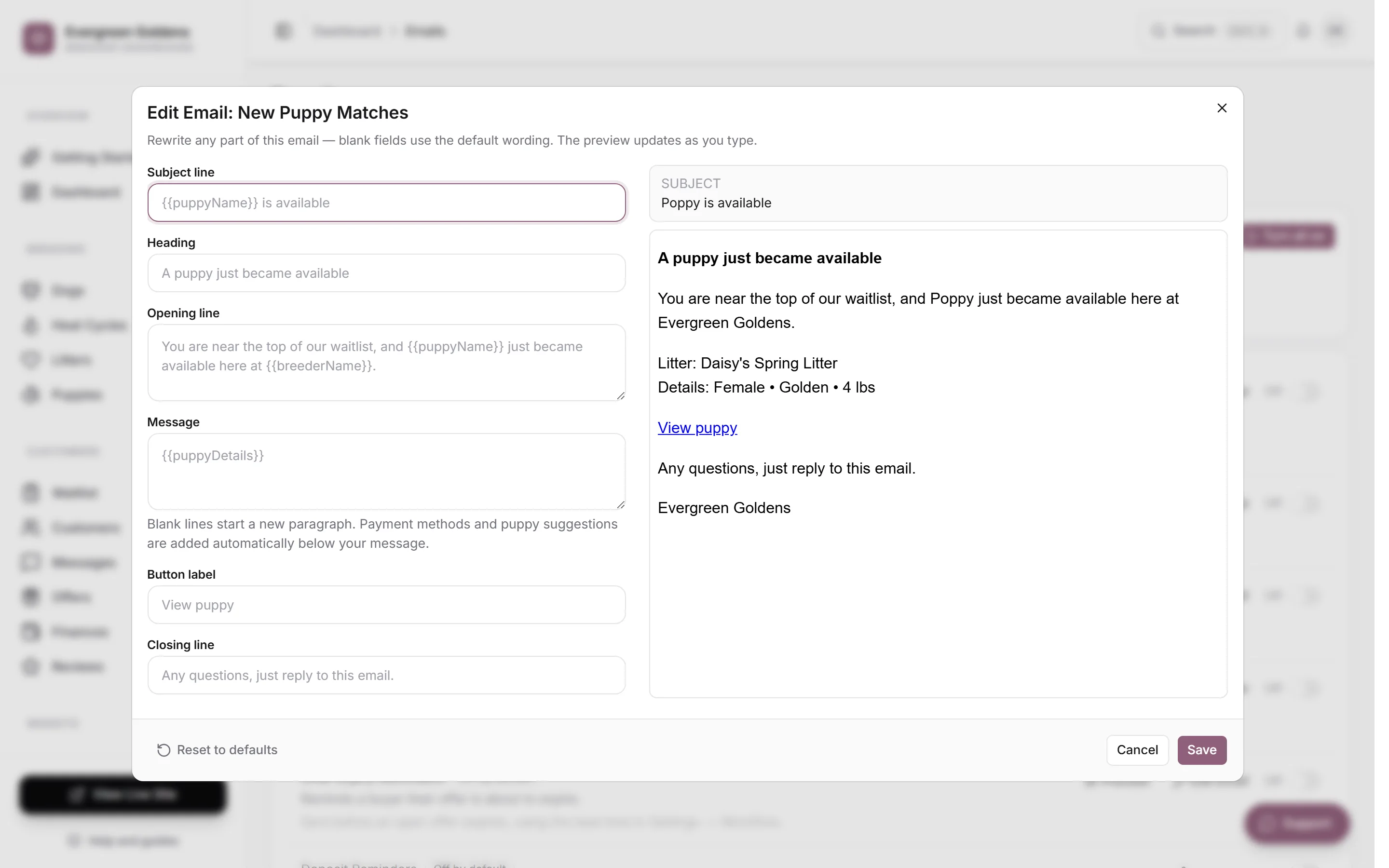
Blank lines in Message start a new paragraph. Payment methods and puppy suggestions are added automatically below your message, so you do not need to write them in.
The panel under the editor lists the fill-in fields that email supports, such as the buyer name or the puppy name. Type one exactly as shown, curly braces included, and Whelpify swaps in the real details when the email sends. Any email you have changed shows a Customized badge in the list.
Preview before you commit
Click Preview on any row to see the finished email with your logo, colors, and kennel name, plus its subject line. The sample uses example details, and real sends fill in the actual customer, puppy, and payment information.
How the send gate works
Every send is checked before it leaves. In order:
- If the address has unsubscribed or previously bounced, nothing is sent.
- If the email type is switched off here, the send is canceled and recorded as Not sent.
- If the email counts against your monthly email allowance and the allowance is used up, it is held back. Password resets, sign-in links, and notices about your own subscription always go through.
Replies go to the Contact email in site settings, not to Whelpify, so a customer answering an email reaches you directly.
Check what was sent
The Logs tab lists recent sends with the subject, the email type, who received it, the time, and a status badge: Sent, Delivered, Scheduled, Delayed, Couldn't send, Couldn't deliver, Marked as spam, or Not sent. It is the fastest way to answer "did that family actually get it?".
Common questions
A customer says they never got an email. What now?
Open Logs and find the send. Delivered means it reached them and is probably in a spam folder. Not sent means the type was switched off. Couldn't deliver usually means the address is wrong.
Do my emails look like they came from Whelpify?
No. They carry your kennel name, logo, and colors, and replies come back to your contact email.
Can I write a one-time message instead?
Yes. A broadcast to your waitlist is written and sent from the Waitlist page. See emailing your waitlist.
Why can I not turn off password resets?
Locking someone out of their account is never the right outcome, so resets, sign-in links, and your own billing notices are marked Always on.
Still stuck? Email info@whelpify.com and a real person will help.