- Docs
- Waitlist and customers
- Waitlists and Applications
Waitlists and Applications
Keep every family who applied or joined your waitlist in one ordered queue, and add people yourself.
Updated October 19, 2026
On this page
- What This Is for
- Where to Find It
- How Families Arrive
- Read the List
- Search and Filter
- Change the Order
- Add a Family Yourself
- Work on Several Rows at Once
- Common Questions
- Someone Is on My List Twice What Do I Do?
- What Is the Difference Between a Spot Number and a Position?
- Why Can I Not See the Offers Page?
- Separate Paid Spots From Unpaid Inquiries
- Give One Family More Than One Spot
What This Is for
Your waitlist is one ordered list of every family who has raised a hand: people who joined from your website, families who sent a full application, and anyone you add yourself. Each row is one spot, which means one place in line for one puppy. A family can hold more than one spot, with a separate puppy offer and deposit for each.
Where to Find It
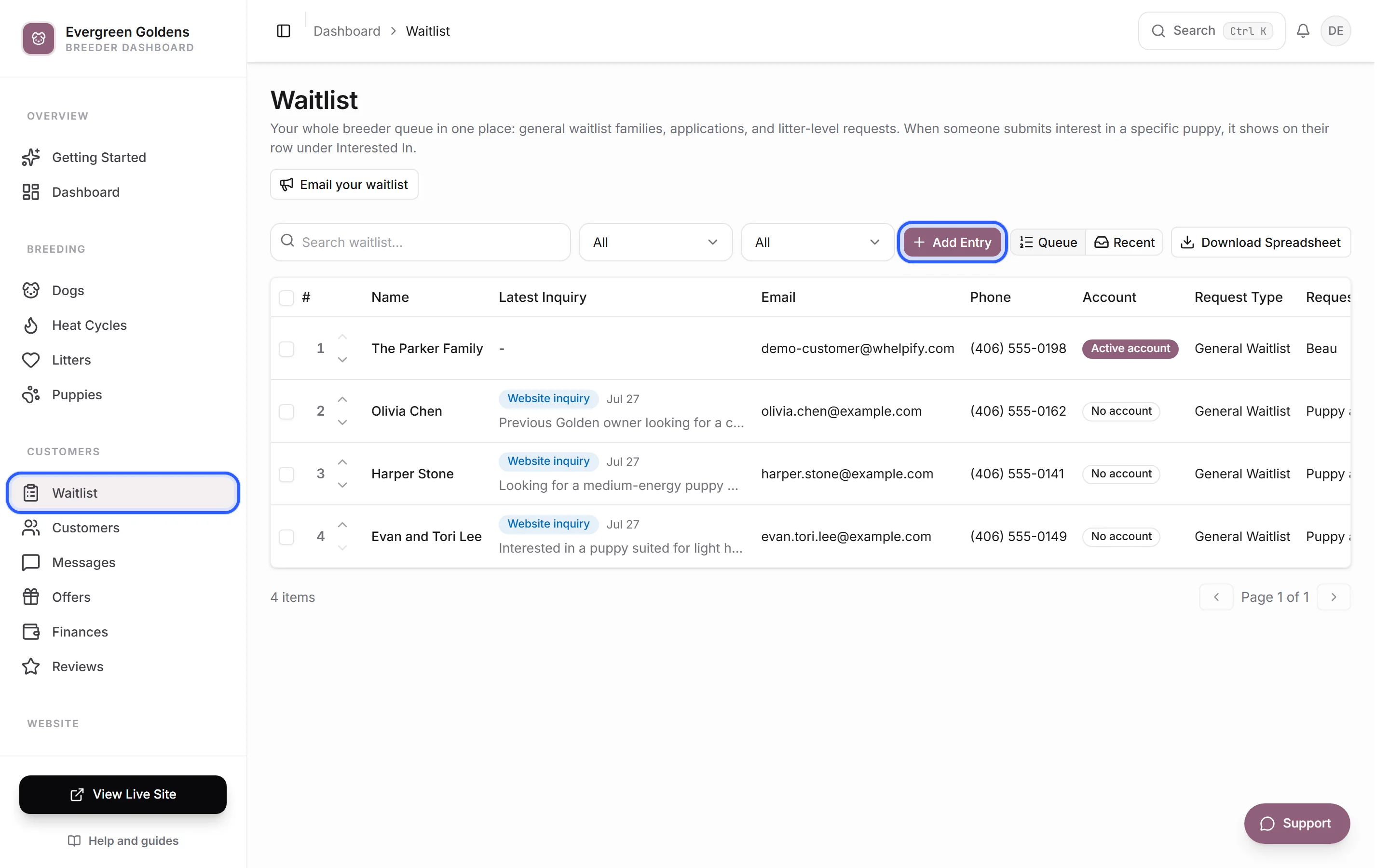
Open Waitlist in the sidebar, or Families for the same people grouped by household. The two views share one header, one search, and one switch at the top left, so you can move between them without losing your place.
How Families Arrive
What your main website button does is set in Settings, under How buyers reserve. You pick one of three:
- Contact first opens a simple message form.
- Join the waitlist collects contact details and puppy preferences.
- Full application shows your complete application before they submit.
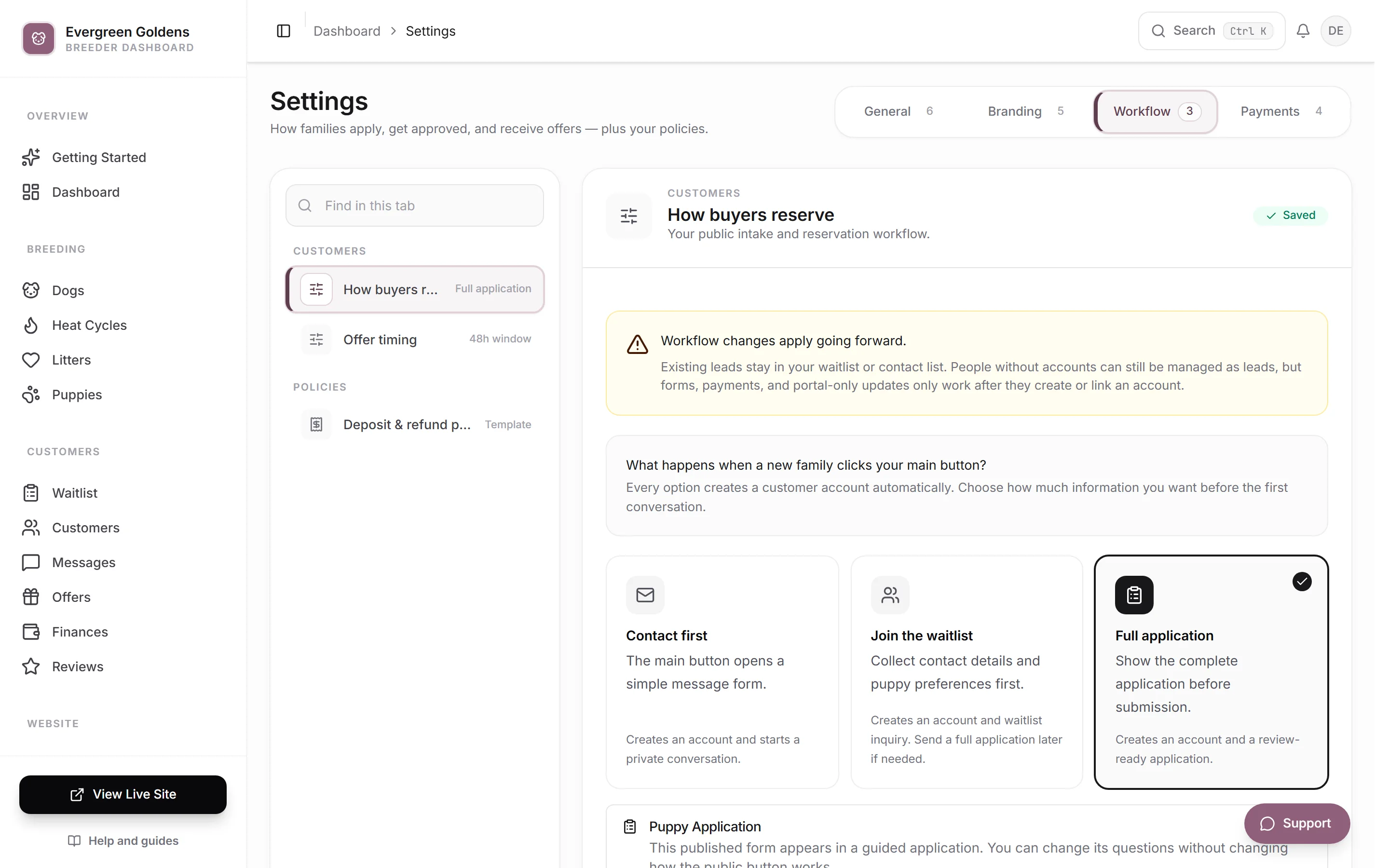
Every option creates an account for the family. Waitlist and application submissions appear here right away, and you get an email plus a bell notification. Contact messages go to your inbox instead.
Read the List
The strip above the list splits everyone into four stages:
- Inquiries are new requests waiting on your review, your approval, or a deposit.
- Waiting is your line. The number at the left of each row is their place in it.
- Matched means a puppy has been placed with them.
- Closed keeps completed and declined spots, along with their messages and payments.
An amber chip at the right of a row, such as Review or Review deposit, means that spot is waiting on you. The to review button next to the search box shows only those rows.
Each row shows the litter they asked about, what they are looking for, their stage, and one word for their deposit: Paid, Unpaid, Processing, or Refund pending. Click anywhere on the row to open the family.
Search and Filter
- Type a name, email, or spot number into the search box.
- Click Filters to narrow by litter or deposit, or to sort by newest inquiry instead of place in line.
- Click Export at the bottom of the list to download the rows you are looking at as a spreadsheet, including each family's position and spot number.
Change the Order
Drag the grip at the left of a row up or down the list, or click a family's number in the # column and choose Move, Top, Up one, or Down one. Everyone else shifts automatically and nobody is emailed. Filters never change positions, so a filtered view may show gaps in the numbers. Paused, closed, and matched spots stay in your records but do not take a place in line.
Add a Family Yourself
- Click Add family.
- Enter their name and email. Phone, litter, and what they are looking for are optional.
- Add a private note if you want one, then click Add family.
Their record opens right away. Adding someone yourself does not email them. If you want them to have a login, open the record's menu and choose Invite to portal.
If the email is already saved, the form says so and offers to open the existing record or add another spot instead.
Work on Several Rows at Once
Hover a row and tick its checkbox, or use the checkbox in the header to select the page. A bar appears with Email, Mark as seen for new inquiries (it clears the reminder, it does not approve anyone), and Remove. Removing moves spots to Closed, keeps their messages and payments, and can be undone from the toast. No email is sent.
Common Questions
Someone Is on My List Twice What Do I Do?
Open the row menu (the three dots) on the duplicate and choose Merge duplicate, then pick the family you want to keep. Notes, account links, offers, payments, forms, and puppy assignments move over.
What Is the Difference Between a Spot Number and a Position?
A spot number such as Spot #4 is a stable label for one record. It never changes and is only shown when a family holds more than one spot. A position is their place in line right now, and it changes as you move people. The export includes both.
Why Can I Not See the Offers Page?
Offers only appear when your reservation workflow is something other than inquiry only. Change it in Settings, under How buyers reserve, then see reservation offers.
Separate Paid Spots From Unpaid Inquiries
In Settings → Applications & Reservations → How Buyers Reserve, turn on Separate unpaid inquiries from my paid waitlist. The Email your waitlist button then defaults to families with a paid deposit, and the Deposit filter is one click away. Leave the setting off to keep everyone together.
A confirmed online or recorded offline deposit counts for its own spot. Deposits you marked paid before payment records existed appear as Marked paid. Pending payments and fully refunded deposits count as unpaid. A legacy payment that could belong to several spots shows Payment needs matching rather than marking every spot paid.
Give One Family More Than One Spot
Open the family's record and choose Add a spot in the Spots card, or Add another spot from the menu at the top right. Pick the litter and what they are looking for, then confirm. The new spot copies their contact details and existing approval, but starts without a deposit or puppy. The same family can receive a separate puppy offer and pay a separate deposit for each spot. If you added a spot by mistake, archive it from the record's menu.
Still stuck? Email info@whelpify.com and a real person will help.