- Docs
- Waitlist and customers
- Emailing your waitlist
Emailing your waitlist
Send one update to every family who is waiting, or only to the approved families, in a few minutes.
Updated September 2, 2026
On this page
What this is for
Sometimes there is news that everyone waiting should hear at once: a litter is on the ground, puppies are ready to view, or your plans for the year have shifted. This sends one email to the families you choose, under your kennel name, without you copying addresses into your own email program.
Where to find it
In the left sidebar, open Customers, then Waitlist. Click Write to your waitlist at the top right of the page.
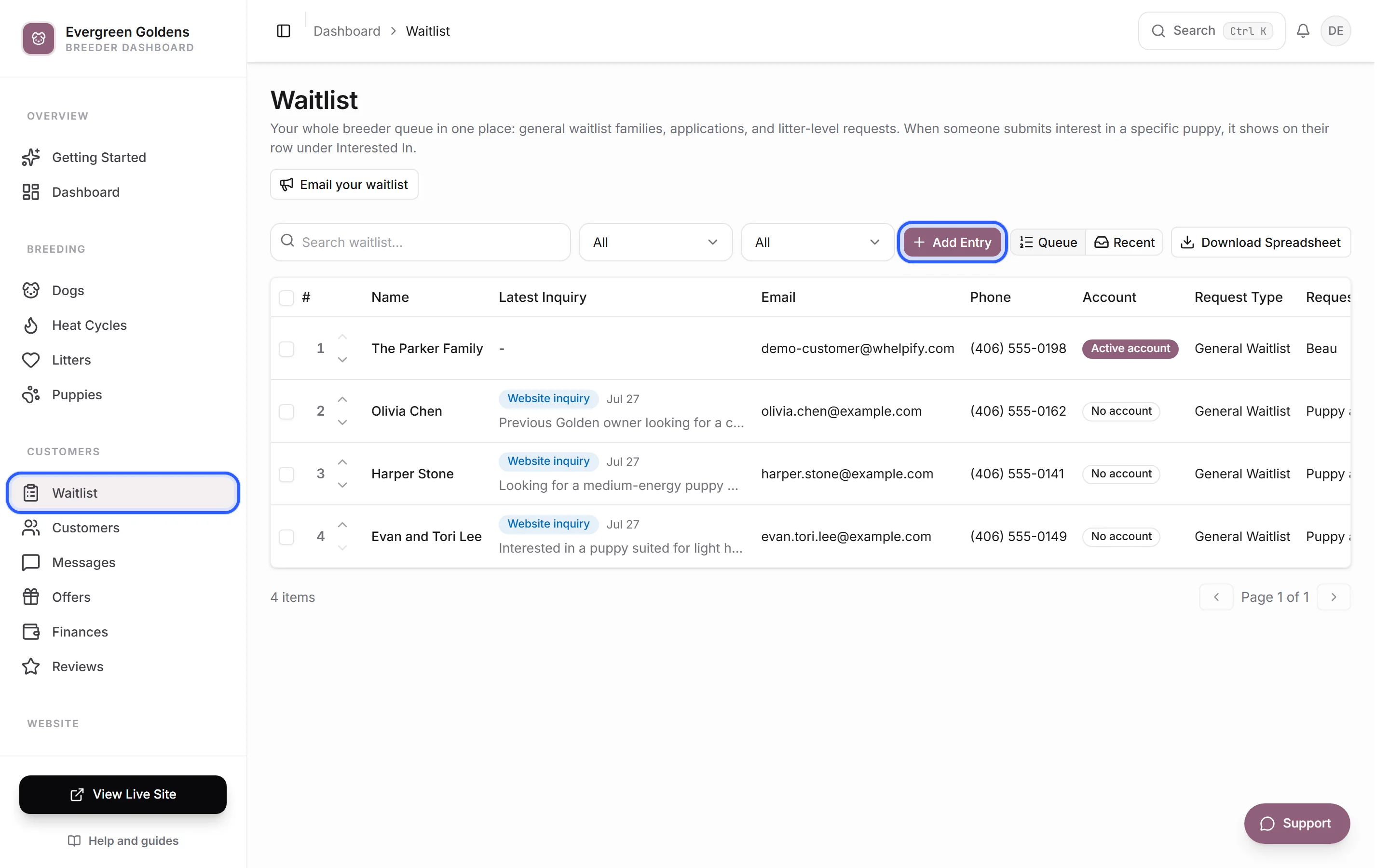
Send an update
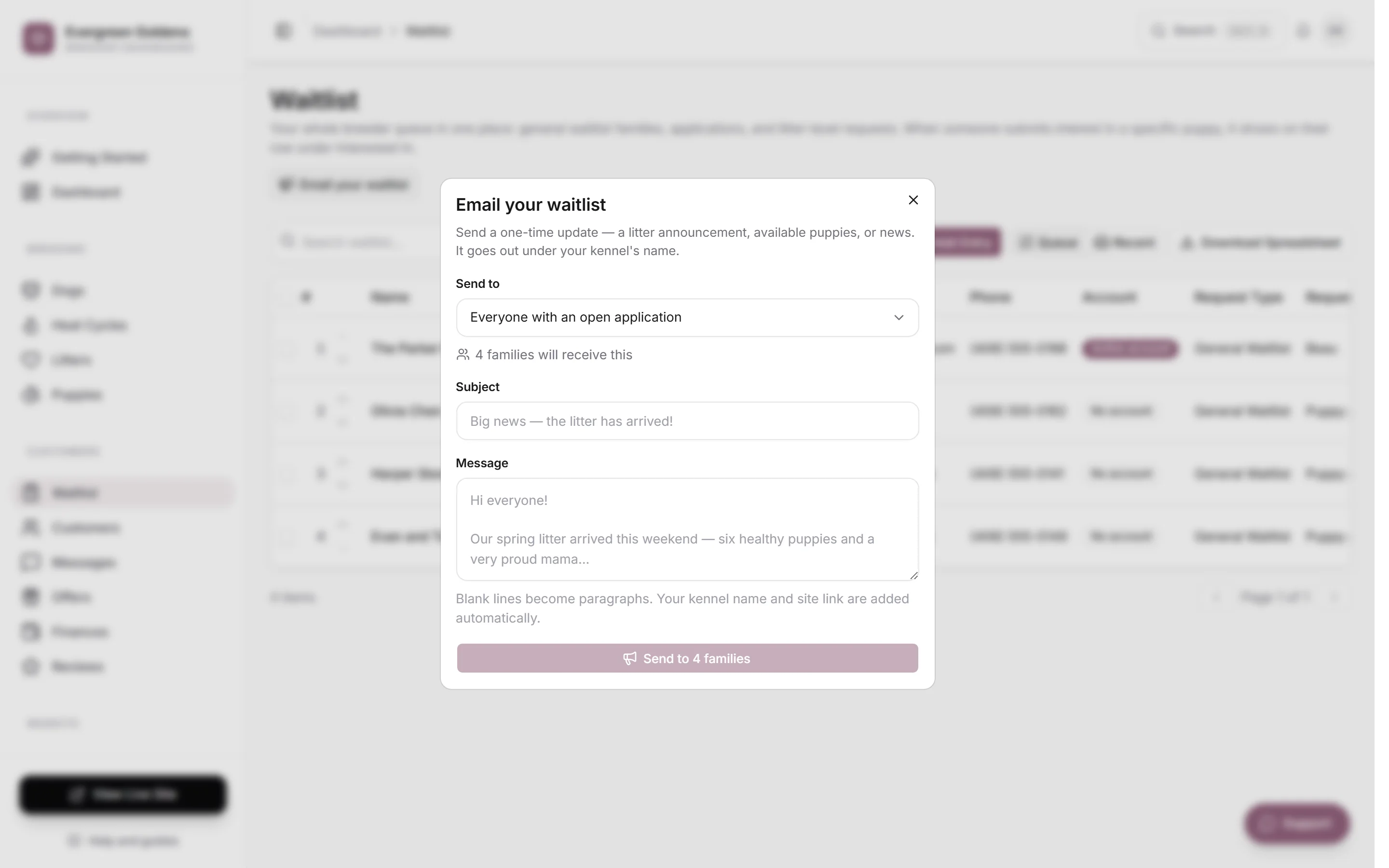
- Click Write to your waitlist.
- Choose an audience under Send to.
- Read the line underneath. It counts the families who will receive this before you write a word.
- Write a Subject, up to 150 characters.
- Write your Message, up to 5,000 characters.
- Click the send button. It names the number of families, so you can see the size of what you are about to do.
When it finishes you get a confirmation saying how many families it reached, and how many could not be delivered. Click Done to close.
Choose the right audience
- Everyone with an open application is every family still in the running. Declined and withdrawn families are left out.
- Approved families only is the families you have approved.
- Families with a paid deposit is the families who have already put money down.
The count updates when you switch, so you can compare before deciding. Families who are on your list more than once get one email, not several.
Write a good update
Blank lines become paragraphs, so leave a blank line between thoughts. Your kennel name and a link to your website are added automatically, so there is no need to sign off with them.
A few things that work well:
- Put the news in the subject line. People read subject lines, not previews.
- Open with what happened, in one sentence.
- Give the detail that matters to a waiting family: how many puppies, colors, when they can be seen, when you will be in touch about placements.
- Say what happens next and when, so nobody has to write back to ask.
- Read it once out loud. If it sounds like a form letter, it is too long.
This is a one-time send, not a newsletter list, so keep it to news the families are waiting for. The automatic emails, such as application updates and new puppy alerts, are set up separately in the customer emails control center.
Common questions
Can I see who opened it?
No. There is no open tracking, and there is no unsubscribe link, because these go only to families who chose to join your waitlist. If someone asks to stop hearing from you, set their entry to Declined or Inactive and they drop out of every audience. See reviewing an application.
Can I schedule it for later?
No. It sends when you click send. Write it when you are ready to send it.
How many can I send?
Each send reaches up to 1,000 families, and your plan includes a monthly email allowance shared with your automatic emails. If a send would go over the remaining allowance, Whelpify stops before sending anything and tells you, so an update never half-sends. Narrow the audience and try again. There is also a short pause between sends and a daily cap, which stops a double click from mailing everyone twice.
Does it include families who only sent a message?
Only if they are on your waitlist. Someone who sent a contact message but never joined the waitlist is not in any audience. Add them from the waitlist with Add Entry if you want them included.
Can I send a test to myself first?
Not from this window. Add yourself to your own waitlist with a spare email address, then send to Everyone with an open application and read what arrives.
Still stuck? Email info@whelpify.com and a real person will help.