- Docs
- What your buyers see
- A tour of your site as a buyer sees it
A tour of your site as a buyer sees it
Walk your public website the way a puppy family does, from the menu and the puppy filters to a puppy page, your dogs, and your reviews.
Updated September 2, 2026
On this page
What this is for
You spend your day in the dashboard. Your buyers never see it. This is a walk through the other side, the public website your work produces, so you know what a family is looking at when they call you.
Where to find it
Open your own site address in a browser. You do not need to be signed in, and signing out is the best way to see it the way a stranger does.
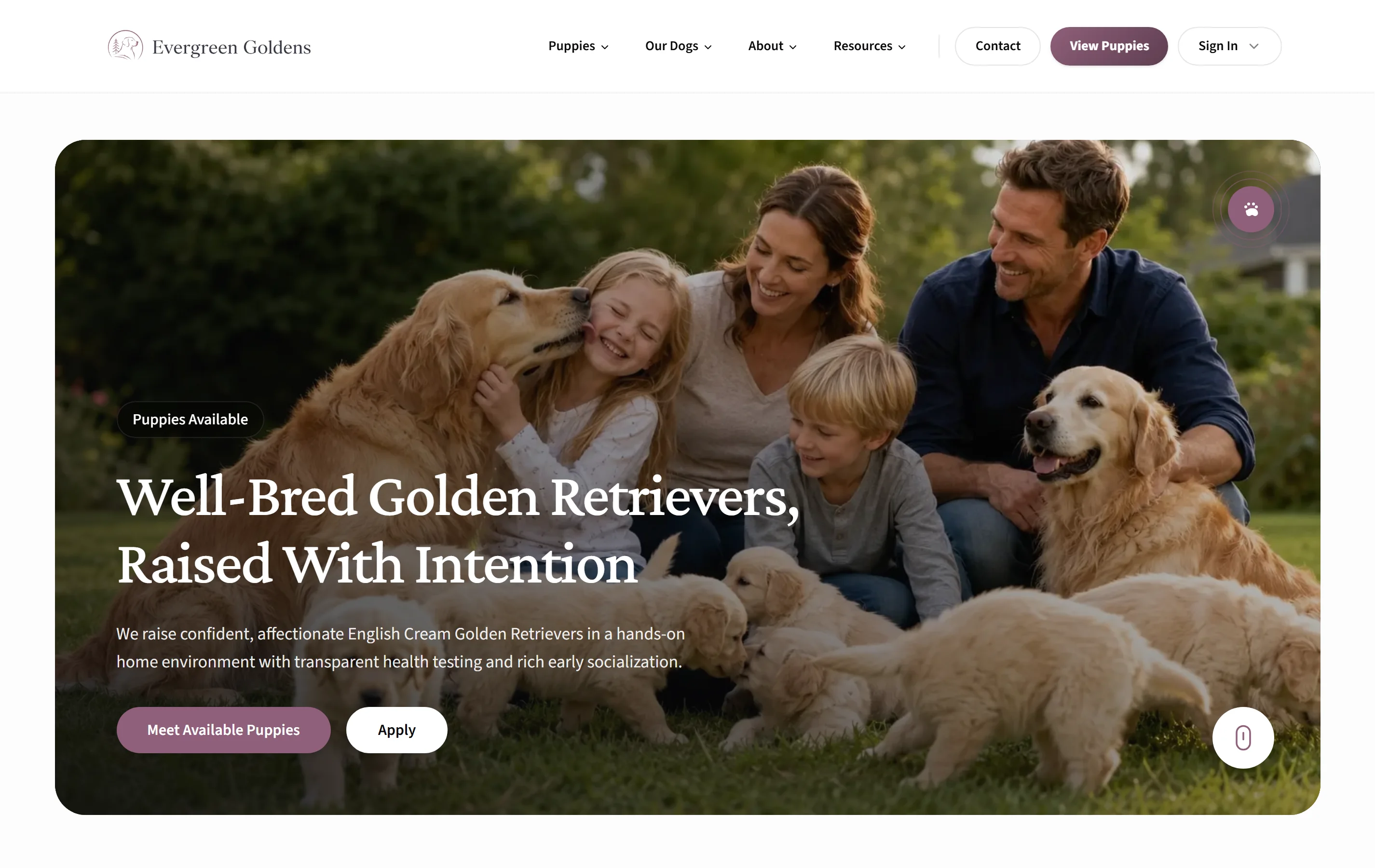
The menu
Your menu is built for you from the pages and records you actually have. A group only appears when there is something behind it.
- Puppies: Available Puppies, Available Males, Available Females, Our Litters, and your apply link.
- Our Dogs: Our Dogs Archive, Our Sires, Our Dams, and Health & Testing.
- About: About Us, Reviews, FAQ, and Shop.
- Resources: Blog and Gallery.
- Contact.
The header also carries a Contact button and a View Puppies button, plus a Sign In menu with Create Account under it. The wording of your apply link changes with your intake setting, so it reads Apply, Join the waitlist, Reserve, or Contact. You can change what appears in menus and site structure.
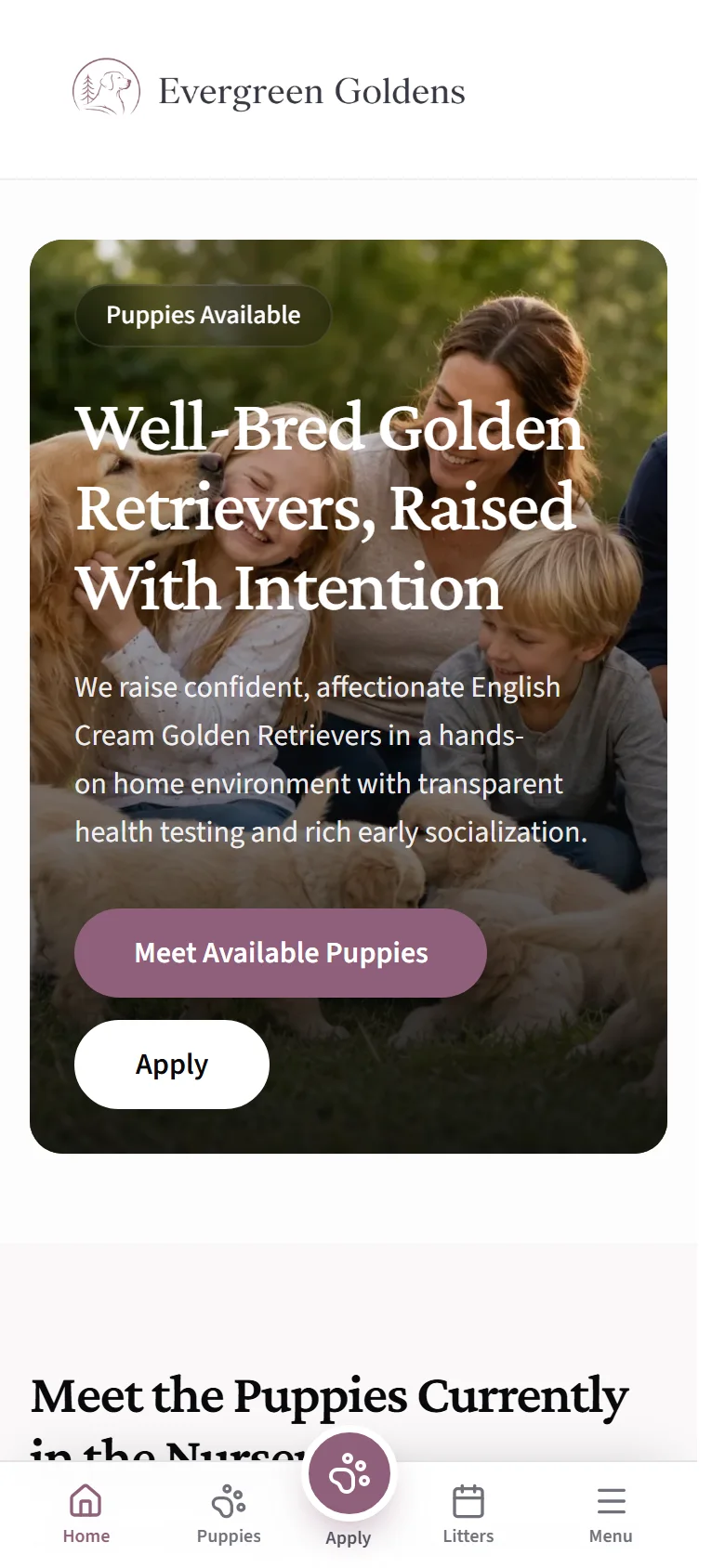
Browsing puppies
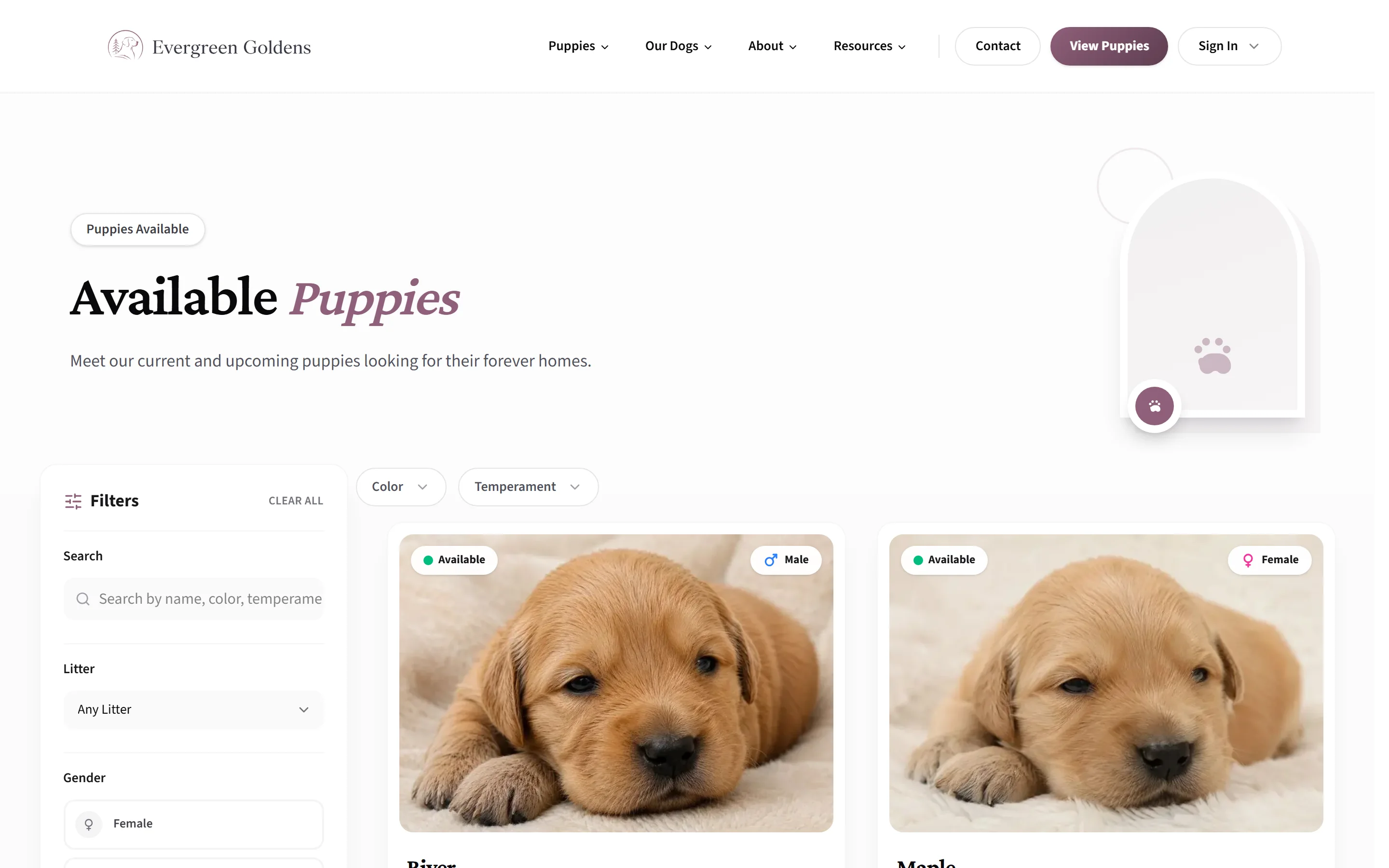
The Filters panel has a Clear All link and lets a buyer narrow by search, Breed, Litter, Gender, Status, Color, Coat, and Temperament. Status starts with Available and Coming soon already ticked, which is why a sold puppy does not show until someone asks for it. On a phone the filters collapse into a Filters button with a count badge.
Each card shows the photo, the status, a gender badge, the name, and a small details box. A price shows only when you have entered one on the puppy. There is no separate switch for hiding prices, so leaving the price blank is how you keep it private.
When you have nothing available, a band appears under the grid inviting people to be first to hear about the next litter, with name and email fields.
A puppy's own page
The page opens with a first-person greeting and the puppy's name, then photos and a quick information table: price if you set one, breed, color, coat, gender, born, ready date, weights, and the litter. Below that come the description, temperament, a growth chart, the pedigree, cards for the dam and sire, and other puppies from the same litter.
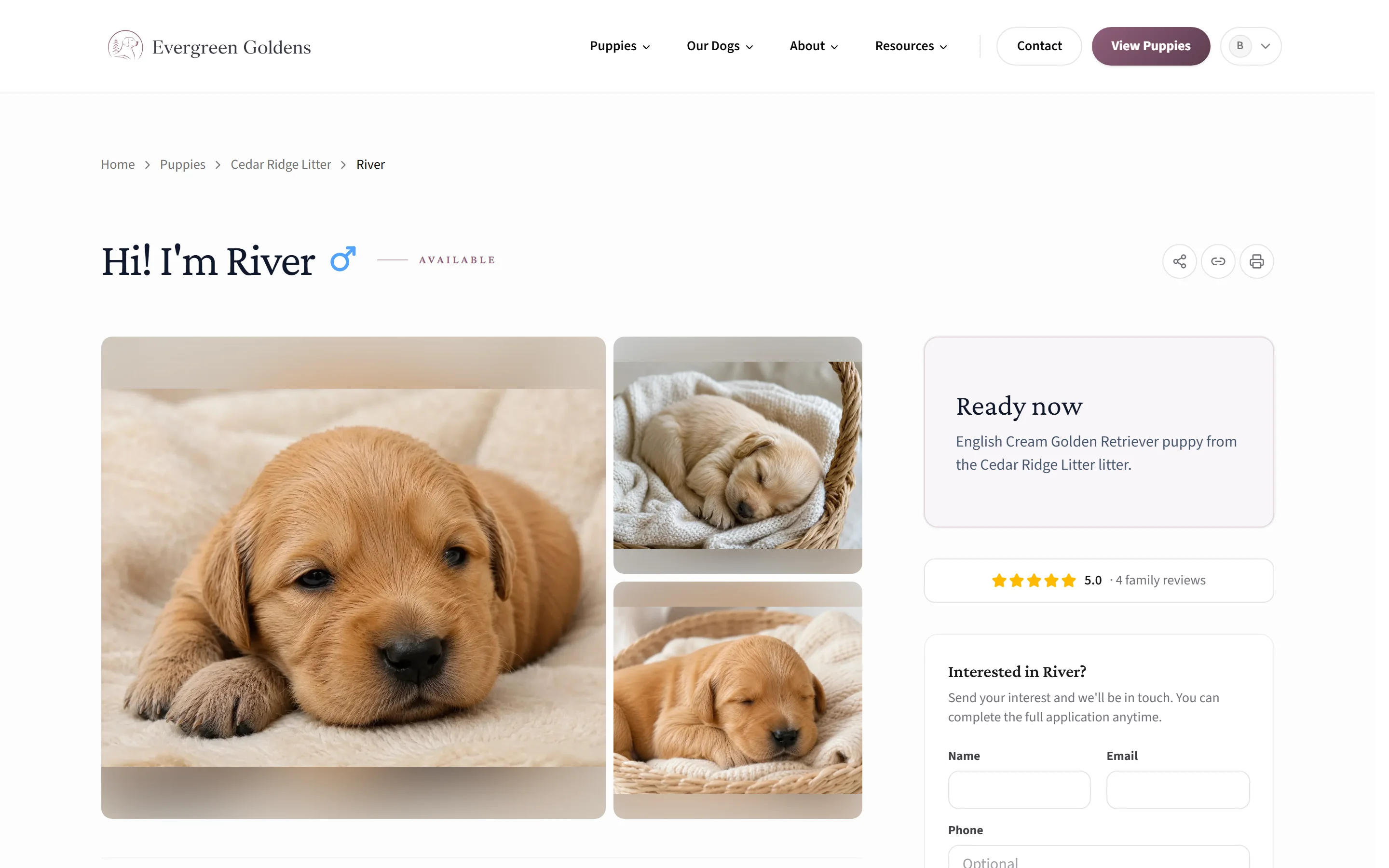
There is one main call to action, and which one depends on your settings. It reads Reserve when you sell first come first served, Submit Interest or Send Puppy Inquiry when you collect interest, or Apply for a Puppy when you take applications. On a phone a sticky bar at the bottom carries the same action.
Your dogs, litters, reviews, and the rest
Our Litters can be filtered by status, Mom, Dad, and year, and each litter page lists its puppies. Our Dogs, Our Sires, and Our Dams all read from the same archive. A dog's page shows the three-generation pedigree and a Health Testing section.
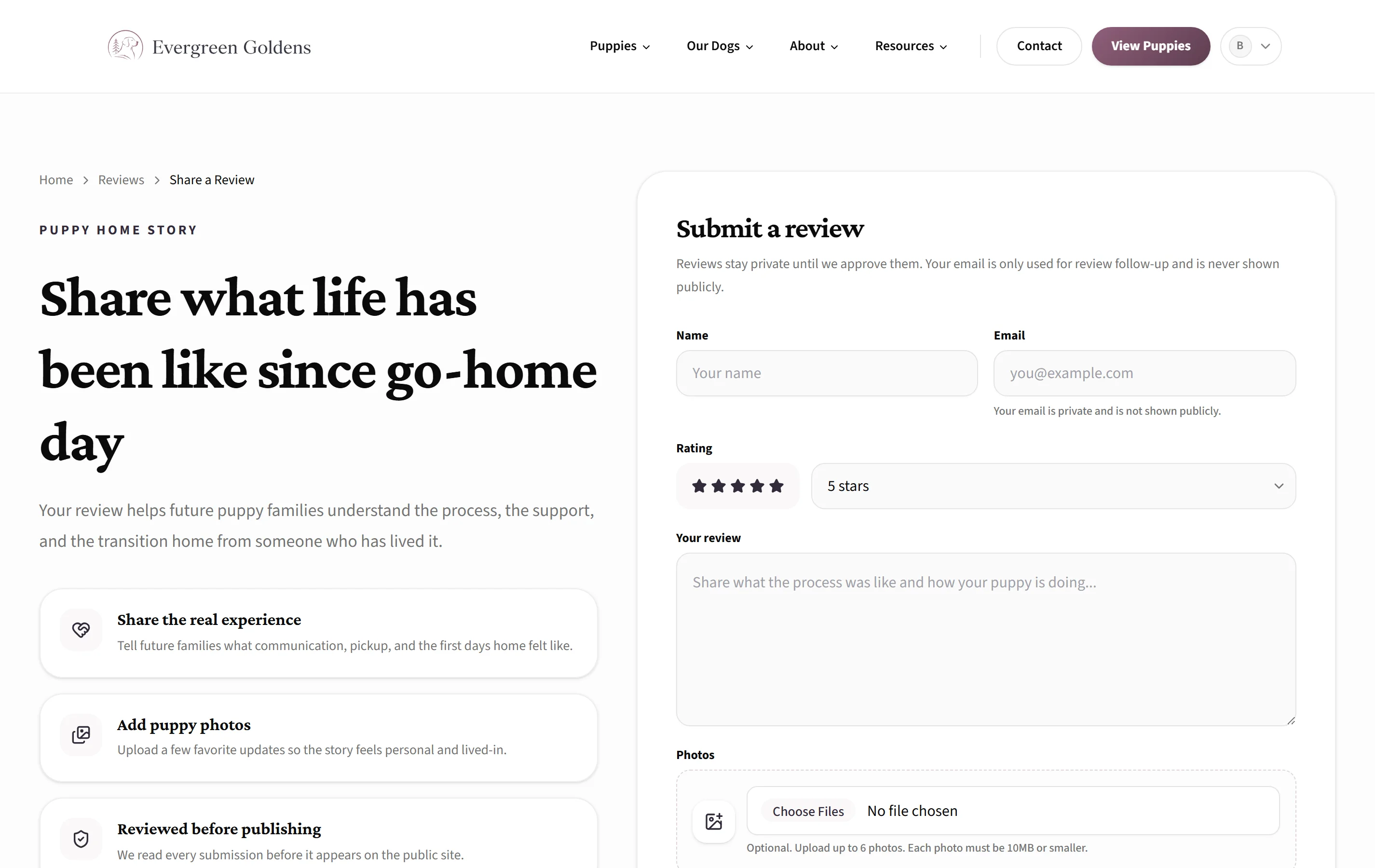
Reviews carries a Share your story button. Nothing a family writes appears until you approve it, which is covered in collecting and publishing reviews.
Shop is a plain list of products you recommend, each opening on another website. Gallery and Blog show your photos and posts.
Common questions
How do I see the site exactly as a buyer does?
Open it in a private or incognito window. Signed in, you see extra links such as My Account and Dashboard that a visitor does not.
Why is a page missing from the menu?
Pages that are still drafts do not appear, and anyone who types the address is sent to your home page instead.
Where does a buyer go after they click Apply?
Straight into the intake form. How a buyer applies or joins the waitlist covers it step by step.
Still stuck? Email info@whelpify.com and a real person will help.