- Docs
- Payments and finances
- Connecting Stripe to get paid
Connecting Stripe to get paid
Link your own Stripe account so buyers can pay by card online and the money lands in your bank.
Updated September 2, 2026
On this page
- What this is for
- Where to find it
- Connect your account
- Check that you are ready
- If your status says something is wrong
- Turn card payments on and off
- Save your details before you go live
- Common questions
- Do I need my own Stripe account?
- Can I take payments without Stripe?
- Why can I not pick Stripe when I request a payment?
- Where do refunds come from?
What this is for
Connecting Stripe lets buyers pay you online by card. The account belongs to you, not to Whelpify, and payouts go to the bank account you give Stripe. You only need to do this once.
Where to find it
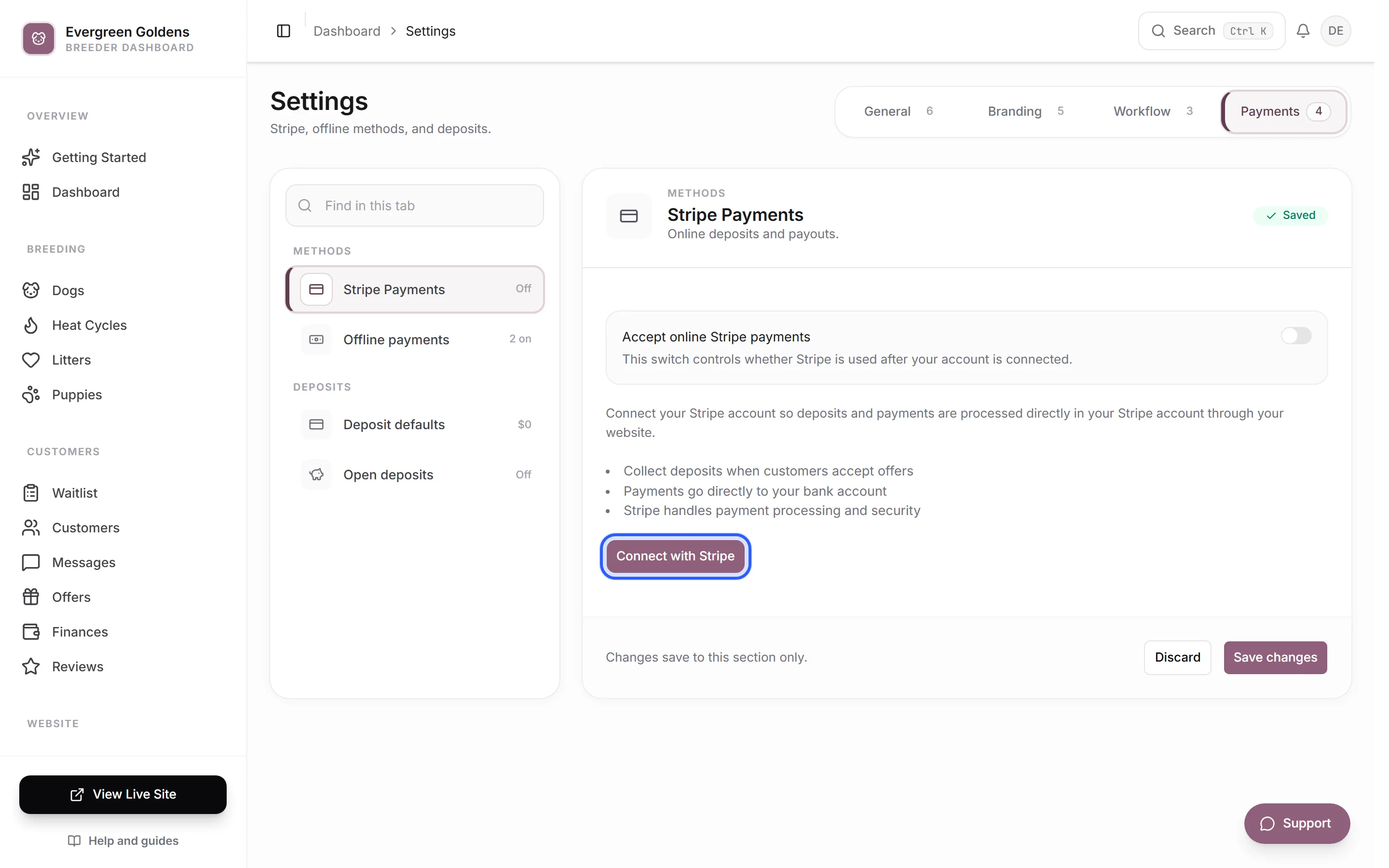
In the left sidebar, open Settings, then the Payments tab, then Stripe Payments. You can also click Set up on the Stripe payments card at the top of Finances.
Connect your account
- Open Settings, then the Payments tab, then Stripe Payments.
- Click Connect with Stripe. Whelpify hands you off to Stripe.
- Fill in what Stripe asks for. This is your business or personal details and the bank account where you want your money.
- Finish, and Stripe sends you back to Whelpify.
- Whelpify checks your account with Stripe and updates the status on this page.
If you close the window partway through, come back to the same place. The button now says Continue Stripe setup and picks up where you left off.
Check that you are ready
Once your account is live, the Stripe Payments section shows a green line saying your account is connected and ready. Look for two badges:
- Can accept payments means buyers can be charged.
- Can pay out to your bank means Stripe can send the money on.
You need both before you rely on Stripe for a real deposit. The section also shows your Stripe account ID, which you only need if you ever contact support.
Click Open Stripe dashboard to jump to Stripe itself, where you can see payouts, statements, and disputes. Payout timing lives in Stripe, not in Whelpify.
If your status says something is wrong
Two banners can appear above the section.
If it says your setup is incomplete, click Continue Stripe setup and finish the remaining questions.
If it says your account has restrictions, click Resolve Stripe issues. Stripe will tell you what it still needs, which is usually an identity document or a bank detail it could not verify. Whelpify cannot clear a restriction for you, and card payments will not go through until Stripe lifts it.
Turn card payments on and off
Accept online Stripe payments is a switch in the same section. Leave it on for normal use. Turn it off if you want to stay connected for payouts but only send offline invoices for a while. Your Stripe account stays linked either way, and you can turn it back on at any time.
When the switch is off, new payment requests use your offline methods instead. If you have no offline methods saved either, Whelpify will not let you request a payment at all.
Save your details before you go live
Take one payment from yourself, or ask a family member to pay a small test invoice, before you send a real deposit request. Watch it move to Paid on the Finances page and confirm it appears in your Stripe dashboard.
Common questions
Do I need my own Stripe account?
Yes, and that is the point. The account is in your name, the money is yours, and you can log in to Stripe directly at any time.
Can I take payments without Stripe?
Yes. Add at least one offline method under Settings, then Payments, then Offline payments. Buyers get your payment details on a branded invoice and you mark each one paid. See Deposits, balances, and payment requests.
Why can I not pick Stripe when I request a payment?
Either the switch is off, or Stripe has not finished enabling charges on your account. Open Settings, then Payments, then Stripe Payments and check for both green badges.
Where do refunds come from?
From the same connected account, so a refund lands back on the buyer's card. See Refunds and customer credits.
Still stuck? Email info@whelpify.com and a real person will help.