- Docs
- Getting started
- Notifications and what they mean
Notifications and what they mean
The bell in the top bar, the full notifications page, and a plain-language list of every alert Whelpify sends you.
Updated September 2, 2026
On this page
- What this is for
- Where to find it
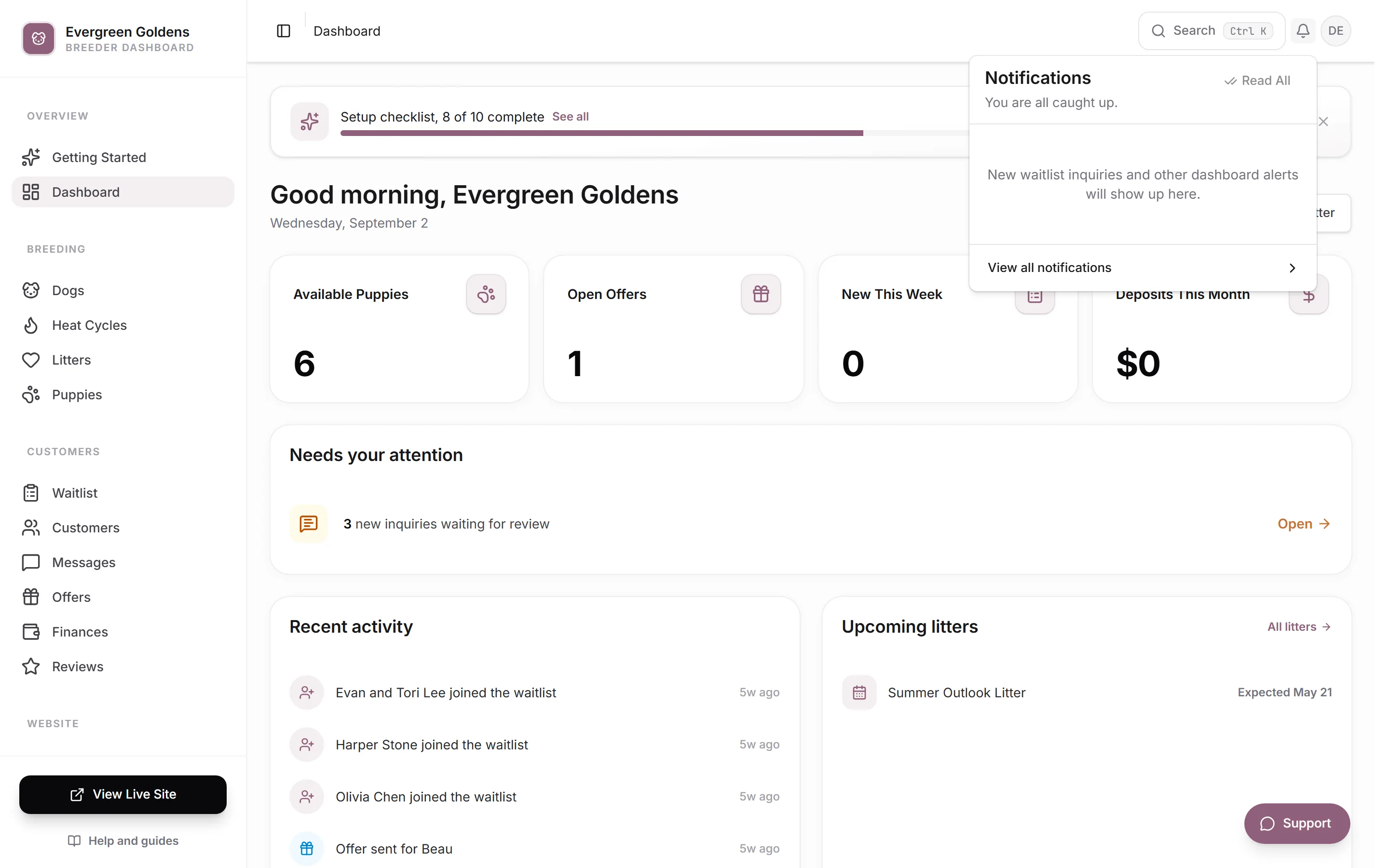
- Reading them from the bell
- Sidebar Counts and Your Dashboard
- Managing the full list
- What each alert means
- Notifications and emails are separate
- Common questions
- Why did I get a bell alert but no email?
- Does everyone on my account see the same notifications?
- The bell says 99+. What does that mean?
What this is for
Notifications are Whelpify tapping you on the shoulder. Anything that happens while you are not looking, a family applying at midnight or a deposit landing on a Sunday, waits for you here with a link straight to the record.
Where to find it
The bell sits in the bar across the top of every dashboard page, with a count when something is unread. Click it for the most recent alerts, or open Notifications under Account in the left sidebar for the full list.
Reading them from the bell
- Click the bell.
- Click any alert to open the record it came from. Doing so marks it read.
- Click Read All to clear the count without opening anything.
- Click View all notifications at the bottom to open the full page.
Sidebar Counts and Your Dashboard
Small numbered badges on Social Posts, Messages, Waitlist, and Reviews show work that still needs attention. The Dashboard badge totals those queues. Its Ready for Your Attention panel links directly to each one.
These counts refresh as you navigate, return to the tab, and periodically while it is open. Reading or deleting a notification does not clear a pending task: approve or skip the social post, read the conversation, or handle the application or review itself.
Managing the full list
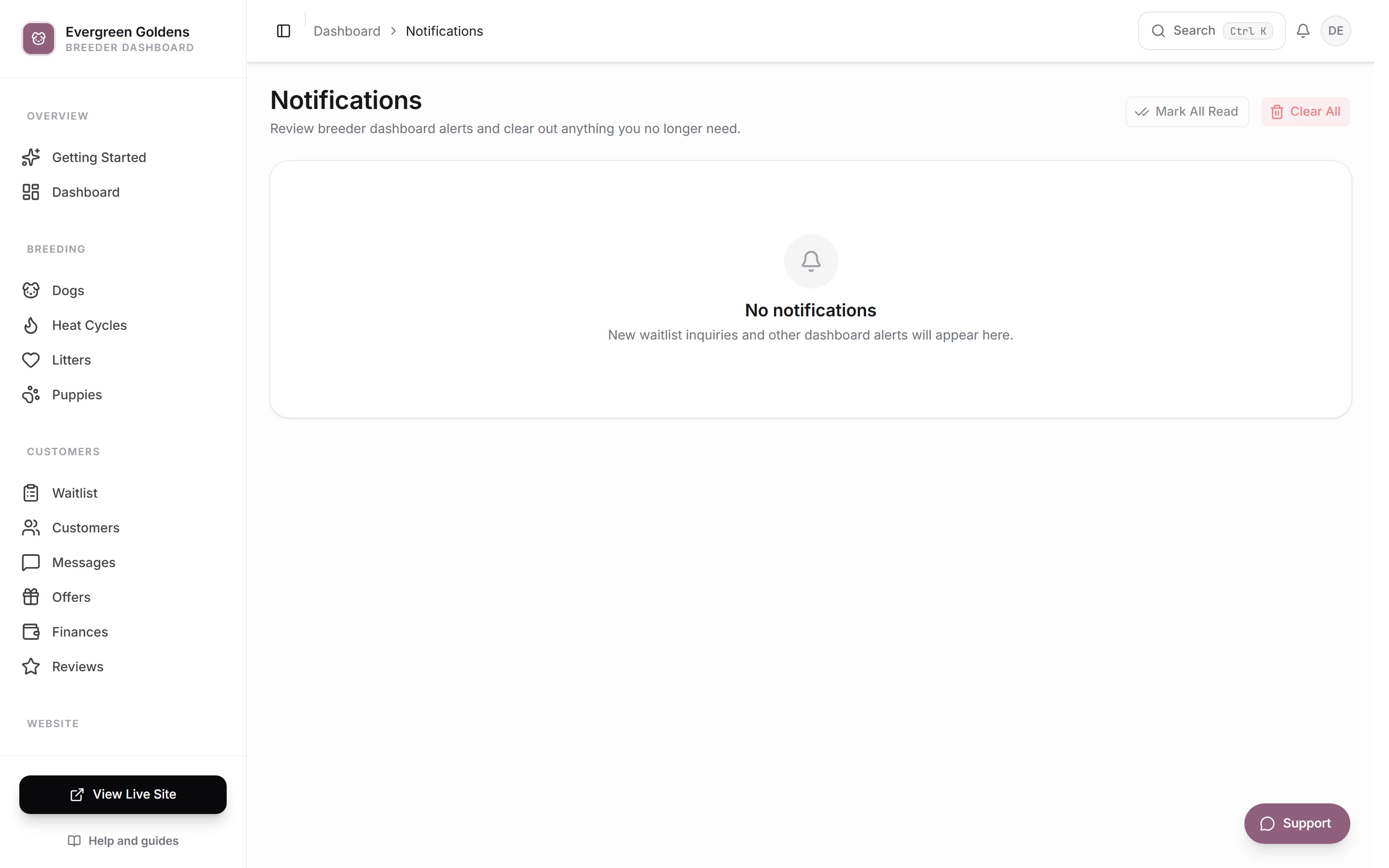
On the Notifications page each alert is a card with its title, a badge naming the kind, the message, and when it arrived.
- Open goes to the record the alert is about.
- Mark Read removes the unread dot and lowers the bell count.
- Delete removes that one alert. You are asked to confirm.
- Mark All Read at the top clears the whole count.
- Clear All empties the list. You are asked to confirm first.
What each alert means
Families and the waitlist
- New waitlist inquiry and New litter-alert signup: someone reached you through your website. See the waitlist and applications.
- Application submitted and Application updated: a family completed or revised your application form.
- New puppy interest: someone asked about one specific puppy, or answered a puppy alert you sent.
- Account invite sent: a customer account invitation went out to a family.
Conversations
- New message: a family replied in your inbox. The alert shows the first line. See messages: your inbox.
Reservations and offers
- Offer sent, Offer accepted, Offer declined, and Offer expired track a reservation offer through its life.
- Offer expiring soon arrives before an open offer runs out, so you can nudge the family.
- New self-serve reservation: someone reserved a puppy directly from your website.
More on all of these in reservation offers.
Money
- Deposit received and Payment marked paid: money came in, by card or recorded by you.
- Payment failed: a card payment did not go through, with the reason.
- Open deposit started and Open deposit applied: a family paid a deposit before choosing a puppy, then that deposit was applied to one.
- A refund alert arrives when you cancel an offer and return money.
See deposits, balances, and payment requests.
Your program and your site
- A heat reminder names the girl and the date her next heat is expected. See tracking heat cycles.
- New review pending approval: a family submitted a review for you to approve.
- Your domain is live: your custom web address finished connecting.
Notifications and emails are separate
The bell records everything, always. Whether the same event also emails you is a separate choice under Emails, and the address those alerts go to is set by the alerts question in the website setup wizard. Sign-in and billing emails always go to your account email.
Common questions
Why did I get a bell alert but no email?
That alert is switched off for email. Open Emails and turn it back on. The customer emails control center explains the list.
Does everyone on my account see the same notifications?
Yes. The list belongs to your kennel, so if someone else marks an alert read, it is read for everyone.
The bell says 99+. What does that mean?
More than ninety-nine unread alerts. Use Mark All Read to start fresh, since nothing is lost by clearing the count.
Still stuck? Email info@whelpify.com and a real person will help.