- Docs
- Payments and finances
- Exports for bookkeeping
Exports for bookkeeping
Download your payments, customers, offers, and waitlist as spreadsheets for taxes, records, or your accountant.
Updated September 2, 2026
On this page
What this is for
At tax time, or any time your accountant asks, you can pull your records out of Whelpify as spreadsheet files. Every export is a plain CSV that opens in Excel, Numbers, Google Sheets, and most bookkeeping software.
Where to find it
In the left sidebar, under Customers, open Finances. The Export button sits at the right end of the search and filter row above the table.
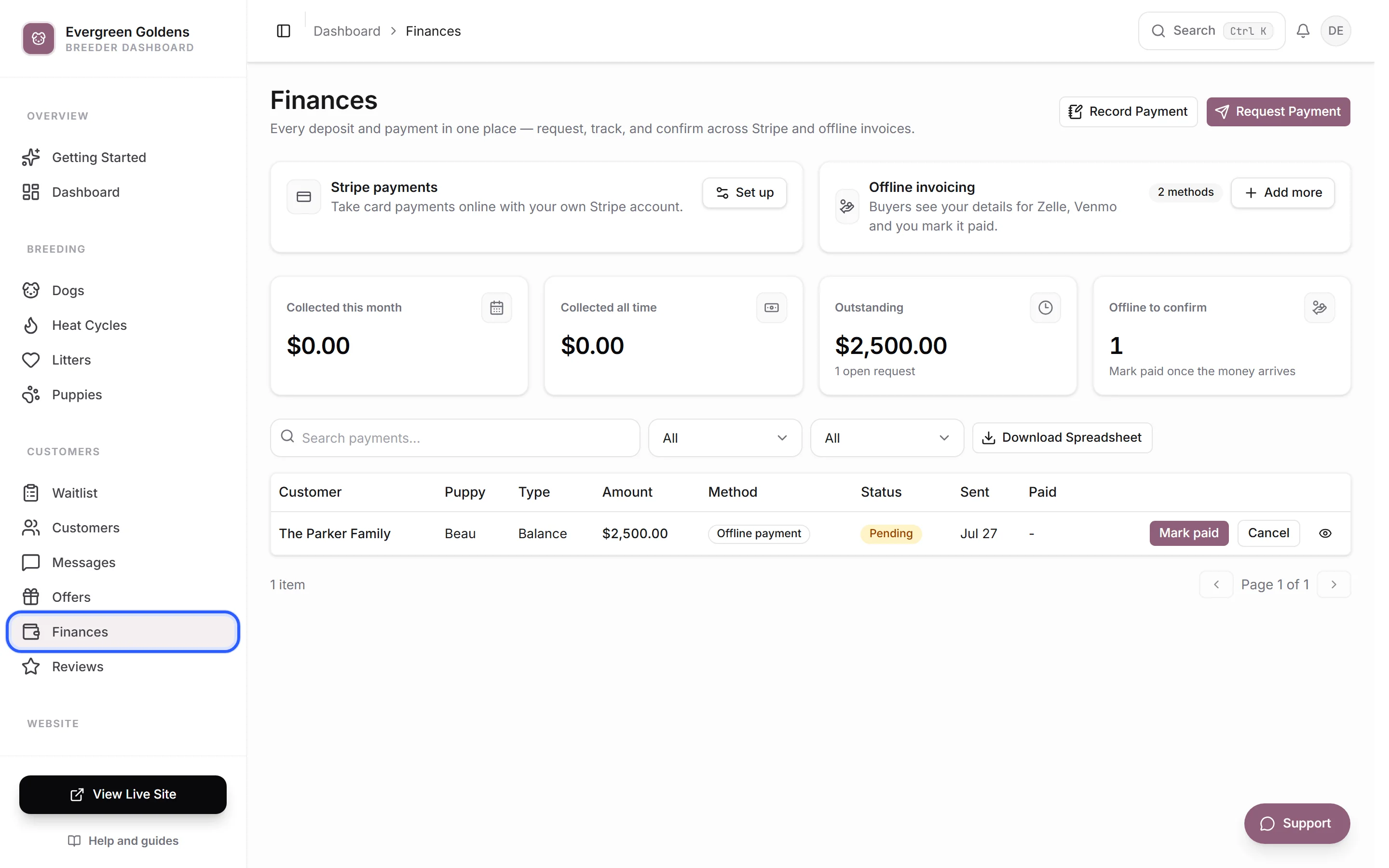
Download your payments
- Open Finances.
- Click Export.
- The file saves to wherever your browser puts downloads, named with today's date.
The payments file has one row per payment request, newest first, with these columns: Created, Paid At, Customer, Email, Puppy, Type, Amount (USD), Currency, Method, Status, Offer ID, Stripe Payment Intent, and Note.
A few things worth knowing when you open it.
- Amounts are in dollars, so they add up straight away.
- Method says Stripe for card payments, or names the offline method you chose, such as Zelle or Check.
- Status uses the underlying values, so a paid row reads as succeeded rather than Paid.
- Stripe Payment Intent is the reference you can search for inside your Stripe dashboard when you reconcile a payout.
- Payments you logged yourself with Record payment are included, with your note in the last column.
The other three exports
The same Export button appears on three other pages.
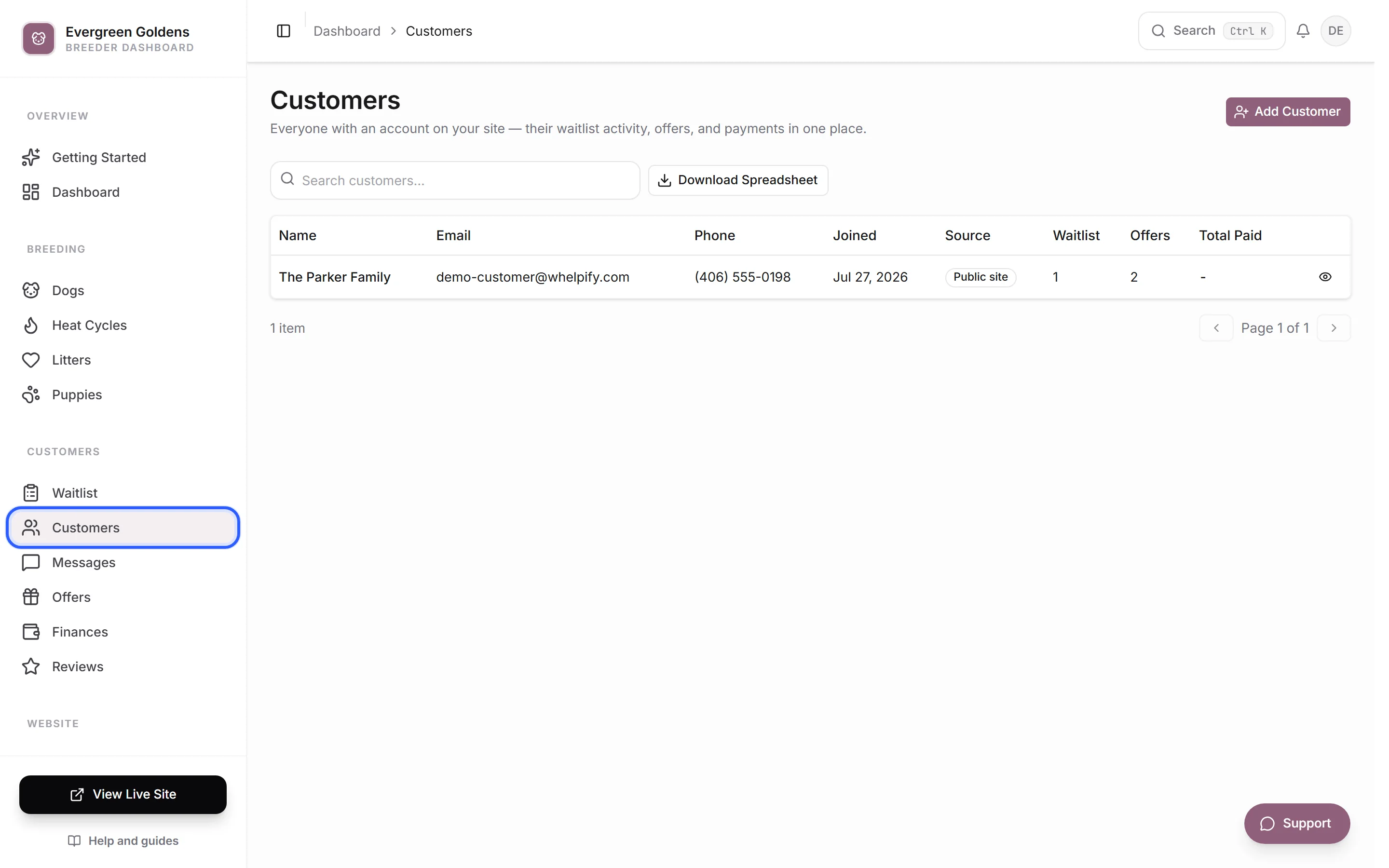
Customers gives you Name, Email, Phone, Joined, Source, Marketing Consent, and Total Paid (USD). This is the one to use for a mailing list or a quick look at your best families.
Offers gives you Created, Customer, Puppy, Status, Deposit Status, Expires, Resolved At, Resolved By, and Notes. Use it to see how many reservations you made in a year and how they ended.
Waitlist gives you the full picture of each entry, including request type, litter, preferences, priority, follow up status, and your notes.
A simple year end routine
- Download the payments file and the offers file on the same day so they line up.
- In your spreadsheet, sort the payments by Paid At and delete rows outside the year you are filing.
- Total the Amount (USD) column for rows that are paid.
- Compare that total to your Stripe payouts and your own bank records for offline payments.
- Save both files somewhere safe alongside your other business records.
Common questions
Do the filters change what I download?
No. The download always includes your full history, up to the two thousand most recent records, no matter what you have typed in the search box or picked in the filters. Filter and sort inside your spreadsheet instead.
Are refunds in the payments file?
A fully refunded payment shows as cancelled, and a partial refund stays as a paid row for the original amount. Check the offer it belongs to for the detail, or your Stripe dashboard for the exact refund. See Refunds and customer credits.
Can I export my dogs, litters, or puppies?
Not today. The four downloads are payments, customers, offers, and the waitlist. For anything else, work from the list pages in your dashboard.
Where do I see a single payment in detail?
Click its row on Finances. See How payments work in Whelpify.
Still stuck? Email info@whelpify.com and a real person will help.