- Docs
- Getting started
- The website setup wizard
The website setup wizard
The guided setup that asks you fifteen plain questions, shows you a preview, and publishes your design when you are happy.
Updated September 2, 2026
On this page
- What this is for
- Where to find it
- How the wizard works
- Chapter one: your website
- Chapter two: your families
- Chapter three: finish
- Common questions
- Does anything go live while I am answering?
- Can I change these answers later?
- I left halfway through. Where do I pick up?
- The forward button says "Answer what is left". Why?
What this is for
Setup is a conversation, not a form. The wizard asks one question per screen, in plain words, and shows you the result as a real website before anything goes live. It covers how your site looks, how families reserve a puppy, and what Whelpify sends on your behalf.
Where to find it
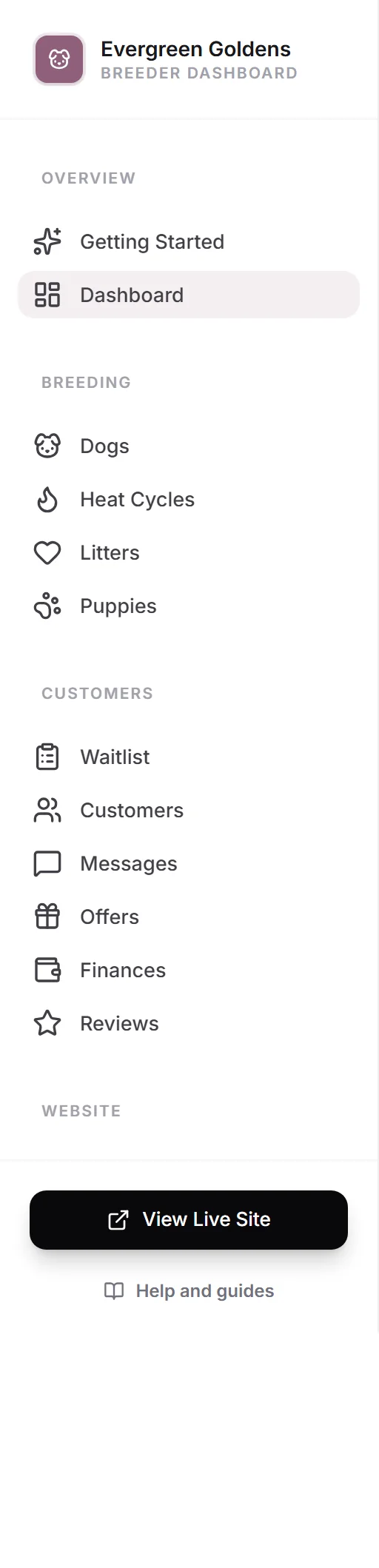
Open the Website setup link near the top of your dashboard menu, or continue setup from Today. New accounts are taken there automatically the first time.
How the wizard works
Setup is fifteen short questions in three chapters, shown as progress bars across the top: Your website, Your families, and Finish. It takes about ten minutes.
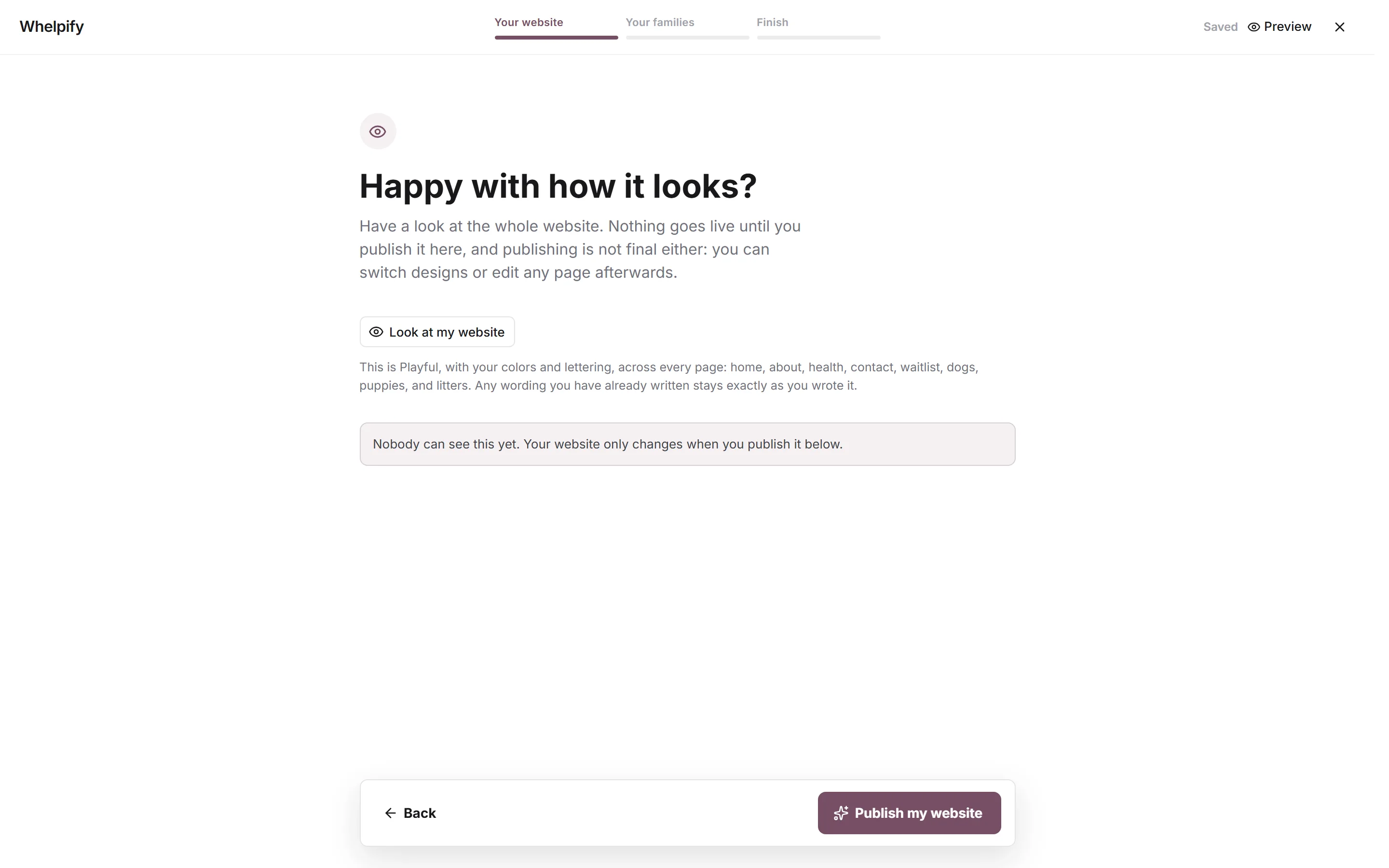
- Back and one forward button sit at the bottom. The forward button reads Continue, or Skip for now on an optional question you have left blank.
- Preview at the top right opens your draft website at desktop or phone size. Sample photos stand in until you add your own.
- The word Saved at the top right means your answers are already stored. There is no save button.
- The X closes setup. You are asked Leave for now? and can tick Stop opening this automatically if you would rather come back on your own terms. Nothing is lost, and you return to the exact question you left.
Chapter one: your website
- Which look feels like you? Pick a design. It is a starting point, not a commitment.
- What colors should we use? Start from a set that works together, then change any single color.
- Which lettering do you like? Every pair stays readable on a phone and a large screen.
- Want to add some photos? Optional. Photos you add here are placed for you.
- What web address do you want? Keep your free Whelpify address, use one you already own, or buy a new one. More in connecting or buying a domain.
- Happy with how it looks? Press Look at my website, then Publish my website and confirm with Publish it.
Publishing puts the design on every page. Your dogs, puppies, litters, families, forms, payments, photos, and any wording you have written stay exactly as they are, and you can change the design again later from design, colors, fonts, and your logo.
Chapter two: your families
- How should families reserve a puppy? This sets what happens after a family has contacted you or applied.
- How should families get started? This controls the main button across your website. See forms: applications, questionnaires, and contracts.
- Do you require a deposit? The usual deposit families see on a puppy profile.
- How can families pay you? Card payments through Stripe, plus any offline methods you accept. See connecting Stripe to get paid.
- Where should we send your alerts? Choose your account email or your kennel email, then tick which alerts you want.
- What should Whelpify send families for you? Optional automatic emails, covered in the customer emails control center.
- Want to post to Facebook and Instagram? Optional, and covered in posting to Facebook and Instagram.
Chapter three: finish
The last screen lists every answer with a Change button beside it. When it all looks right, pick where you want to land: Add your dogs, Add a litter, Add puppies, or Finish your contact details. Choosing one closes setup and takes you straight there.
Common questions
Does anything go live while I am answering?
Only when you publish. Your existing site keeps running until you press Publish my website, and even then only the design changes.
Can I change these answers later?
Yes, all of them. Design lives in Settings, payment and reservation choices in Settings, and email choices under Emails.
I left halfway through. Where do I pick up?
Open Website setup again from the sidebar. You return to the question you were on, with every earlier answer intact.
The forward button says "Answer what is left". Why?
You reached the final review before every required question had an answer. Press it and Whelpify takes you to the first one still open.
Still stuck? Email info@whelpify.com and a real person will help.