- Docs
- Dogs, litters, and puppies
- Adding and Managing Your Dogs
Adding and Managing Your Dogs
Add every dog in your program, keep photos and details current, and choose how each one shows on your website.
Updated September 24, 2026
On this page
- Table and Grid Views
- What This Is for
- Where to Find It
- Add a Dog
- Edit a Dog Later
- Choose How a Dog Shows on Your Website
- Recover Unsaved Changes
- Find and Remove Dogs
- Common Questions
- Do I Have to Add a Dog Before I Add a Litter?
- Why Can I Not Pick a Certain Dog as the Sire?
- Can I Add Dogs That Are Not Mine?
- Where Do Heat Cycles Live?
Table and Grid Views
Use Table or Grid at the top of the list. Grid displays photo cards; both views share the same search, status filter, pagination, and action menus. Switching views keeps your current search and page.
Whelpify remembers the selection separately for Dogs, Puppies, and Litters in this browser, for your signed-in account and kennel. Change it whenever you like. Clearing browser cookies resets the preference.
Cards use the first photo on the record. If there is no photo yet, the card shows a placeholder. Click a card to edit the record, or use its three-dot menu for actions.
What This Is for
Your dogs are the foundation of everything else in Whelpify. Litters link to a dam and a sire, puppies inherit breed and coloring from the parents you picked, and your public site builds parent profiles and pedigrees from these records. Adding your breeding dogs first makes every later step shorter.
Where to Find It
Open Dogs from the main dashboard menu.
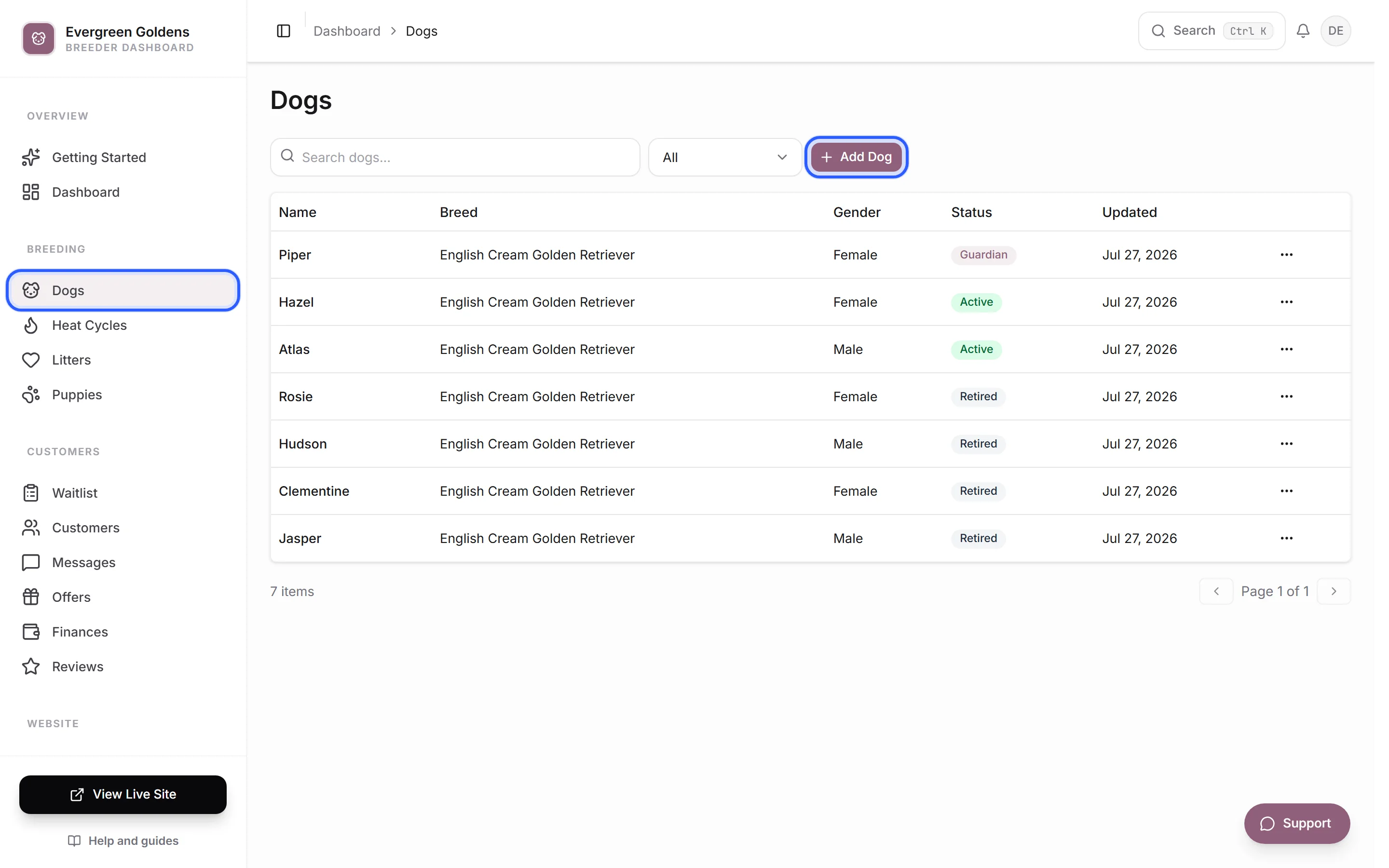
Add a Dog
- Click Add Dog.
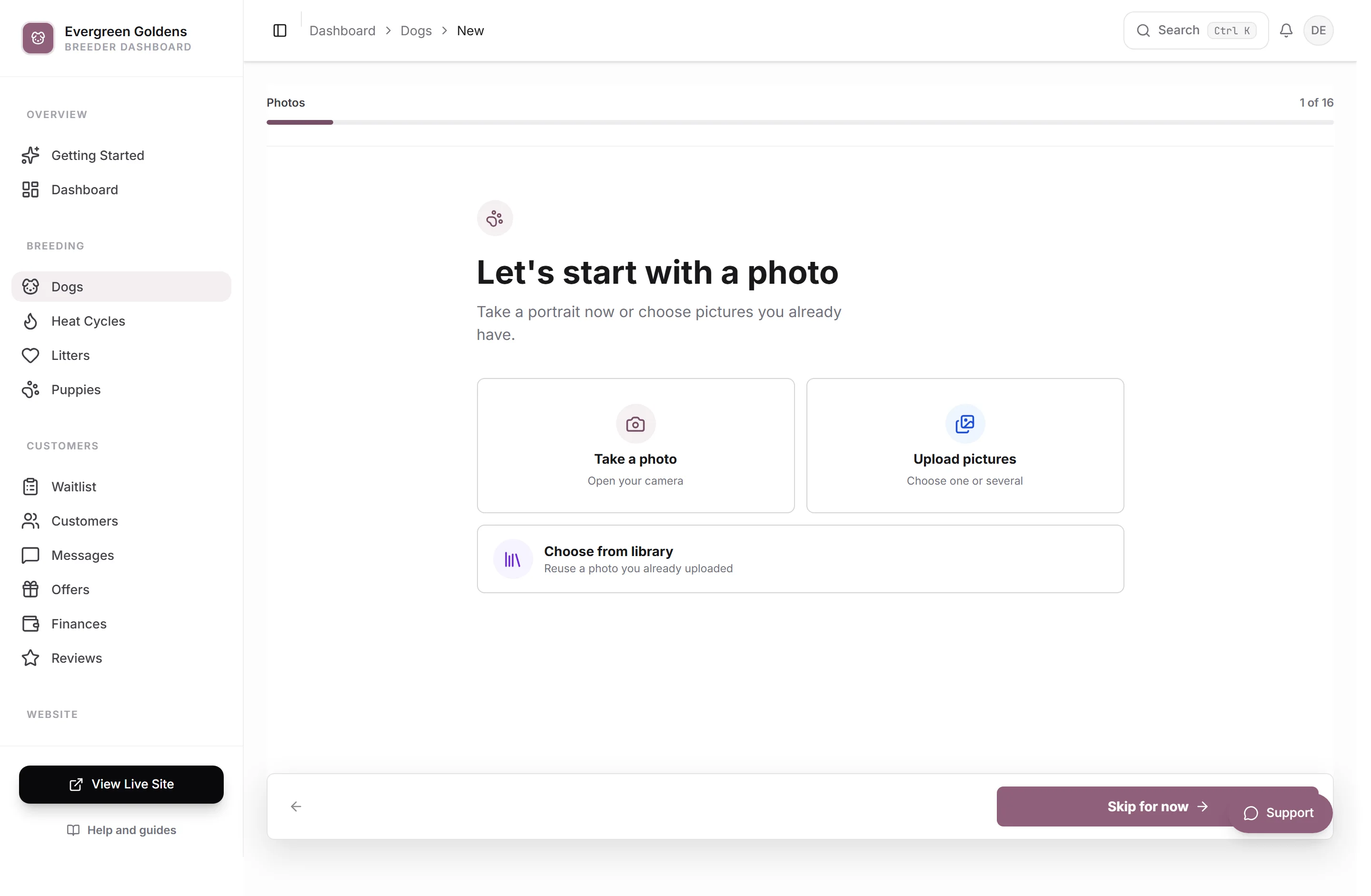
- Enter the dog's name. Add a breed, sex, and photo if you have them ready.
- Click Save Dog. The confirmation lets you add more details, add another dog, or return to the list.
Choose the guided option if you prefer one question at a time. Registration, parents, health tests, personality, and the public bio remain available in the full editor.
The breed starts with your kennel default. Changing that default later does not overwrite existing dogs.
Edit a Dog Later
Open Dogs and click the dog's name. Saved dogs open on an overview of every section with its current values: Identity, Photos, Traits, Pedigree, Health tests, and Profile.
- Click the section you want to change.
- Make your edits.
- Click All sections to go back, or move straight to Save changes.
Nothing on your website changes until you save, and every section saves together in one step. Ctrl S saves as well.
Choose How a Dog Shows on Your Website
Open the Profile section to set what visitors see.
- Dog status describes the dog's role in your program. Pick Active for a dog in rotation for breeding, Up and coming for one planned but not breeding yet, Retired for a dog no longer breeding but still part of your program, or Guardian home for a dog living with a guardian family.
- Owned by someone else identifies an outside stud or another dog you do not own. Add the owner's name or kennel and an optional website link to credit them publicly. This is separate from breeding status.
- Feature in site navigation adds the dog to the Our Dogs menu on your public site.
- Public bio is the write-up families read on the profile. Personality, structure, and where the dog fits in your program all work well here.
Photos, pedigree, and health results appear on the same public profile. See pedigrees, health testing, and titles for those sections, and photos and the media library for how uploads are stored.
Recover Unsaved Changes
Dog, puppy, litter, and family forms keep a recovery copy in this browser for up to 24 hours, scoped to your account, kennel, and record. If one is found, choose Restore Changes or Discard Draft. A warning appears if the saved record changed elsewhere. Review the restored values before saving.
A recovery copy does not change your website. Successful saves clear it. Keep using the same browser to recover it; browser storage must be available. Ordinary links and page reloads warn about unsaved changes. If you return after browser Back or another navigation, the recovery prompt lets you pick up again.
Find and Remove Dogs
The list has a search box and a status filter, and the newest edits sit at the top. Use the menu at the end of a row for Edit or Delete.
When you delete a dog that has photos or certificates attached, Whelpify asks whether to delete those files from your media library too. Anything still used somewhere else is kept.
Common Questions
Do I Have to Add a Dog Before I Add a Litter?
No, but it helps. A litter can be saved without a dam or sire, and you can link the parents later. Linking them lets puppy records inherit breed and coloring, and it builds the pedigree on your public profiles.
Why Can I Not Pick a Certain Dog as the Sire?
The sire list only offers dogs saved as male, and the dam list only offers dogs saved as female. Open the dog you want to use, check the Identity section, and set the gender.
Can I Add Dogs That Are Not Mine?
Yes. Turn on Owned by someone else when adding the dog, or open Profile on an existing dog. You can enter the owner or kennel name and a link to their website. The public profile will show the ownership credit, and male dogs are labeled Outside stud. You can still select them as parents in litters and pedigrees.
Use Guardian home for a dog in a guardian arrangement, not as a substitute for outside ownership. Leave Feature in site navigation off if you do not want the dog in your menu.
Where Do Heat Cycles Live?
On a female dog's page there is a Heat cycles button next to her name, and there is a full board at More, then Heat Cycles. See tracking heat cycles.
Still stuck? Email info@whelpify.com and a real person will help.