- Docs
- Your website
- Photos and the media library
Photos and the media library
Upload photos once, describe them so you can find them again, crop them, and remove the background when you need a cutout.
Updated September 2, 2026
On this page
- What this is for
- Where to find it
- Upload photos
- Describe a photo so you can find it later
- Find a photo
- Crop, rotate, and cut out the background
- Reuse a photo somewhere else
- Delete a photo
- Common questions
- Do I have to upload photos here first?
- What should I write in "What's in this photo"?
- Can I get the original back after cropping?
- Where do these photos show up on my site?
What this is for
Every photo you upload anywhere in Whelpify lands in one library. Upload a picture once, then reuse it on a page, a puppy profile, or a blog post without uploading it again. This is also where you crop photos, describe them, and delete the ones you no longer want.
Where to find it
Open Website, then choose Photos & Files. You can also find Media in More.
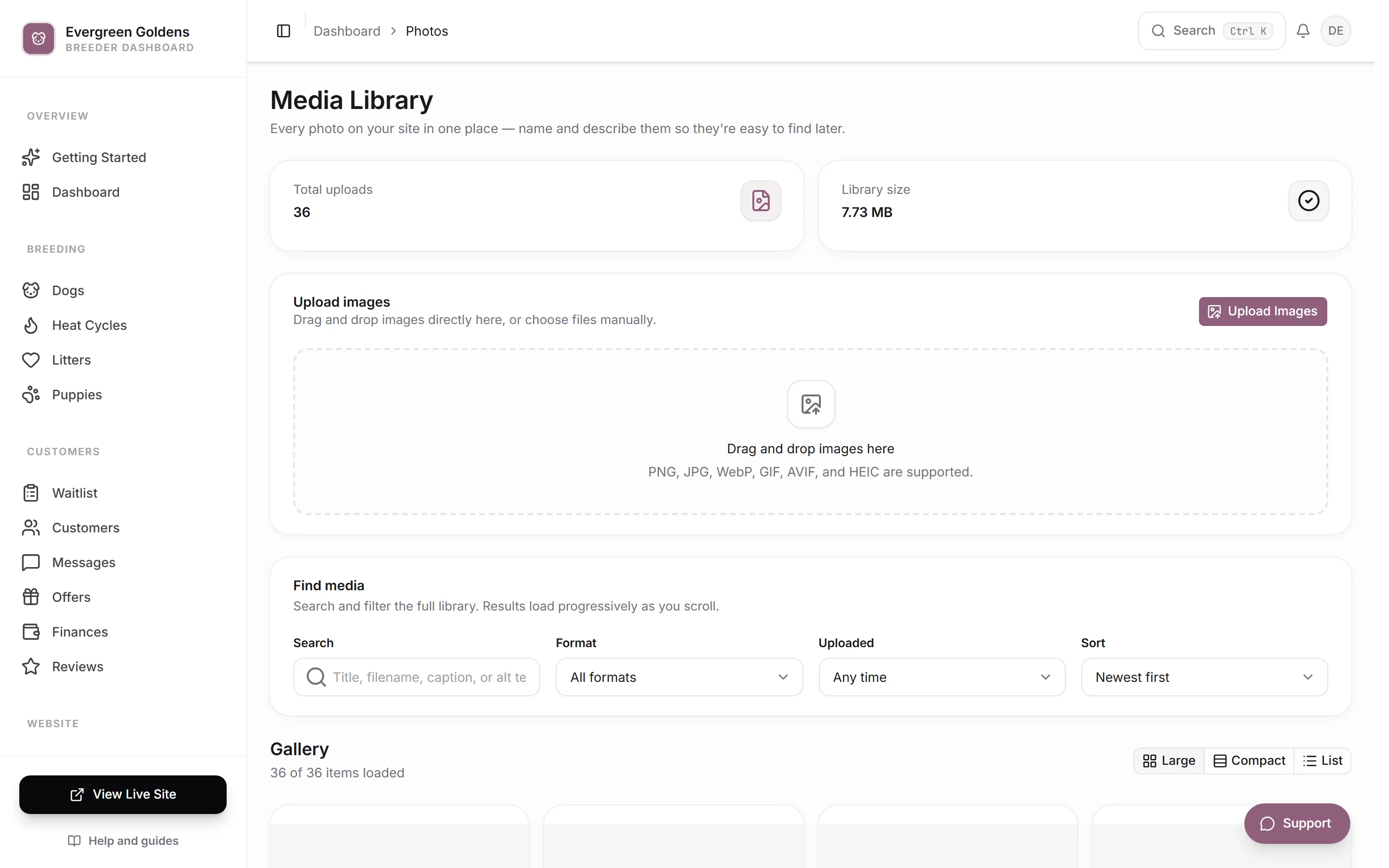
The two cards at the top show Total uploads and Library size.
Upload photos
- Drag your photos onto the dashed Upload images area, or click Upload Images and pick files.
- Watch the progress list. You can keep working while uploads finish.
- Your photos appear in the Gallery below.
PNG, JPG, WebP, GIF, AVIF, and HEIC files are supported. Previews appear right away, and each image is optimized before it is saved to your library.
Describe a photo so you can find it later
- Find the photo in the Gallery.
- Click Edit.
- Fill in Title with a short name, such as Willow spring litter.
- Fill in What's in this photo with a plain description, such as Cream golden retriever puppy on a blanket.
- Add an optional Description.
- Save the dialog.
What's in this photo does double duty. It is what search and screen readers use to understand the picture, and it is one of the fields the library search looks at, along with the title, filename, and description.
Find a photo
Use the Find media card. Search matches the title, filename, caption, or alt text. Format, Uploaded, and Sort narrow things further. The three buttons above the gallery switch between large cards, compact cards, and a list. Keep scrolling to load more.
Crop, rotate, and cut out the background
- Click Adjust on a photo.
- Set an aspect ratio, drag the crop box, and use the zoom and rotation sliders.
- To cut the subject out of its background, click Remove Background. Whelpify finds the main subject and saves the result as a transparent PNG.
- Click Apply Changes.
Reuse a photo somewhere else
Anywhere Whelpify asks for a photo, such as a page section, a dog profile, or a blog cover, you get the same three choices: Take a photo, Upload pictures, or Choose from library. Choose from library opens the Choose photos dialog with the same search, format, and sort controls, so you can pick something you already uploaded.
Delete a photo
Click Delete on the photo and confirm. This removes the image from your library and from storage, and it cannot be undone. Check that the photo is not being used on a page first.
Common questions
Do I have to upload photos here first?
No. You can upload from the page builder, a dog or puppy record, or a blog post, and the photo is added to this library automatically. The Media screen is just the full view of everything.
What should I write in "What's in this photo"?
Describe what you would tell someone who cannot see it: the dog, the setting, and anything that matters. One clear sentence is enough, and it helps your photos show up in image search.
Can I get the original back after cropping?
No. Applying changes replaces the image everywhere. Upload a duplicate before editing if you want to keep the untouched version.
Where do these photos show up on my site?
Wherever you place them: page sections in the page builder, cover images on blog posts, and dog, litter, and puppy profiles.
Still stuck? Email info@whelpify.com and a real person will help.