- Docs
- Dogs, litters, and puppies
- Tracking heat cycles
Tracking heat cycles
Record the first day of each heat, see the predicted next date and fertile window, and get a reminder before it starts.
Updated September 2, 2026
On this page
- What this is for
- Where to find it
- Record a heat
- Read her card
- Correct a date or set her cycle length
- Reminders
- Common questions
- Can buyers see any of this?
- Can I track a male dog?
- Is this accurate enough to time a breeding?
- She is past her predicted date. Is something wrong?
- What happens after the litter arrives?
What this is for
Heat dates are the sort of thing that lives on a wall calendar until the calendar gets thrown out. Record the first day of each heat here instead, and Whelpify maps the cycle, estimates the next one, and sends you a reminder before it arrives. The more heats you record for a girl, the closer her estimate gets, because Whelpify learns her own rhythm rather than using a breed average.
Where to find it
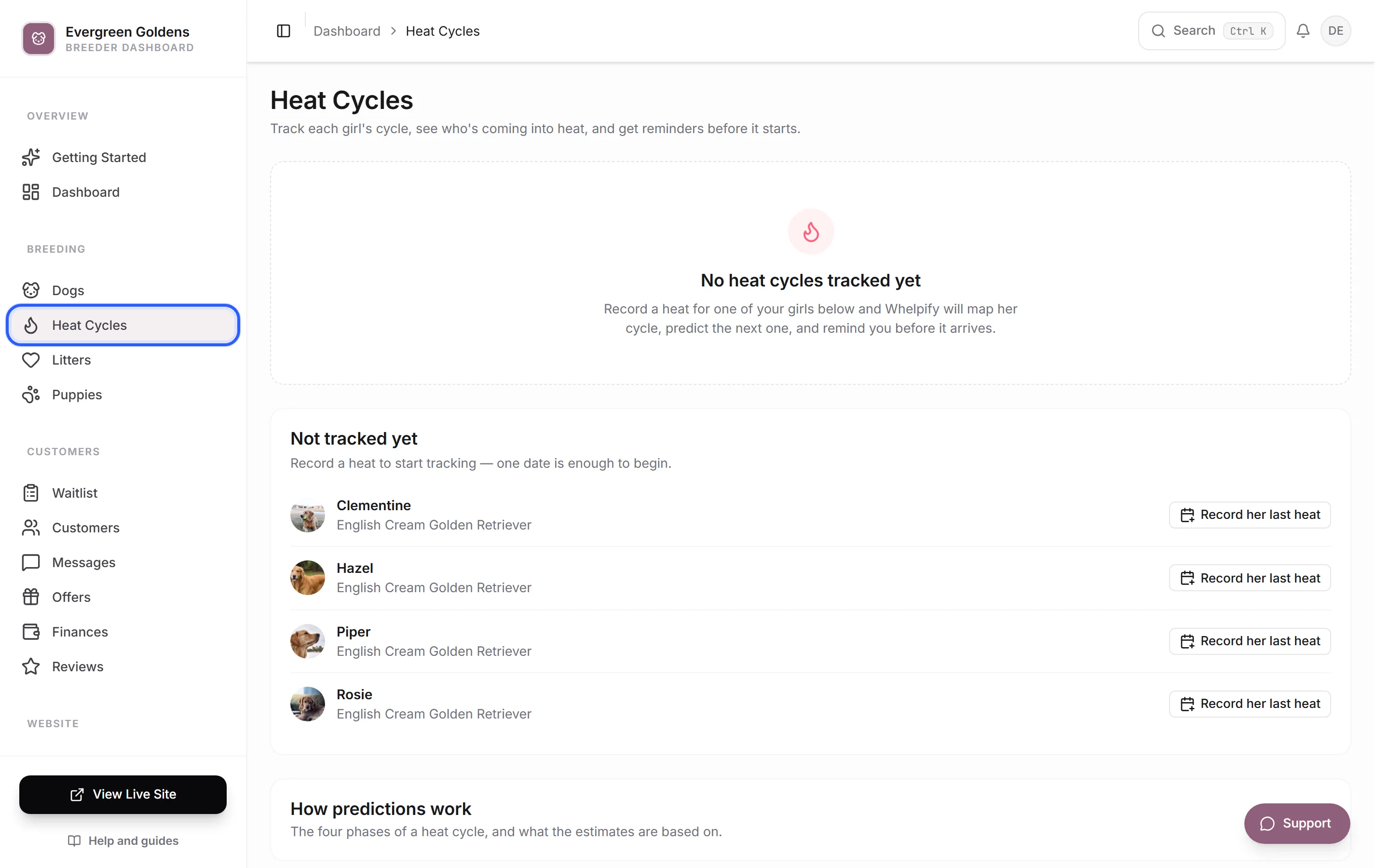
Open More, then choose Heat Cycles. It may also appear as a suggested shortcut in your menu. You can also open a female dog from Dogs and click the Heat cycles button next to her name.
Record a heat
- Open Heat Cycles. Girls you have not started tracking are listed under Not tracked yet.
- Click Record her last heat next to her name. For a girl you already track, open her card and click Record a heat.
- In First day of heat, pick the first day you noticed bleeding or swelling. That day counts as day one, and every estimate is measured from it. Future dates are not accepted.
- Add anything worth remembering in Notes (optional), for example light spotting or noticed late.
- Click Save heat date.
Whelpify then tells you how close its estimate was, so you can see the prediction sharpen over time. Recording a heat also turns tracking on for that dog, so there is no separate switch to find first.
Read her card
Click any girl in the Tracked girls list to open her full detail.
- The chip at the top right names where she is right now: Heat expected soon, After heat, Resting, Past predicted date, or, while she is in heat, which phase of the heat she is in.
- The bar underneath is her cycle drawn to scale, with a Today marker on it. The legend reads Early heat, Likely fertile, Receptive, After heat, and Resting.
- The three tiles show Last heat, Next heat (estimate) with a plus or minus range in days, and Likely fertile window.
- The small line at the bottom says where the estimate came from: her own recorded history, a cycle length you set by hand, or the 180 day average used until she has more heats on file.
The calendar at the top of the page plots every tracked girl across the months ahead. Click a name on it to open the same detail.
Correct a date or set her cycle length
Both controls sit at the bottom of a girl's card.
- Click History to see every heat you have recorded for her. Use the trash icon beside a date to remove one that was entered wrong.
- Click Settings to open the tracking options.
- Use Track heat cycles to turn her tracking on or off. Turning it off keeps her recorded dates but removes her from the board and stops her reminders.
- Use Her typical cycle (days between heats) if you already know her interval. Whelpify accepts 120 to 420 days. Leave it blank to let her own history decide.
- Click Save settings.
Reminders
About two weeks before a predicted heat, Whelpify adds a notification to your dashboard with a link straight to this page. You get one reminder per predicted heat, and recording the heat when it arrives clears it and arms the next cycle.
The matching email is called Heat Cycle Reminders, and it is off until you turn it on. In the sidebar, open Account, then Emails, choose the Automations tab, and switch on Heat Cycle Reminders.
See notifications and what they mean for where the dashboard alerts land, and the customer emails control center for the full list of messages.
Common questions
Can buyers see any of this?
No. Heat tracking is private to your dashboard. It never appears on your public website and it is not part of what a customer sees in their portal.
Can I track a male dog?
No. Heat tracking is only offered on dogs saved as female. If the Heat cycles button is missing from a dog's page, check the gender in her Identity section.
Is this accurate enough to time a breeding?
No, and Whelpify says so on the page. Ovulation timing varies widely between individual dogs, so these dates are for planning and heads up only. Serial progesterone testing with your vet, every two to three days once heat starts, is the reliable way to time a breeding. Use the estimate to book the appointments, not to skip them.
She is past her predicted date. Is something wrong?
Not usually. Cycles drift, especially in young and older dogs, and the card shows a plus or minus range for that reason. If she skips a cycle entirely, or the drift keeps growing, it is worth mentioning to your vet.
What happens after the litter arrives?
Nothing here changes automatically. Create the litter under litters and keep recording her heats as they come, so her estimates stay current for the next pairing.
Still stuck? Email info@whelpify.com and a real person will help.