- Docs
- Account and settings
- Signing in and resetting your password
Signing in and resetting your password
How to sign in to your dashboard, stay signed in, reset a forgotten password, change your password, and sign out.
Updated September 2, 2026
On this page
What this is for
Your breeder dashboard is behind an email and password. This guide covers signing in, staying signed in, getting back in when you have forgotten your password, and changing it once you are inside.
Where to find it
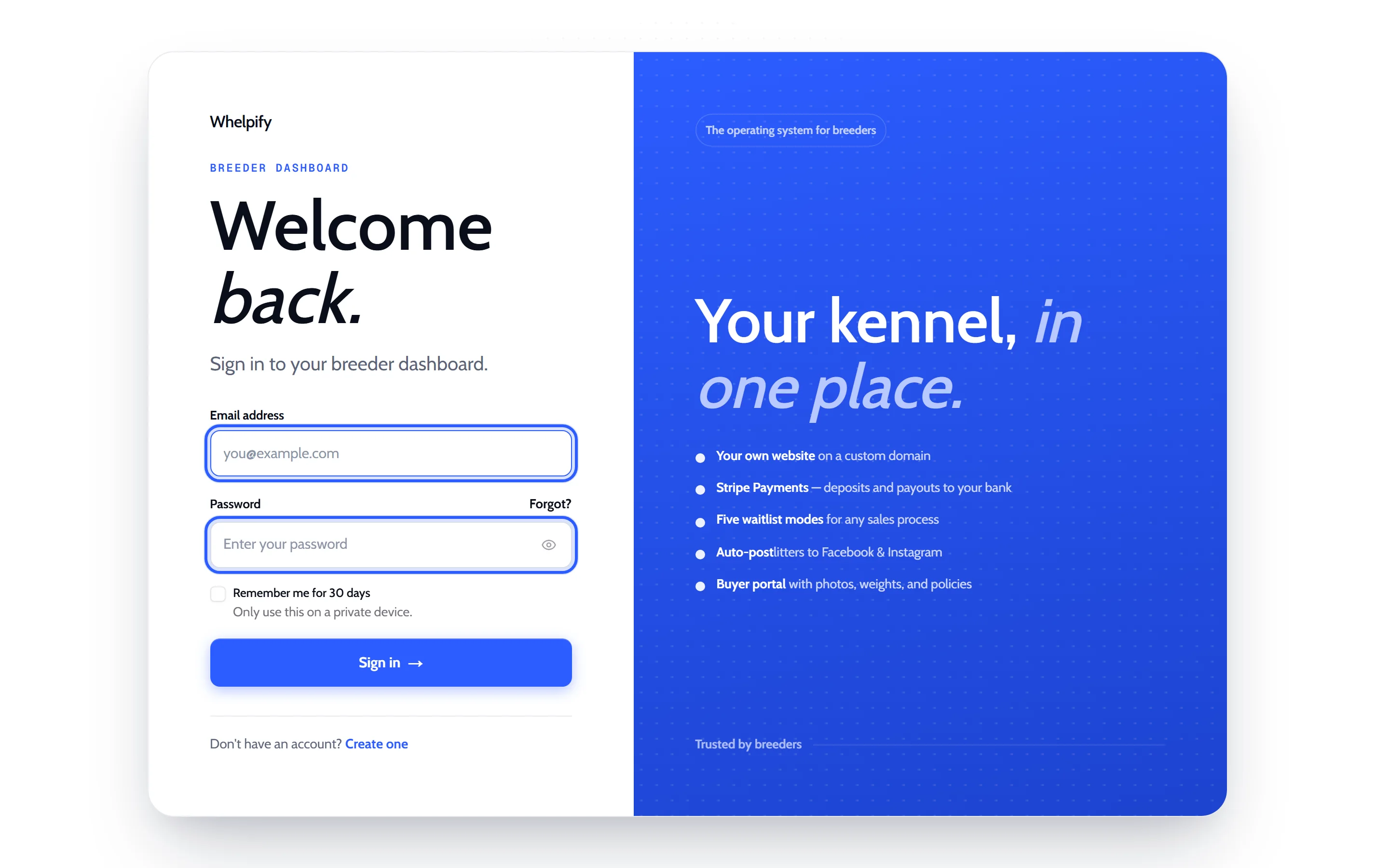
Your sign-in page is your Whelpify address followed by /dashboard. If you are not signed in, Whelpify sends you to the sign-in page and brings you back to the page you wanted once you are in.
Bookmark it. It is the same page every time, on a laptop or a phone.
Sign in
- Enter the Email address you signed up with.
- Enter your Password. Use the eye button at the end of the field if you want to check what you typed.
- Tick Remember me for 30 days if this is your own private device.
- Click Sign in.
Without Remember me, you stay signed in for about a day and then need to sign in again. With it, you stay signed in for thirty days on that device. Leave it unticked on a shared or public computer.
Reset a forgotten password
- On the sign-in page, click Forgot? next to the password field.
- Enter your Email address and click Send reset link.
- You see a confirmation that a link has been sent if an account exists for that address.
- Open the email and click through to the reset page.
- Enter a New password of at least eight characters, then repeat it under Confirm password.
- Click Reset password.
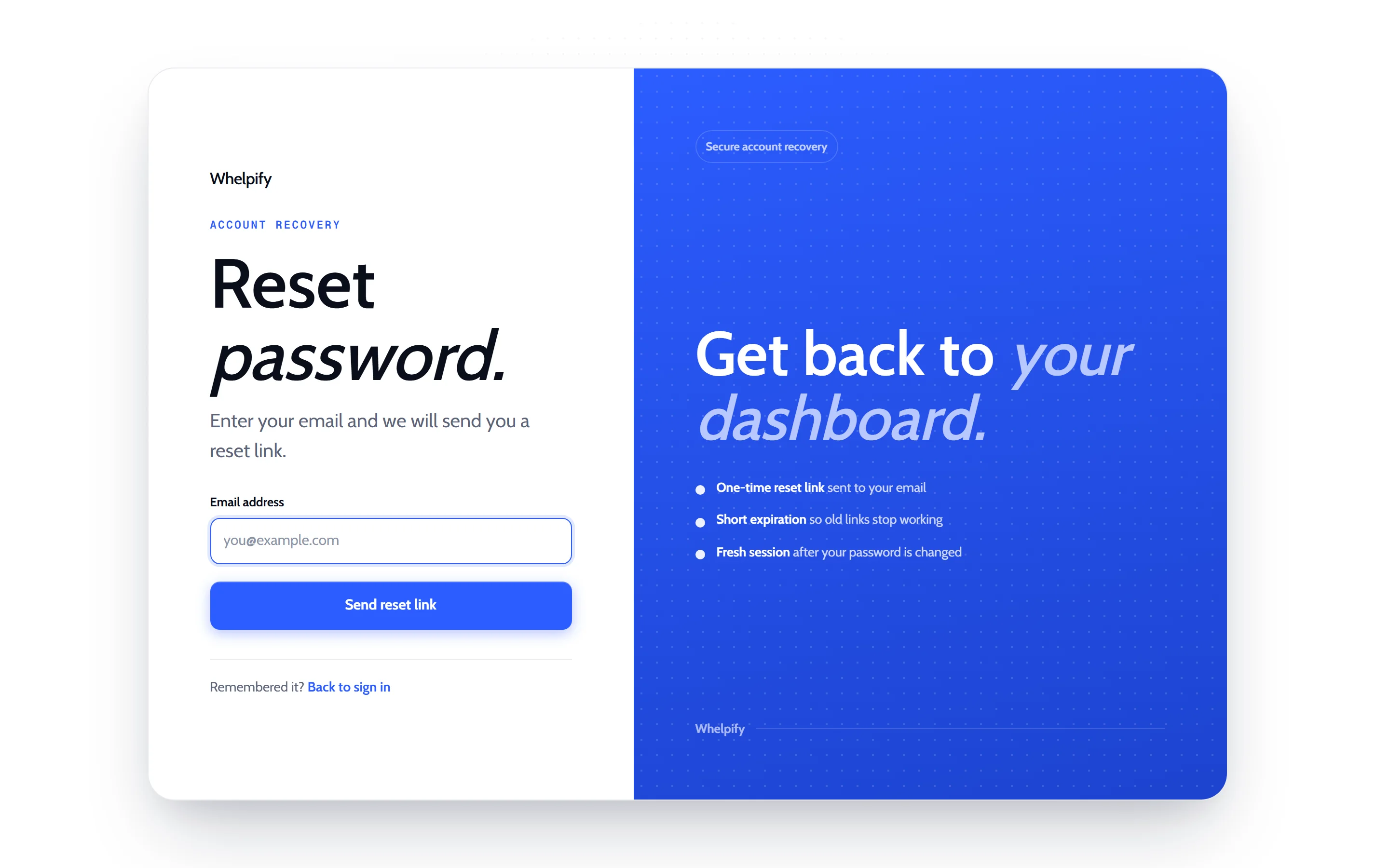
The new password works immediately, and you land in your dashboard already signed in. The reset link expires about an hour after it is sent and can only be used once, so request a fresh one if it has been sitting in your inbox. Setting a new password also stops any older reset links from working.
Change your password while signed in
- In the left sidebar, open Account, then Account.
- Scroll to the Sign-In & Security card.
- Fill in Current password, New password, and Confirm new password.
- Click Update password.
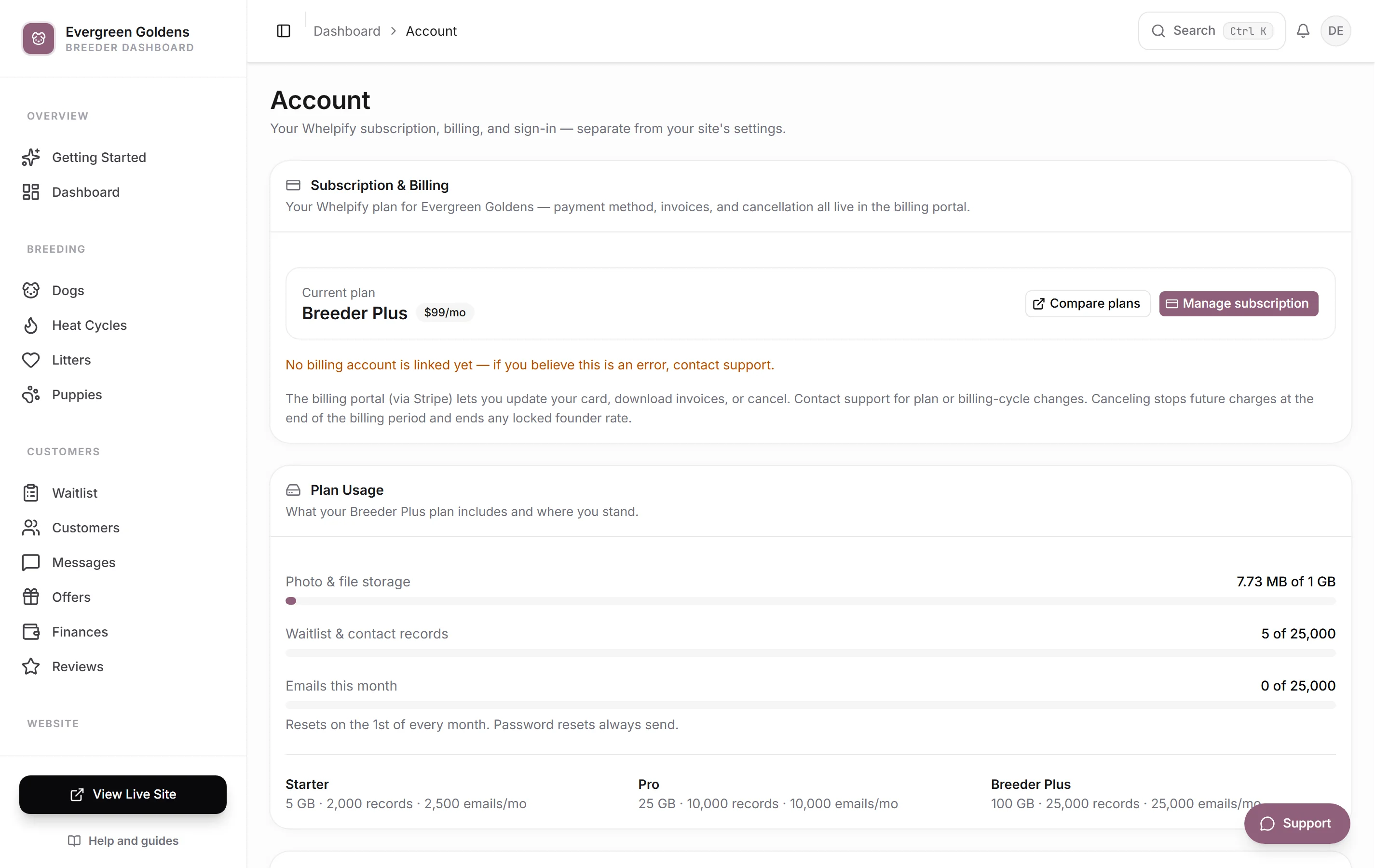
The card also shows the Sign-in email your account uses, which is the address every reset link is sent to.
Sign out
Click your avatar in the top right of the dashboard and choose Log Out. The same menu holds Account & Billing, Site Settings, and View Site, which opens your public website in a new tab.
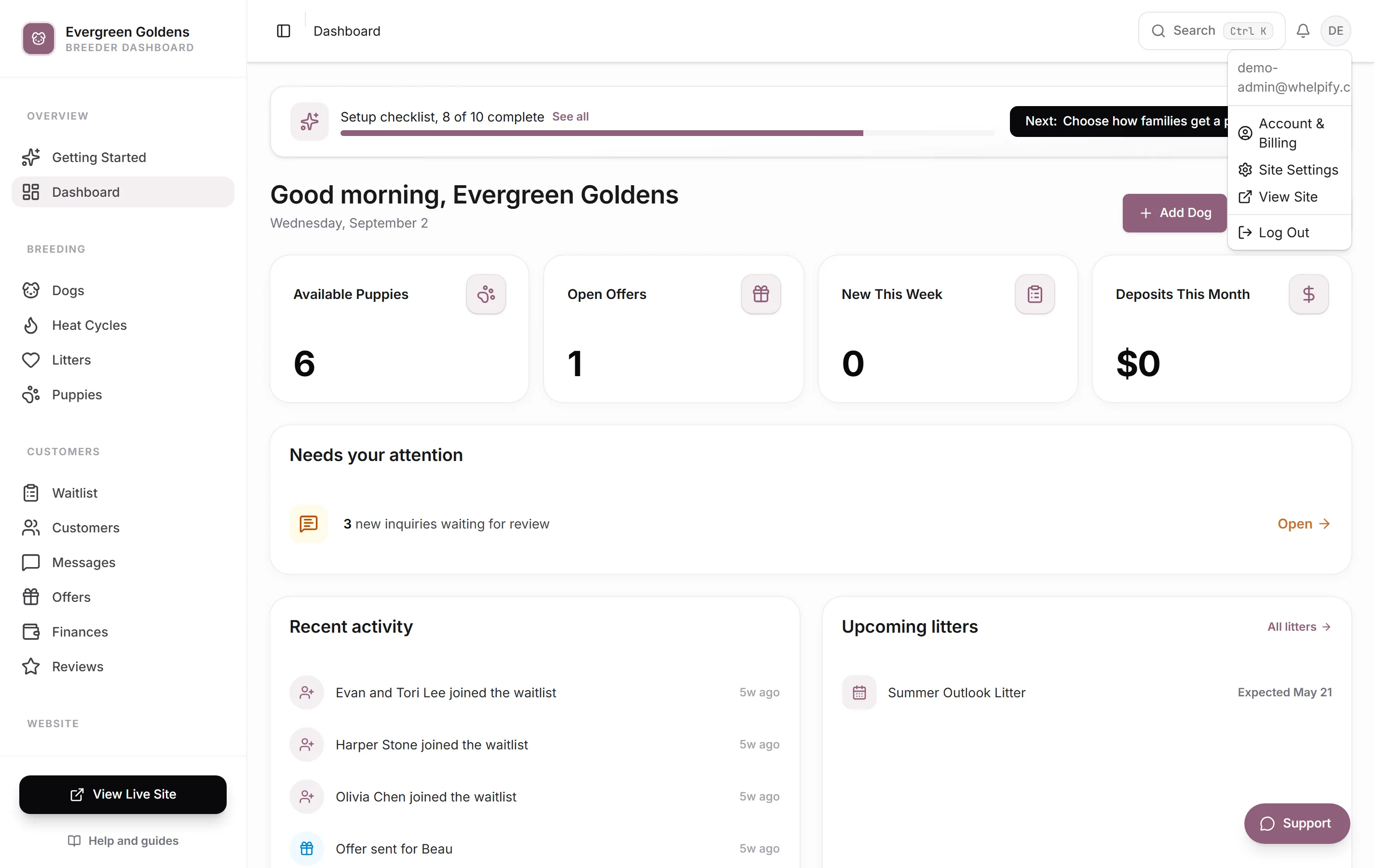
Sign out whenever you have been working on a borrowed computer, even if you did not tick Remember me.
Common questions
The reset email never arrived. What should I try?
Check the spam folder first, and confirm you used the exact address you signed up with. If it has been more than an hour, request a new link, because the old one has expired.
Can I change the email I sign in with?
Not from the dashboard. The Sign-in email on the Account page is shown for reference only. Contact support to change it.
Do my puppy buyers sign in here too?
No. Families sign in on your own website, not on your dashboard, and they get their own view. See the customer portal.
Can two people use one login?
Every sign-in uses one email and password, so anyone sharing a login shares the same account. Keep the password somewhere safe and change it from your account page if someone who had it no longer needs access.
Still stuck? Email info@whelpify.com and a real person will help.