- Docs
- Dogs, litters, and puppies
- Litter Workspaces From Planning to Placement
Litter Workspaces From Planning to Placement
Create a litter, link the dam and sire, move it through its four statuses, and set the rules families reserve under.
Updated September 12, 2026
On this page
- Table and Grid Views
- What This Is for
- Where to Find It
- Create a Litter
- The Four Statuses
- Work With a Litter
- Recover Unsaved Changes
- Rules for This Litter Only
- Common Questions
- There Is No Planned Status Where Do I Put an Upcoming Pairing?
- What Date Do I Enter for a Litter That Is Not Born?
- Do I Have to Link Both Parents?
- Why Is My Litter Not Showing on My Website?
Table and Grid Views
Use Table or Grid at the top of the list. Grid displays photo cards; both views share the same search, status filter, pagination, and action menus. Switching views keeps your current search and page.
Whelpify remembers the selection separately for Dogs, Puppies, and Litters in this browser, for your signed-in account and kennel. Change it whenever you like. Clearing browser cookies resets the preference.
Litter cards show the dam and sire photos side by side. Missing photos have a placeholder; you can add them by editing the parent dog.
What This Is for
A litter is the container everything else hangs from. Puppies belong to a litter, the go home date is calculated from the litter's date, and the deposit and queue rules a family agrees to are saved on the litter so they cannot drift later. Create the litter as soon as you have a planned pairing, even before there is anything to announce.
Where to Find It
Open More, then choose Litters. You can pin Litters to your menu if you use it often.
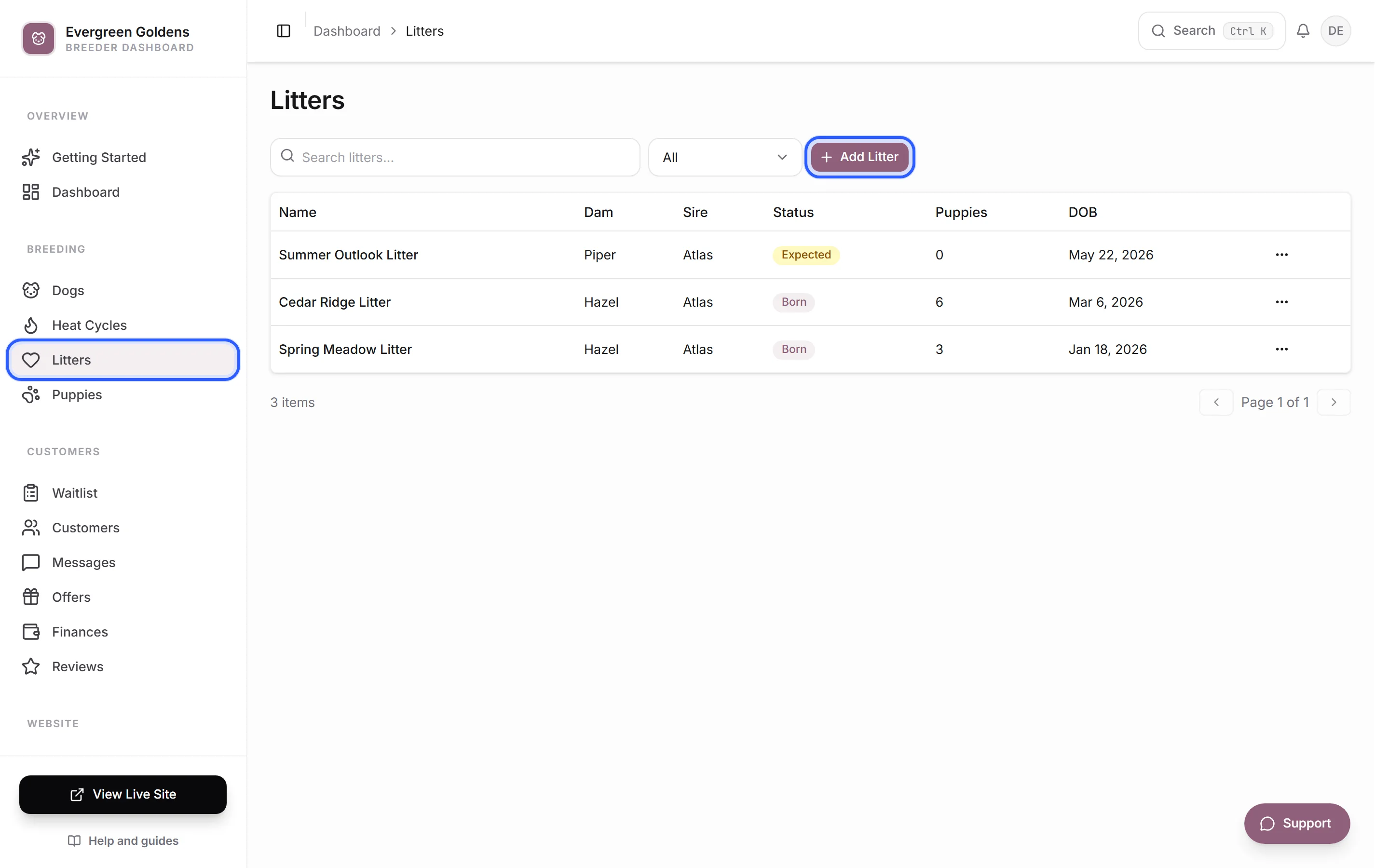
Create a Litter
- Click Add Litter and enter its name.
- Add a breed and link the dam and sire if known.
- Choose the stage. An Expected litter can have an expected due date. A litter being recorded as Born needs its actual birth date.
- Click Save Litter, then Open Litter Workspace.
You can use the guided option to enter more information before saving. Photos, descriptions, parents, and reservation rules remain available through Edit Litter Details.
The Four Statuses
- Expected means pregnancy is confirmed or planned around the date you entered.
- Born means the puppies are here.
- Available means the litter can receive interest or reservations.
- Placed means every puppy has been placed.
Work With a Litter
Click a litter to open its workspace. It shows its stage, dates, parents, puppies, and a link to interested families. A next-step card helps you continue from the current stage.
- Record Birth: Enter the actual birth date when an expected litter arrives. The expected due date stays in the record. Existing birth announcement preferences apply; review the notice before saving.
- Add Puppies: For a born or available litter, enter names or collar labels and optional sex for up to 30 puppies in one batch. These records start private and Coming Soon. Open each puppy to add photos, pricing, traits, and website visibility.
- Record Weights: Choose a date and grams, ounces, or pounds. Enter weights for the puppies you weighed; blank rows are skipped. Whelpify saves the batch together and keeps each puppy's history. An existing weight for the same date cannot be overwritten here; use the individual puppy editor for a correction.
- Edit Litter Details: Open the full editor for Basics, Parents, Photos, Queue, Terms, Description, and Preview. Those sections save together.
If a record changed while you were working, refresh and review it before trying again. Duplicate submissions do not create a second batch. Invalid rows leave the whole batch unchanged.
Recover Unsaved Changes
Dog, puppy, litter, and family forms keep a recovery copy in this browser for up to 24 hours, scoped to your account, kennel, and record. If one is found, choose Restore Changes or Discard Draft. A warning appears if the saved record changed elsewhere. Review the restored values before saving.
A recovery copy does not change your website. Successful saves clear it. Keep using the same browser to recover it; browser storage must be available. Ordinary links and page reloads warn about unsaved changes. If you return after browser Back or another navigation, the recovery prompt lets you pick up again.
Rules for This Litter Only
Most litters should run on your kennel wide defaults, which is why the Queue and Terms tabs start locked.
- The Queue tab holds a card called Queue and visibility. While its pill reads Using defaults, the controls stay hidden. Turn the switch on to change how families reserve from this one litter.
- The Terms tab holds Payments and terms and works the same way. Turn its switch on to set a different deposit, reservation window, refund policy, or public release time for this litter.
In the guided create flow the same two choices are worded Use my defaults or Customize this litter, and Use standard terms or Customize terms.
Your defaults live in Business Settings, on the Applications & Reservations tab. A litter copies those rules when it is created, and later changes to your defaults do not rewrite a litter that already exists. That is deliberate: every offer keeps the exact terms the family agreed to. See site settings for the defaults themselves.
Common Questions
There Is No Planned Status Where Do I Put an Upcoming Pairing?
Use Expected. It covers both a confirmed pregnancy and a planned pairing around that date, and it is the status a new litter starts on.
What Date Do I Enter for a Litter That Is Not Born?
Enter the expected due date. Once the puppies arrive, record their actual birth date separately. Automatic availability uses the actual birth date for born or available litters and the age set in Business Settings → General → Availability.
Do I Have to Link Both Parents?
No. A litter saves without a dam or a sire, and you can add them later on the Parents tab. Linking them is what lets puppy records inherit breed and coloring and what connects the litter to each dog's profile.
Why Is My Litter Not Showing on My Website?
Check the status first. Litter listings on your public site can be set to open on a chosen set of statuses, so a litter still marked Expected may be filtered out of the default view even though the page exists.
Still stuck? Email info@whelpify.com and a real person will help.