- Docs
- Account and settings
- Business Settings
Business Settings
Set your public name, contact details, breed defaults, how buyers reserve, your deposit policy text, and your payment methods.
Updated September 12, 2026
On this page
- What This Is for
- Where to Find It
- General: Your Business Details
- General: Defaults
- Applications & Reservations: How Families Apply and Reserve
- Applications & Reservations: Your Policy Text
- Payments
- Common Questions
- Where Are My Colors, Fonts, and Logo?
- Where Do I Edit My Menu?
- Do My Workflow Changes Affect Families Already in My Waitlist?
- Can I Change My Web Address Later?
What This Is for
Settings holds everything about how your site behaves: the name and contact details visitors see, the defaults Whelpify uses when you add records, how families apply and reserve, and which payment methods you accept.
Where to Find It
In the left sidebar, open Account, then Business Settings.
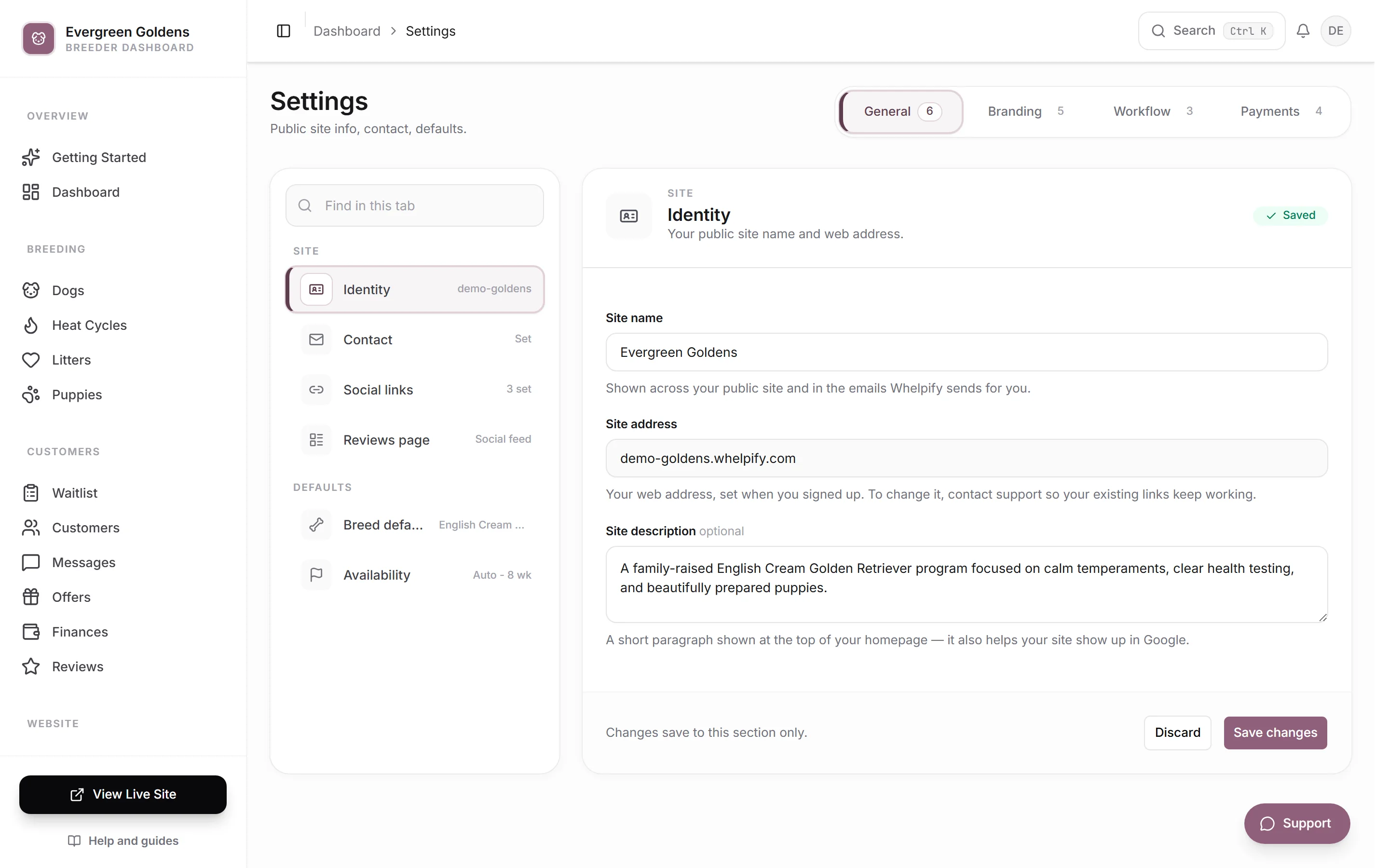
The page has four tabs: General, Branding, Applications & Reservations, and Payments. Each tab has its own list of sections on the left. Saving applies to all changes in the current tab, including its other sections. The save panel names that scope; deposit defaults belong to the reservation settings group. The label at the top reads Saved, Unsaved, or Saving, and Discard returns that group to its last successfully saved values. After saving, the status returns to Saved. Ordinary links and reloads warn if settings remain unsaved; settings do not use the record forms’ browser draft recovery.
General: Your Business Details
Identity holds your Site name, which appears across your public site and on the emails Whelpify sends for you, and an optional Site description, a short paragraph shown at the top of your homepage that also helps you show up in search. Site address is your web address. It is set when you sign up and cannot be edited here, so contact support if you need it changed and your existing links kept working.
Contact holds the Contact email and Contact phone shown to visitors. Pick your Phone country first so the number is formatted correctly. Your contact email is also the address that replies go to when a customer answers one of your automatic emails.
Social links adds Facebook, Instagram, Twitter/X, YouTube, and TikTok links to the bottom of your site. Click Add social link, choose the platform, and paste the full address.
Reviews page switches your reviews page between Classic carousel and Social review feed. The feed adds search, filters, and continuous scrolling, so it suits a larger collection.
General: Defaults
Breed defaults sets your Primary breed, which prefills the breed field when you add dogs, litters, and puppies. It also fills Colors buyers can choose, the Preferred Colors a family picks from when they apply or join your waitlist. Whelpify starts that list with the standard colors for your breed, so a Shiba Inu breeder sees Red, Black & Tan, Cream, and Sesame rather than a generic list. Remove any color you do not produce, type your own under Add a color, or pull in a second breed's colors with Add another breed's colors if you raise more than one. Use breed defaults puts the standard list back. Turn on Let buyers type their own color if you want families to be able to add a color that is not on the list.
Availability sets Age puppies are available in weeks. Whelpify combines that with the actual birth date of a born or available litter to work out when each puppy is ready to go home. Turn on Automatically mark ready puppies available and puppies that are still coming soon move to Available at that age. Reserved, offered, deposit-paid, and sold puppies are never changed automatically.
Applications & Reservations: How Families Apply and Reserve
The How buyers reserve section has two choices. The first is what your main site button does: Contact first opens a simple message form, Join the waitlist collects contact details and puppy preferences, and Full application shows your complete application. All three create a customer account.
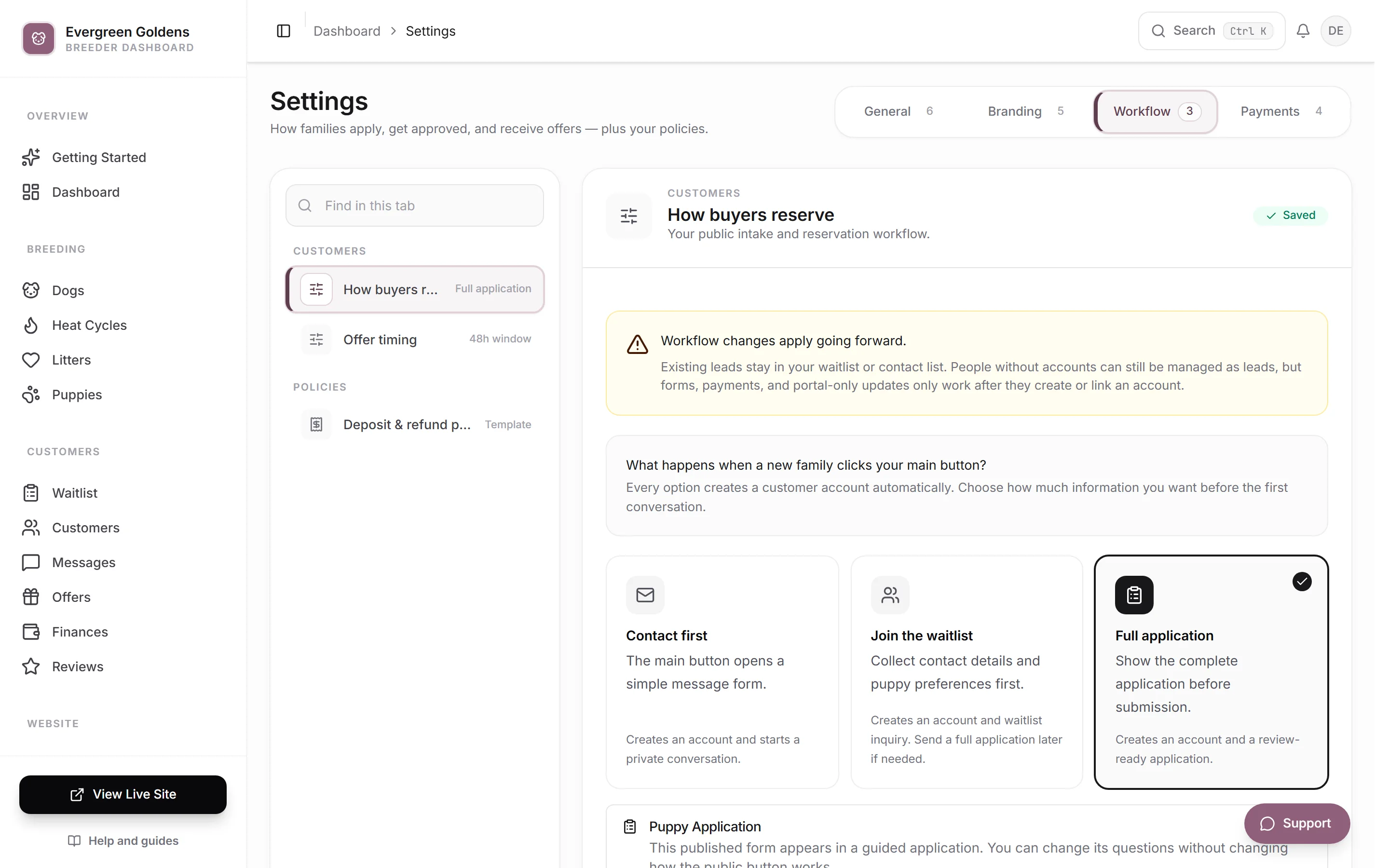
The second is how approved families reserve: Waitlist & offers means you review and send reservation offers, First-come reservations lets buyers reserve available puppies themselves, and Inquiry only means you arrange everything yourself. With first-come, the Only approved buyers can reserve switch decides whether buyers need your approval first. Changes apply going forward, so families already in your waitlist stay where they are.
Offer timing sets the Reservation window in hours and the Reminder lead time for the reminder that goes out before an offer expires. Both are defaults, and you can still change an individual reservation offer.
Applications & Reservations: Your Policy Text
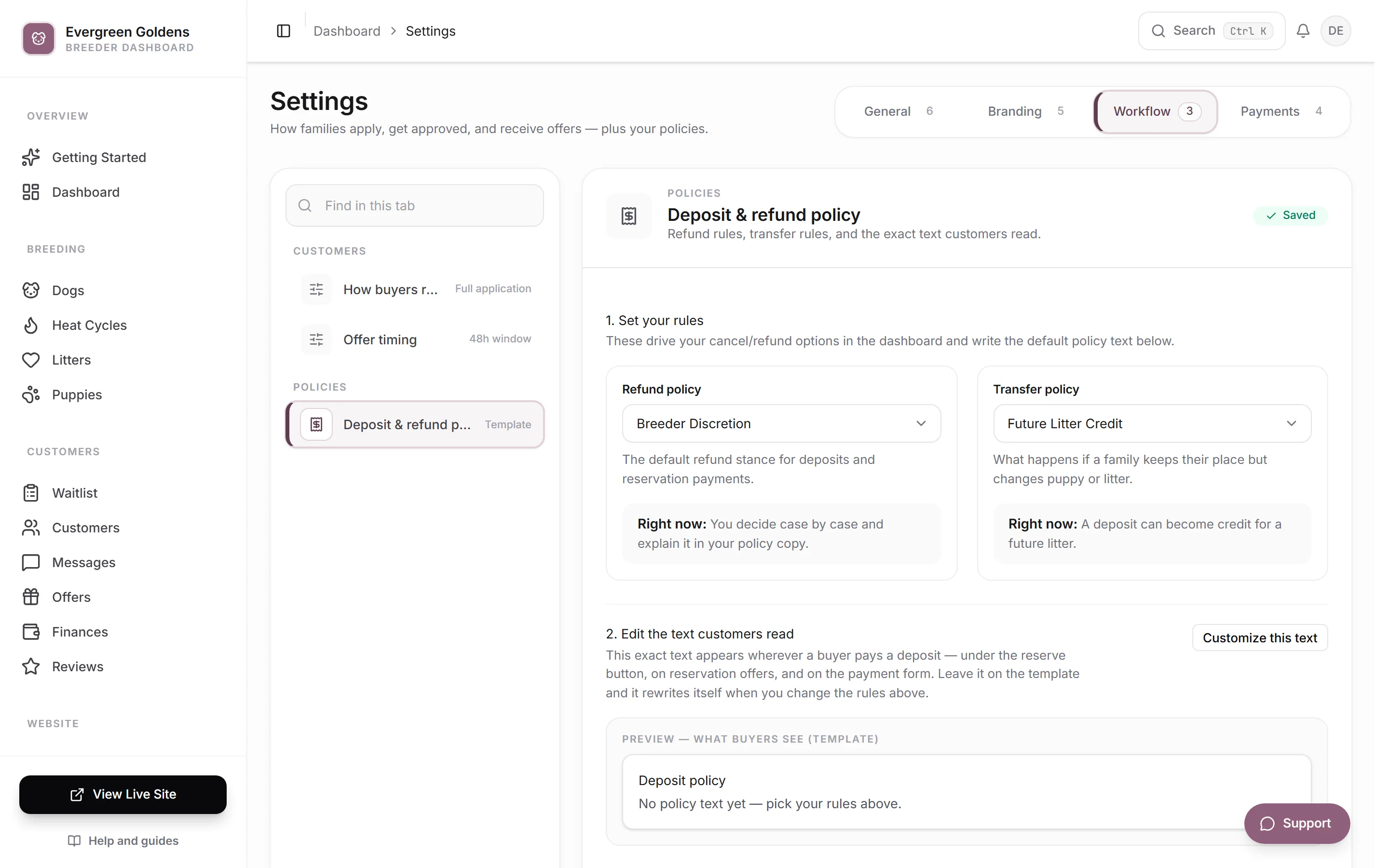
Deposit & refund policy works in three steps. First set your Refund policy and Transfer policy, which drive your cancel and refund options in the dashboard. Second, review the text customers read. Whelpify writes it from your rules, and the preview shows exactly what a buyer sees under a reserve button, on an offer, and on a payment form. Click Customize this text to write your own, or Reset to template to go back. Third, set a Terms version such as a year and month, so every agreement records which wording a family saw.
Payments
Stripe Payments connects your Stripe account and has its own switch for turning online payments on and off. See connecting Stripe for the full walkthrough.
Offline payments lets you list Zelle, Venmo, PayPal, Cash App, check, cash, or another method. For each one you add a Method, an optional Custom label, the Payment details buyers need, and optional Instructions. That exact information is copied onto invoices when you request payment. Invoice memo adds a note to the bottom of every offline request.
Deposit defaults sets the Payment mode, Deposit type, and Deposit value used when you make a reservation offer. Open deposits lets signed-in customers put money down before a specific puppy is chosen, with your own Deposit amount (USD) and Deposit policy.
Common Questions
Where Are My Colors, Fonts, and Logo?
On the Branding tab. See design, colors, fonts, and your logo for the details.
Where Do I Edit My Menu?
Menus and footers live on their own page. See menus and site structure.
Do My Workflow Changes Affect Families Already in My Waitlist?
No. They apply to new activity only. Existing leads stay in your waitlist or contact list exactly as they are.
Can I Change My Web Address Later?
Not from this page. Contact support so your existing links keep working, or connect your own domain instead.
Still stuck? Email info@whelpify.com and a real person will help.